
The replay controls show or hide groups of participants on the map all at once.
Finding the controls
On a computer they sit at the top of the left-hand side of the REPLAY tab, above the participant list. On a phone, tap Replay Menu at the top left.
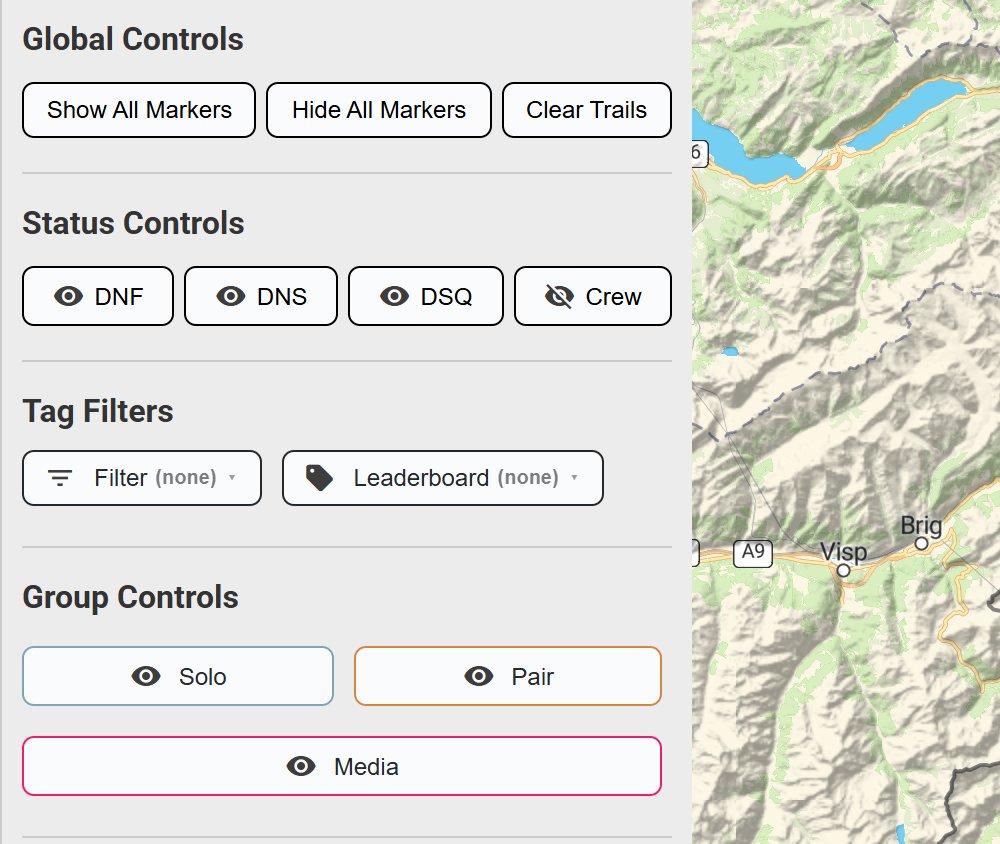
Global Controls
These buttons affect every participant:
- Show All Markers: shows every participant’s dot, including any you hid one by one.
- Hide All Markers: hides every dot. Use it to clear the map, then show only the people you want to watch.
- Clear Trails: switches off every trail and full track.
Status Controls
DNF, DNS, DSQ and Crew show or hide participants with that status. The eye icon on each button shows whether they’re on the map: an open eye means shown, a crossed-out eye means hidden. Crew are hidden when the replay opens.
Tag Filters
On some maps you’ll see a Filter drop-down, and sometimes a Leaderboard drop-down. Open one, tick the tags you want, and the map shows only participants with those tags. All ticks every tag and None clears them.
Group Controls
Events with more than one category have one button per category, for example Solo and Pair. Click a category to hide it, and click again to show it.
Related articles
Last reviewed: October 2026