
The filter buttons in the Details panel let you choose which participants, routes and map details appear on the map.
Opening the filters
- Click or tap DETAILS on the right-hand edge of the Live map.
- The filter buttons sit just below ACTION CONTROLS: Status, Tags, Favorites, Tracks and Display. There’s also a Reset filters button.
- Click a button to open its list, then tick or untick the options. The map and the participant list update straight away.
- Click anywhere outside the list to close it.
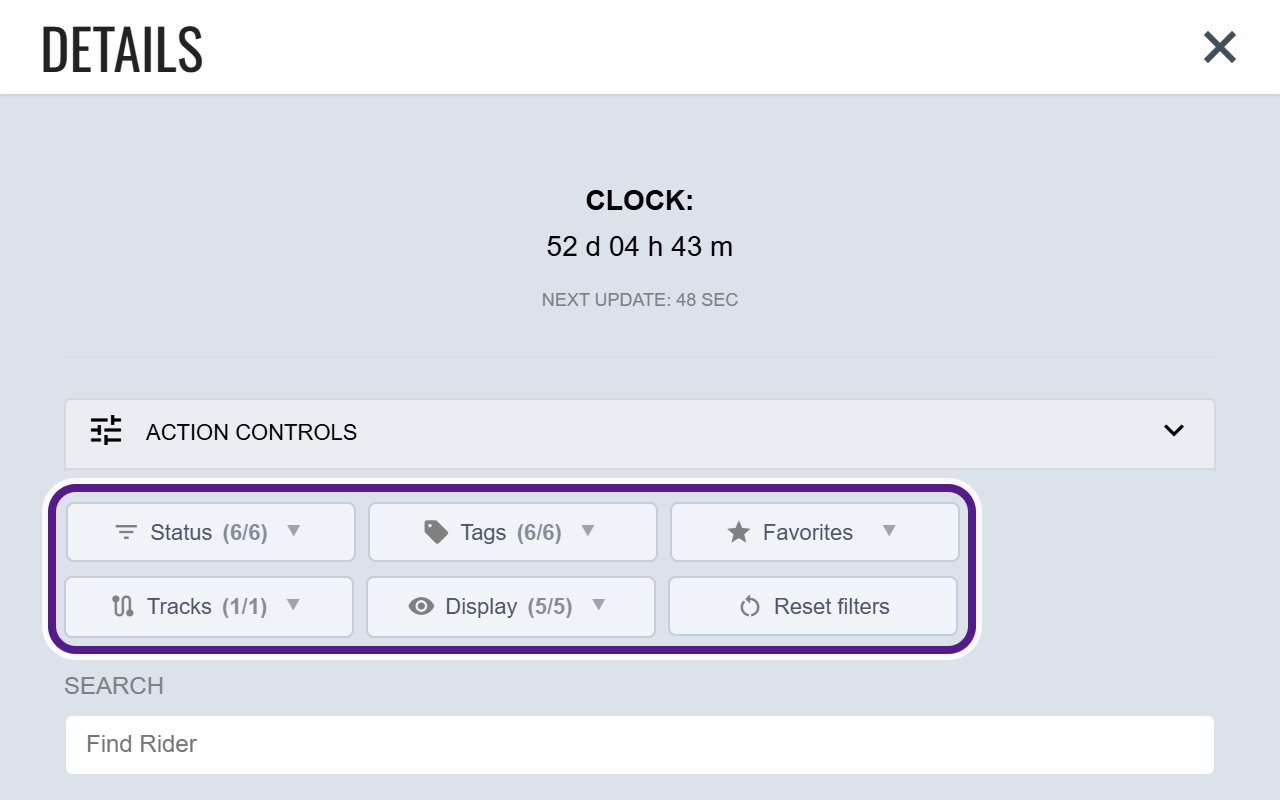
Each button shows how many of its options are ticked. For example, Status (5/6) means one status is hidden. When a filter is hiding something, its icon turns red. Every list has All and None shortcuts at the top.
Status
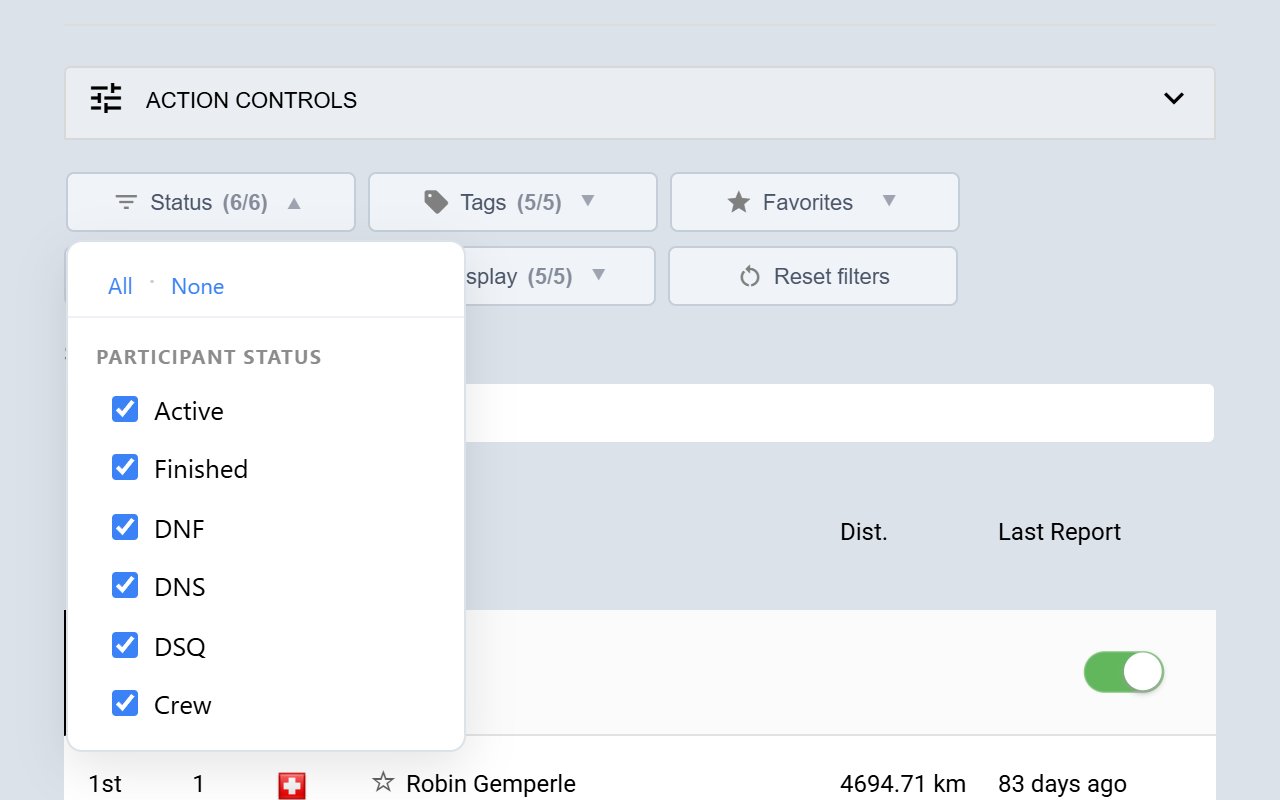
Choose which participants to show by their status:
- Active: still out on the course.
- Finished: reached the finish.
- DNF: did not finish.
- DNS: did not start.
- DSQ: disqualified.
- Crew: support crew or event staff carrying a tracker.
For example, untick Finished to see only the participants still riding. See Statuses and Penalties.
Tags
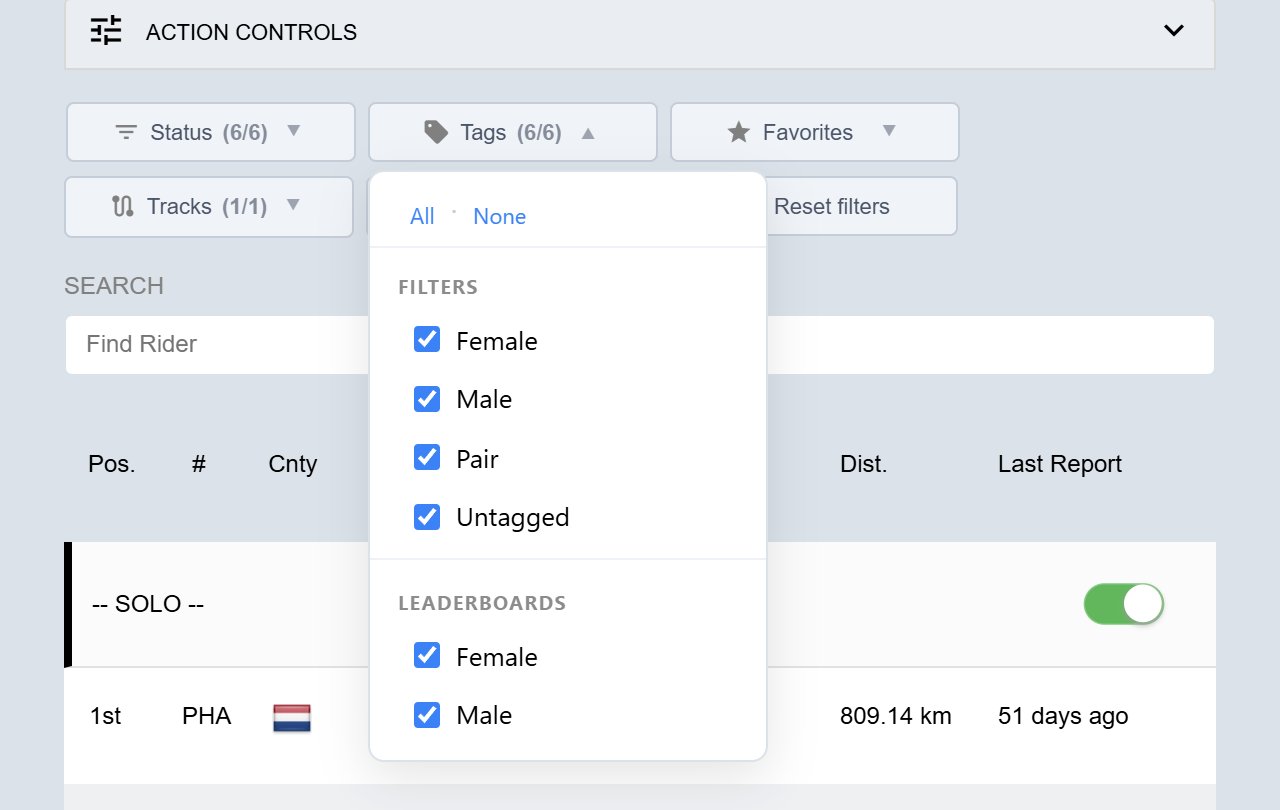
Tags lists the tags used on this event, plus Untagged for participants without one. What the tags mean depends on the event. Untick a tag to hide the participants who have it. A participant stays on the map as long as at least one of their tags is ticked.
If an event doesn’t use tags, the Tags button isn’t shown.
Favorites
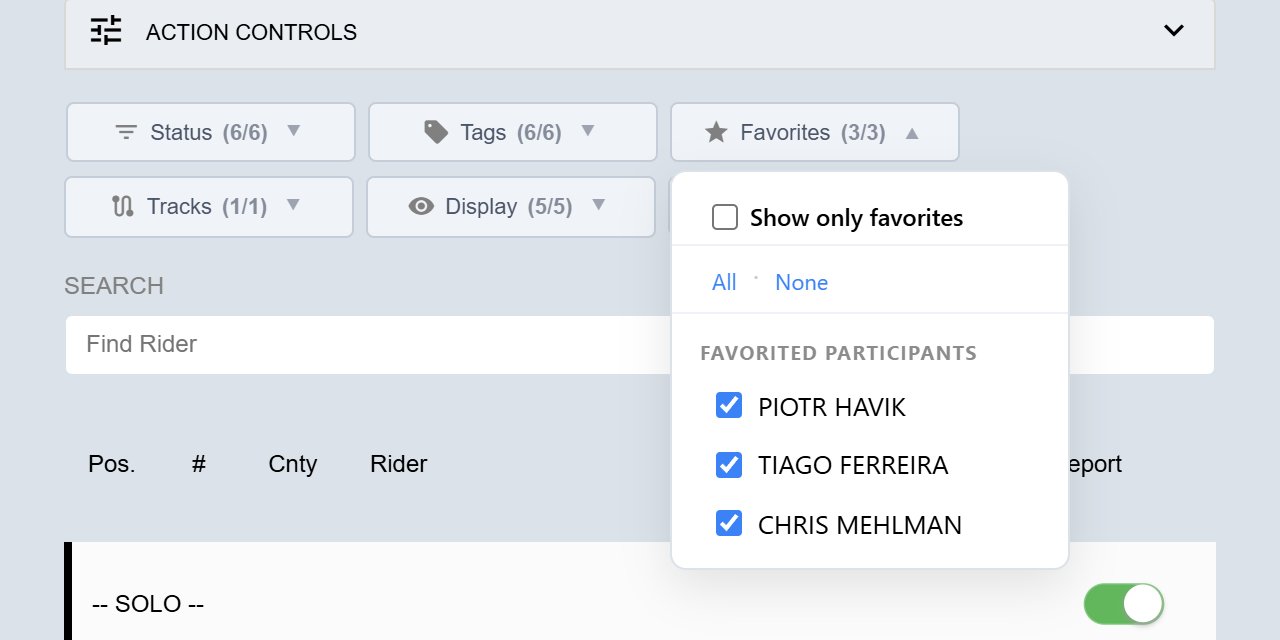
- Tick Show only favorites to hide everyone except the participants you’ve starred.
- Below that, under Favorited participants, each of your favourites has its own tick box. Untick one to hide them for now without removing their star.
If you haven’t starred anyone yet, the list says so. See Marking a Participant as a Favourite.
Tracks
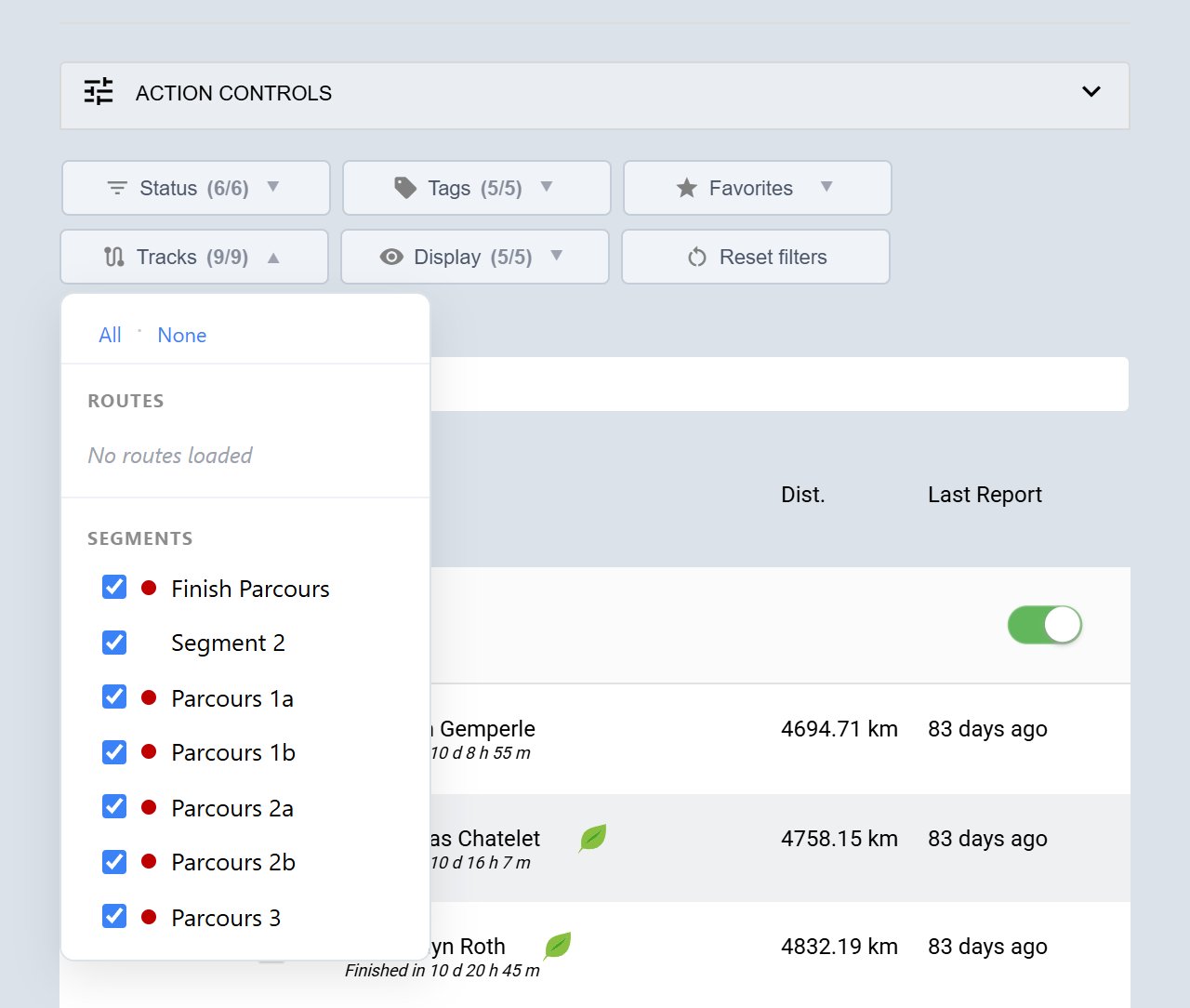
Tracks lists the lines drawn on the map, with a coloured dot that matches each line:
- Routes usually cover the whole course.
- Segments show sections of it, on events that use them.
On some maps they have names. On others they’re simply called Route 1, Segment 2 and so on. Untick one to hide that line, along with its distance markers and labels.
Display
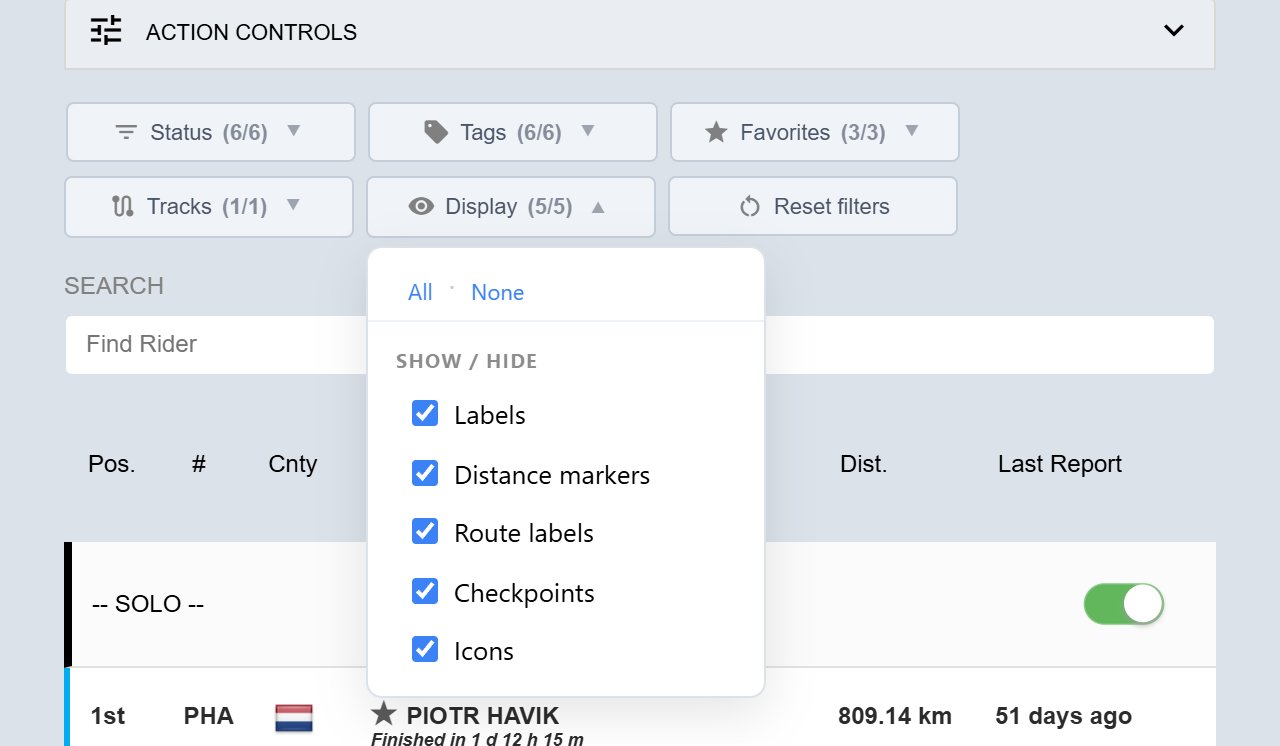
Show or hide parts of the map:
- Labels: the names next to participant dots.
- Distance markers: the distance points along the route.
- Route labels: the names shown on routes.
- Checkpoints: checkpoint markers.
- Icons: other icons the organiser has added to the map.
The filtered view notice and resetting filters
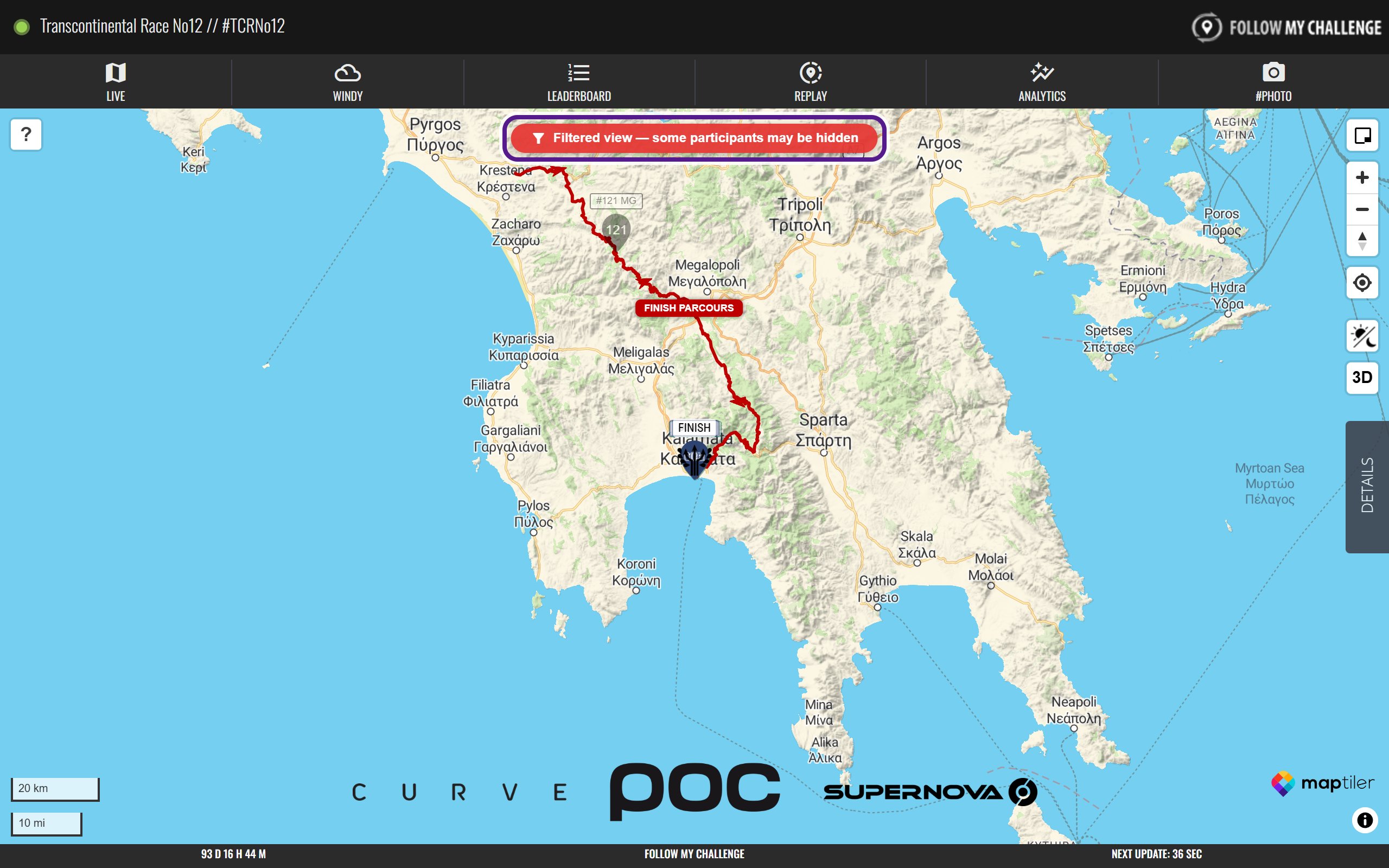
Whenever a filter is on, a red notice appears at the top of the map: Filtered view — some participants may be hidden. It also appears if you’ve switched off a category in the participant list. It’s a reminder, so nobody seems to have disappeared.
To clear every filter for this map:
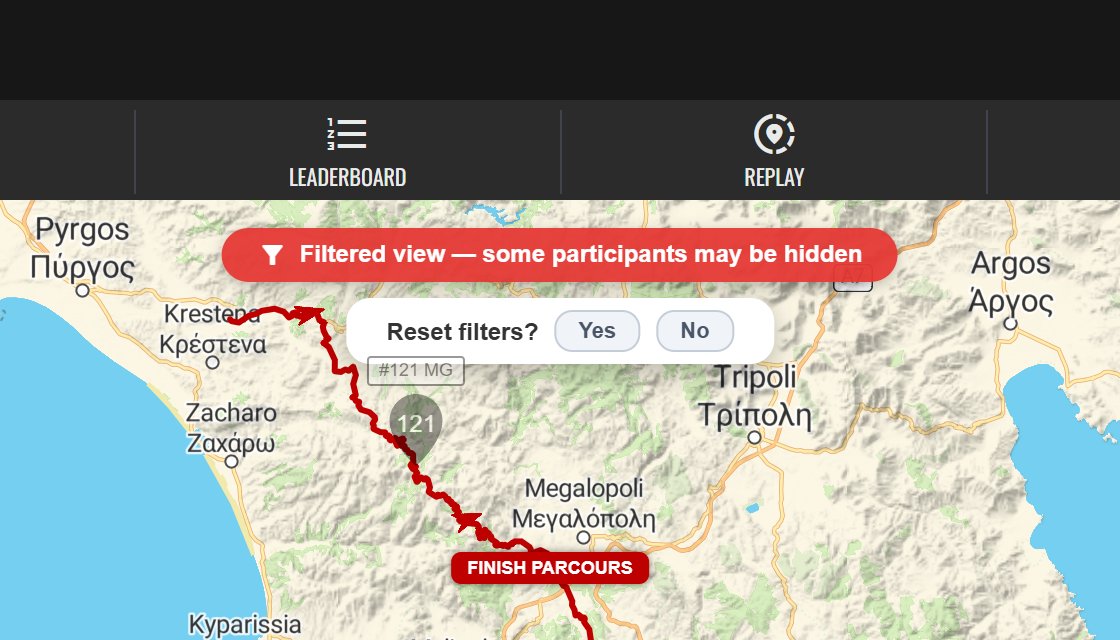
- Click the notice.
- When Reset filters? appears, click Yes. Click No to keep your filters.
You can also click Reset filters next to the filter buttons in the Details panel. Either way, the map reloads with everything showing again.
How long filters last
Your filters are saved in this browser for this map. If you close the page and come back, they’re still on. Each map keeps its own filters, and other browsers and devices aren’t affected.
Saved filters clear themselves a week after you last changed them.
Filters on the Analytics tab
The Analytics tab has its own filters, separate from the ones in the Details panel. See Filtering in the Analytics section.
When it might not appear
- Tags only appears on events that use tags.
- Tracks only lists the routes and segments the event has.
- On a phone, the filter buttons sit two to a row.
Related articles
Last reviewed: October 2026