
The Details panel lists everyone taking part and holds the controls for filtering, searching and changing how the map looks.
Opening the panel
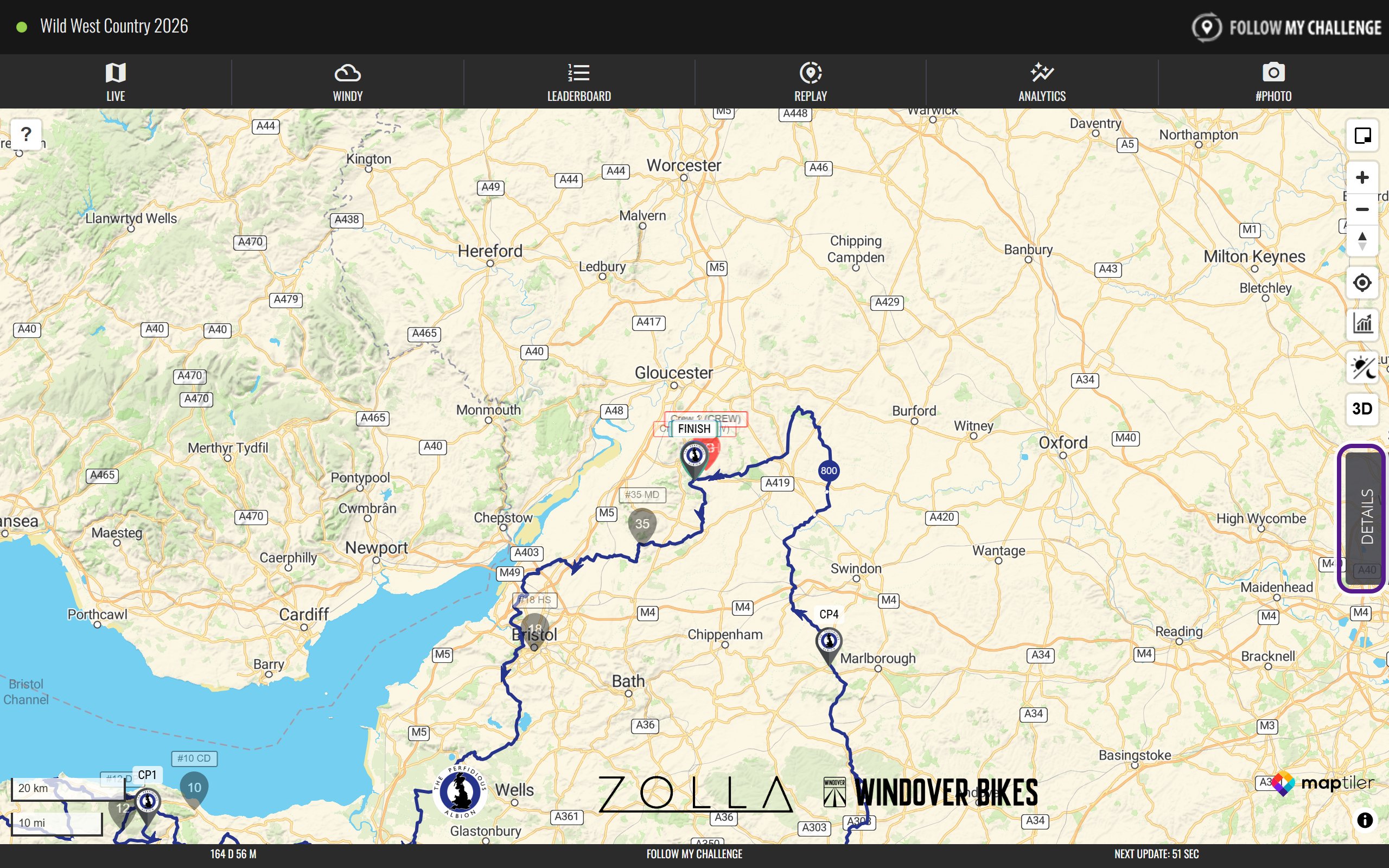
Click or tap DETAILS on the right-hand edge of the Live map. The panel slides out over the map. Click the × at the top to close it.
On a phone the panel covers most of the screen, and the participant list shows fewer columns.
What’s in the panel
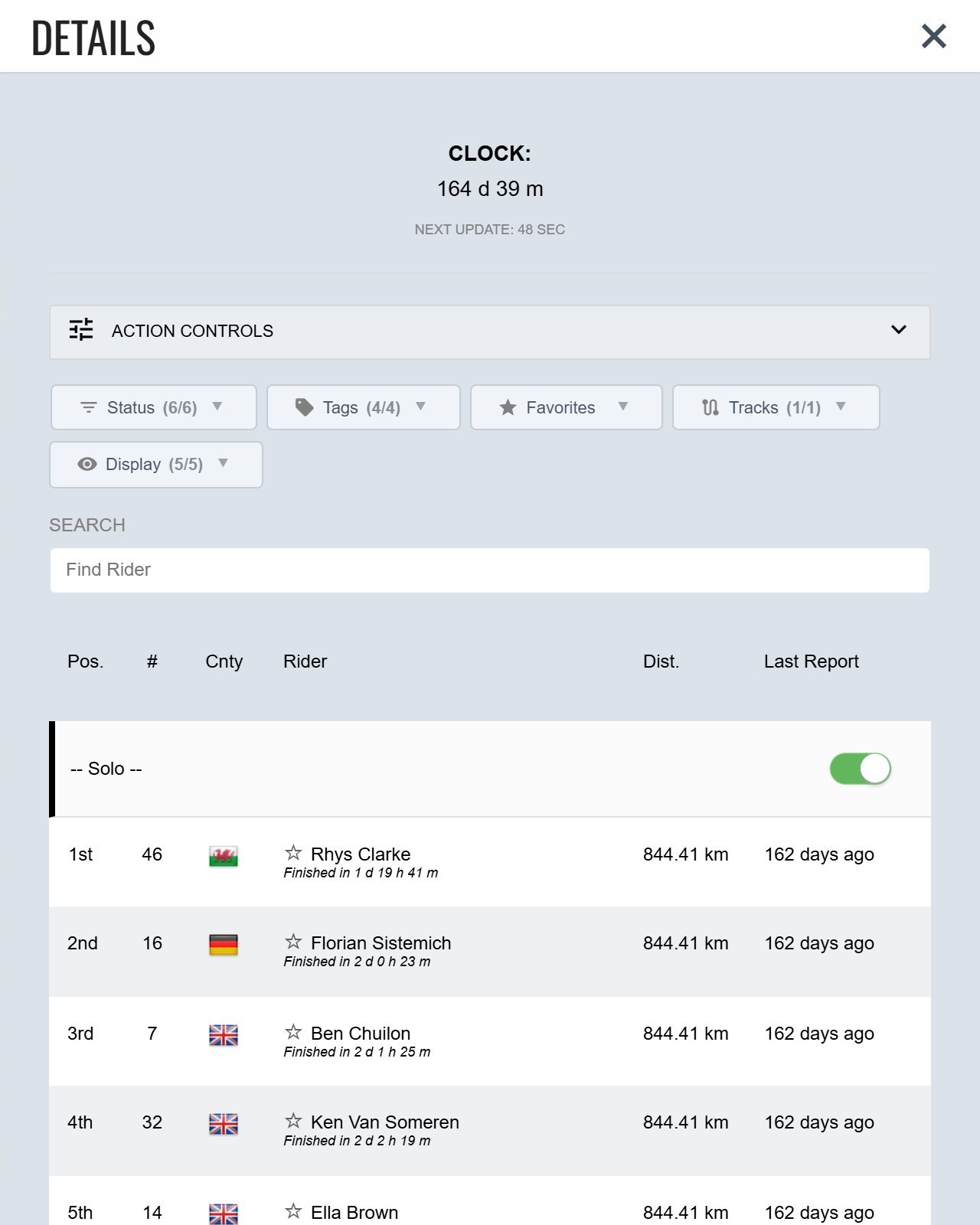
From top to bottom:
- Clock: time since the start, and a countdown to the next map update. See Update Intervals and Overdrive Mode.
- Action Controls: map layers, Minimal Mode, GPX overlays, the measuring tool, sharing favourites, language and units.
- Filters: the Status, Tags, Favourites, Tracks and Display buttons, which limit what the map shows.
- Search: find a participant by name or number.
- Participant List: everyone in the event, grouped by category, with their position, number, country, distance and last report. Click a name to see their details and track.
If something is missing
Organisers choose some of these options, so not every map shows every filter or column.
Related articles
Last reviewed: October 2026