
On some routes, the map marks the sections it thinks are unpaved. Click one to see what’s known about its surface.
Spotting unpaved sections
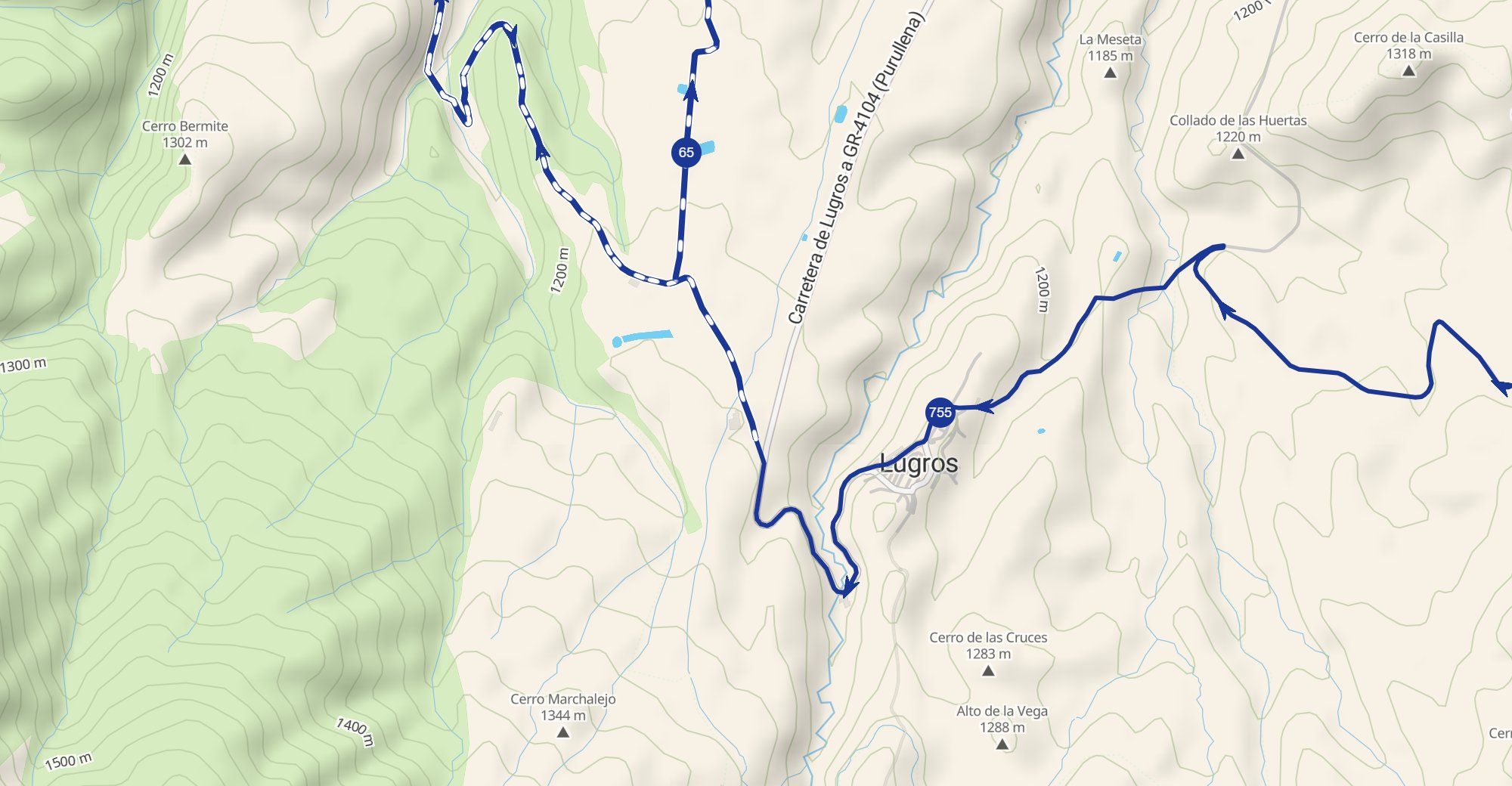
- Unpaved sections are drawn with a dashed white line along the route. Paved sections are a plain line.
- Zoom in if you can’t see the dashes.
- The Elevation Profile also shades unpaved sections more lightly.
Seeing the surface details
- Click or tap a dashed section.
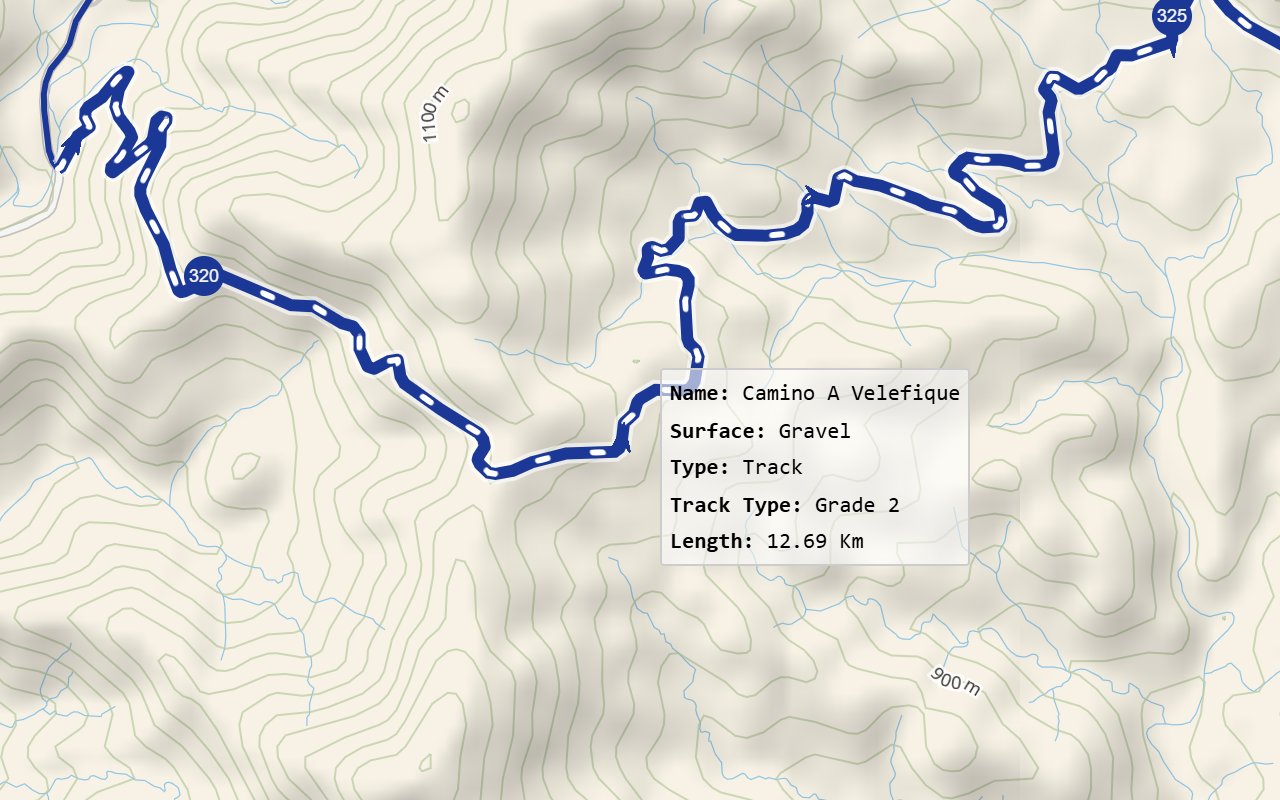
- A small pop-up shows what’s known about that section.
It can include:
- Name: the track’s name, if it has one.
- Surface: for example Gravel or Dirt.
- Type: for example Track.
- Track Type: a grade from 1 (firm) to 5 (soft).
- Length: the length of the section.
A line only appears when that detail is known.
How accurate it is
The map works out the surface from OpenStreetMap data. Some roads and tracks there have a reported surface, but many don’t, so the map has to make educated guesses from several clues. It will never be 100% accurate. It’s far more reliable where the data is good, or where public roads are almost always paved.
When you might not see it
- Not every route shows surface data.
- Free-route events usually have no route. GPX Segments don’t show surface data.
Related articles
Last reviewed: October 2026