
You can share a whole map, a single participant or your list of favourites by sending a link.
Share the map
Copy the address from your browser’s address bar and paste it into a message, email or post. On a phone, you can use your browser’s Share button instead.
The address updates as you move around, so the link opens the map on the same area and zoom level you were looking at.
Share a participant
- Click or tap a participant’s dot on the map to open their pop-up.
- Click the small link icon just after their name.
- A message confirms the link has been copied. Paste it wherever you like.
Anyone who opens the link goes straight to that participant, zoomed in on their position.
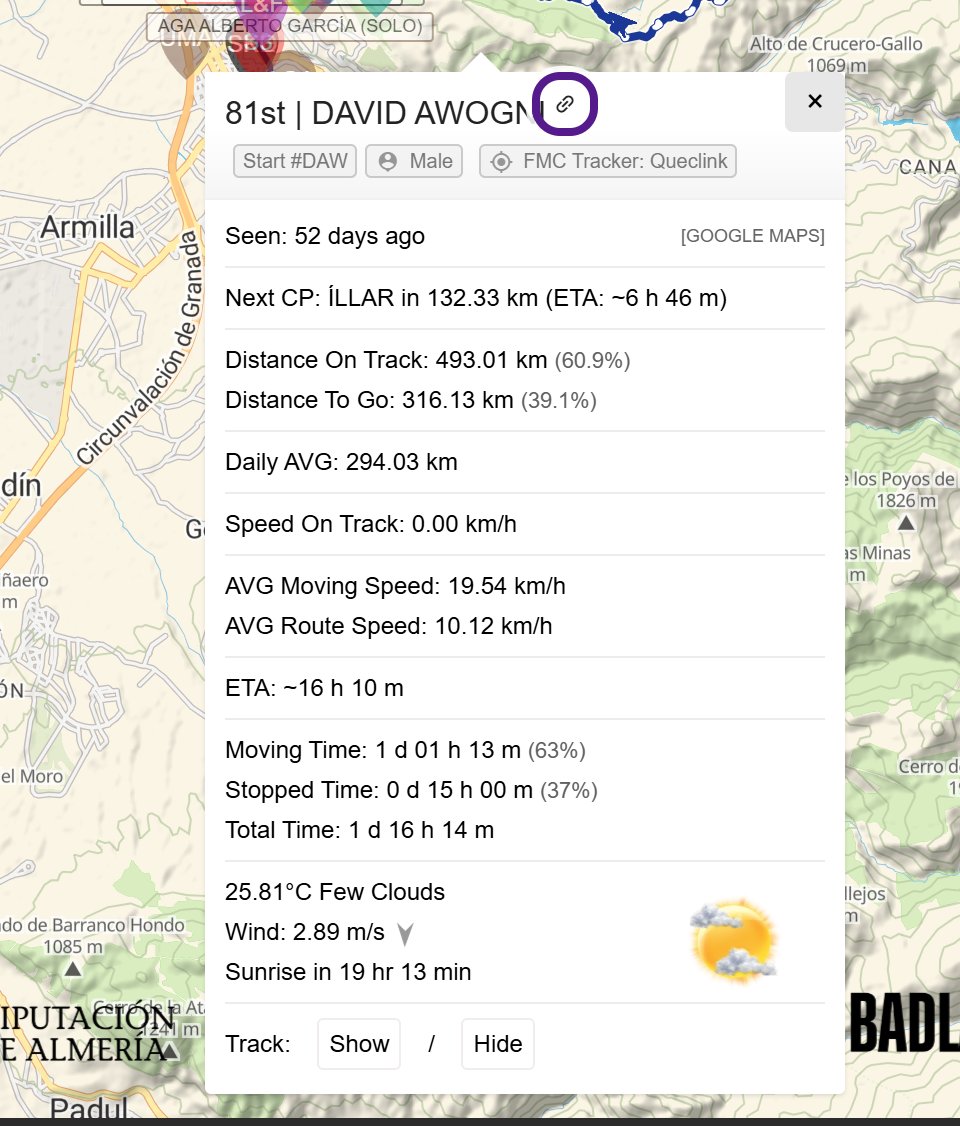
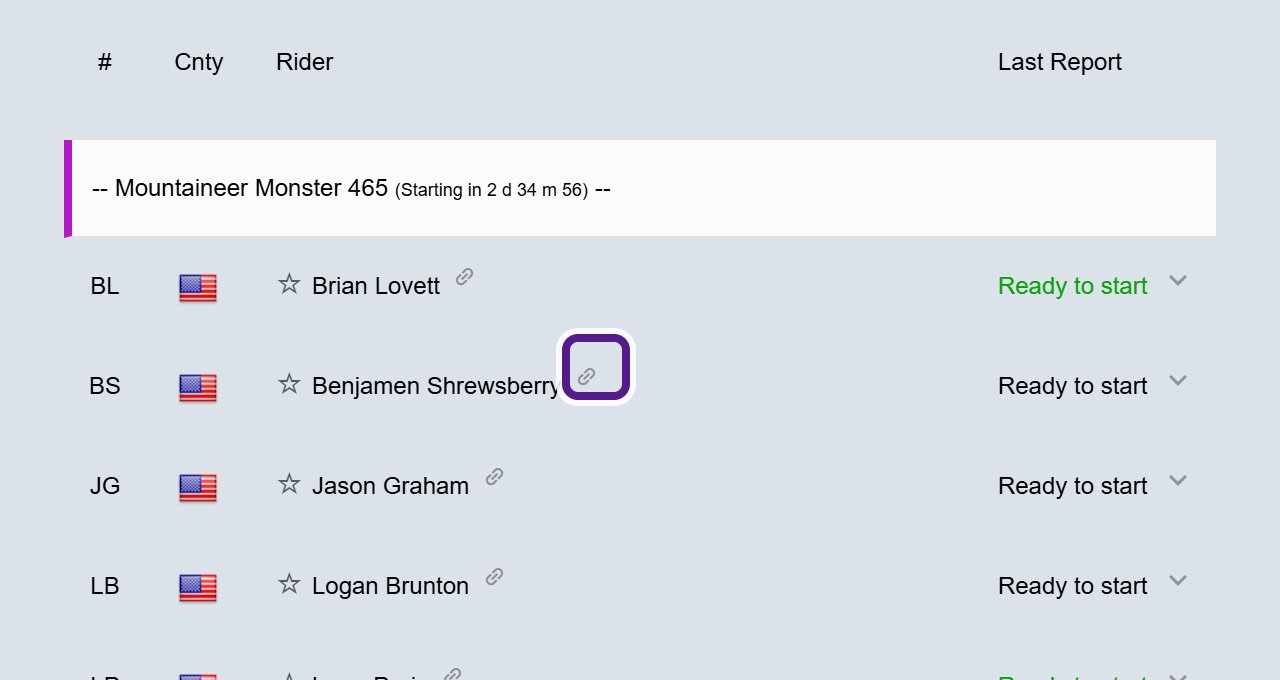
The link icon doesn’t appear for participants marked DNF, DNS, DSQ or CREW. Before the start, you’ll also find the link icon in each participant’s row in the Details panel. See Before the Start.
Share your favourites
Your favourites are saved in this browser only. To use them on another device, or to send them to someone else:
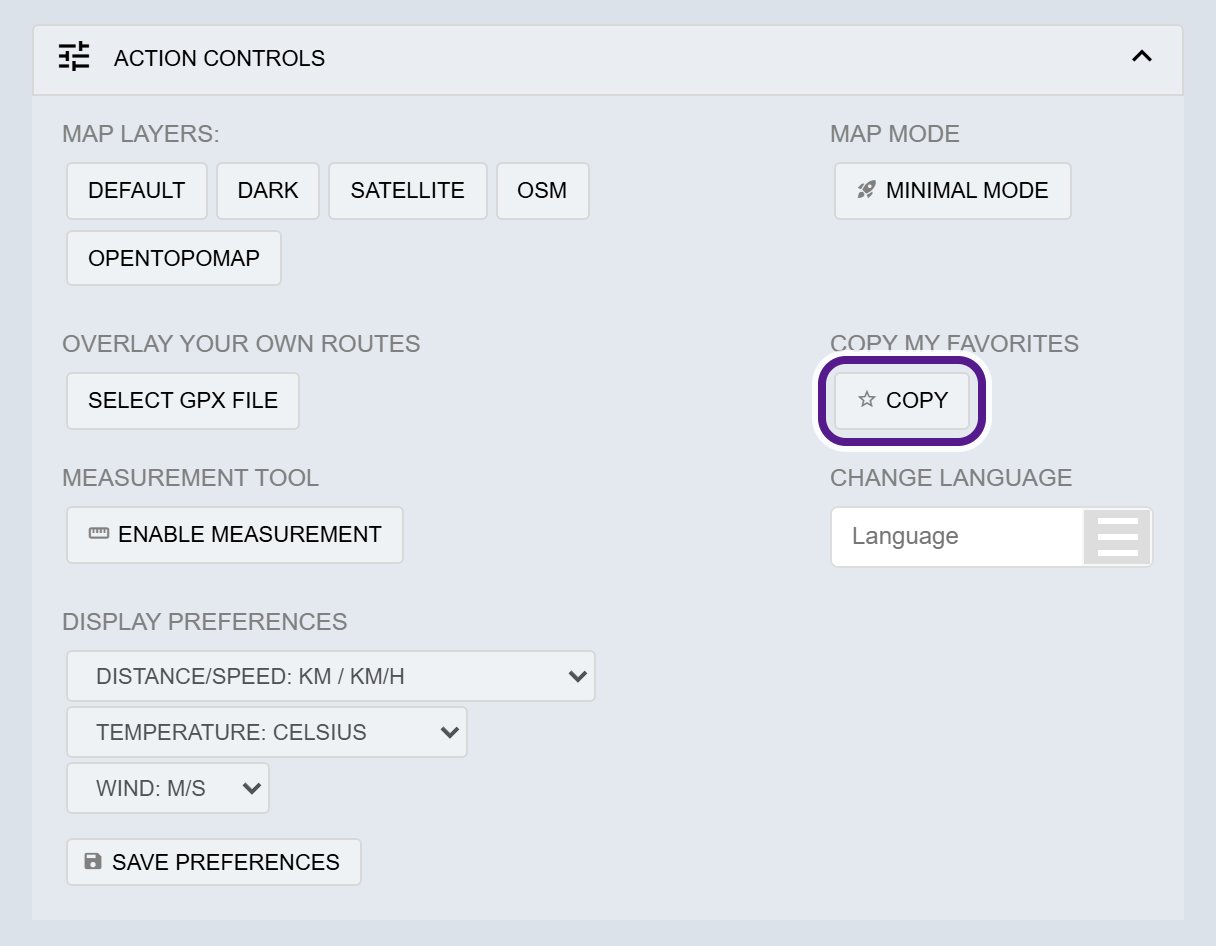
- Click DETAILS, then open ACTION CONTROLS.
- Under COPY MY FAVORITES, click COPY.
- A message confirms that a link with your favourites has been copied. Paste or send it.
Opening the link loads the map with the same participants starred.
Maps on event websites
Some events show the live map inside their own website. It works like the full map, but the organiser may have hidden some tabs, the header or the footer. To share it, send the link to the event’s web page, or find the map on Follow My Challenge (see Finding a tracking map). See Event-Specific Features.
Events with more than one map
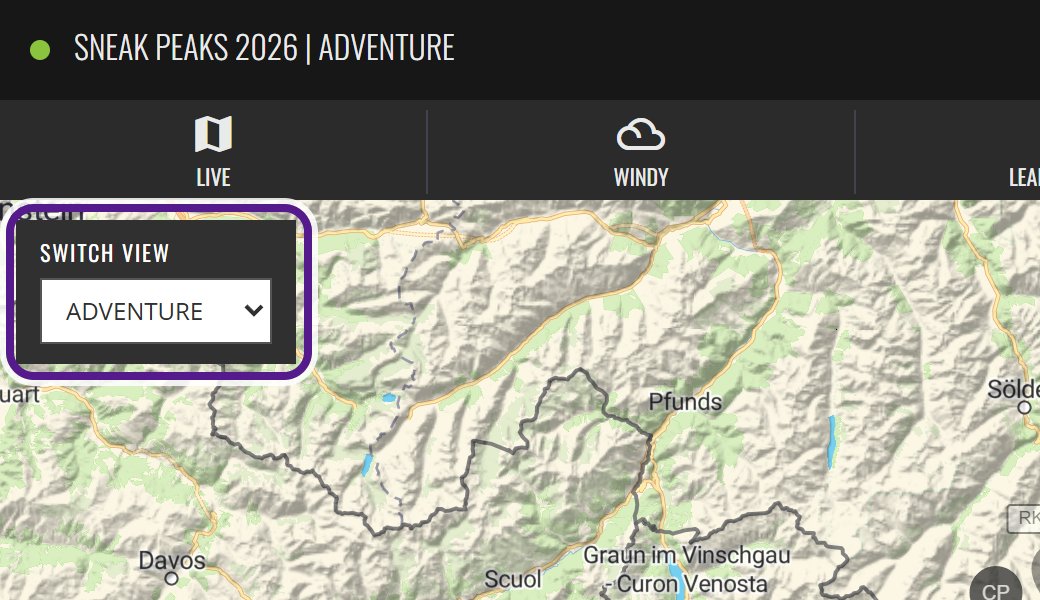
Some events have linked maps, for example one per race or distance. On these, a SWITCH VIEW dropdown at the top left of the map lets you switch between them. Each map has its own address, so share the one you’re looking at. See Event-Specific Features.
When it might not appear
- The participant link icon isn’t shown for participants marked DNF, DNS, DSQ or CREW.
- COPY MY FAVORITES only helps once you’ve starred someone. See Marking a Participant as a Favourite.
- Linked maps and embedded maps depend on the event.
Related articles
- Finding a tracking map
- Marking a Participant as a Favourite
- Participant Pop-up & Track
- Action Controls
Last reviewed: October 2026