
Checkpoints are markers at key points on the course, such as control points and the finish. The map records the time each participant reaches them.
Finding checkpoints on the map
Checkpoints appear as markers on the Live tab. Most show a short label inside or beside the marker, such as CP1 or FIN. Checkpoints with longer names show the full name on the Leaderboard and in the Details panel, for example CP2 – Sampford Spiney.
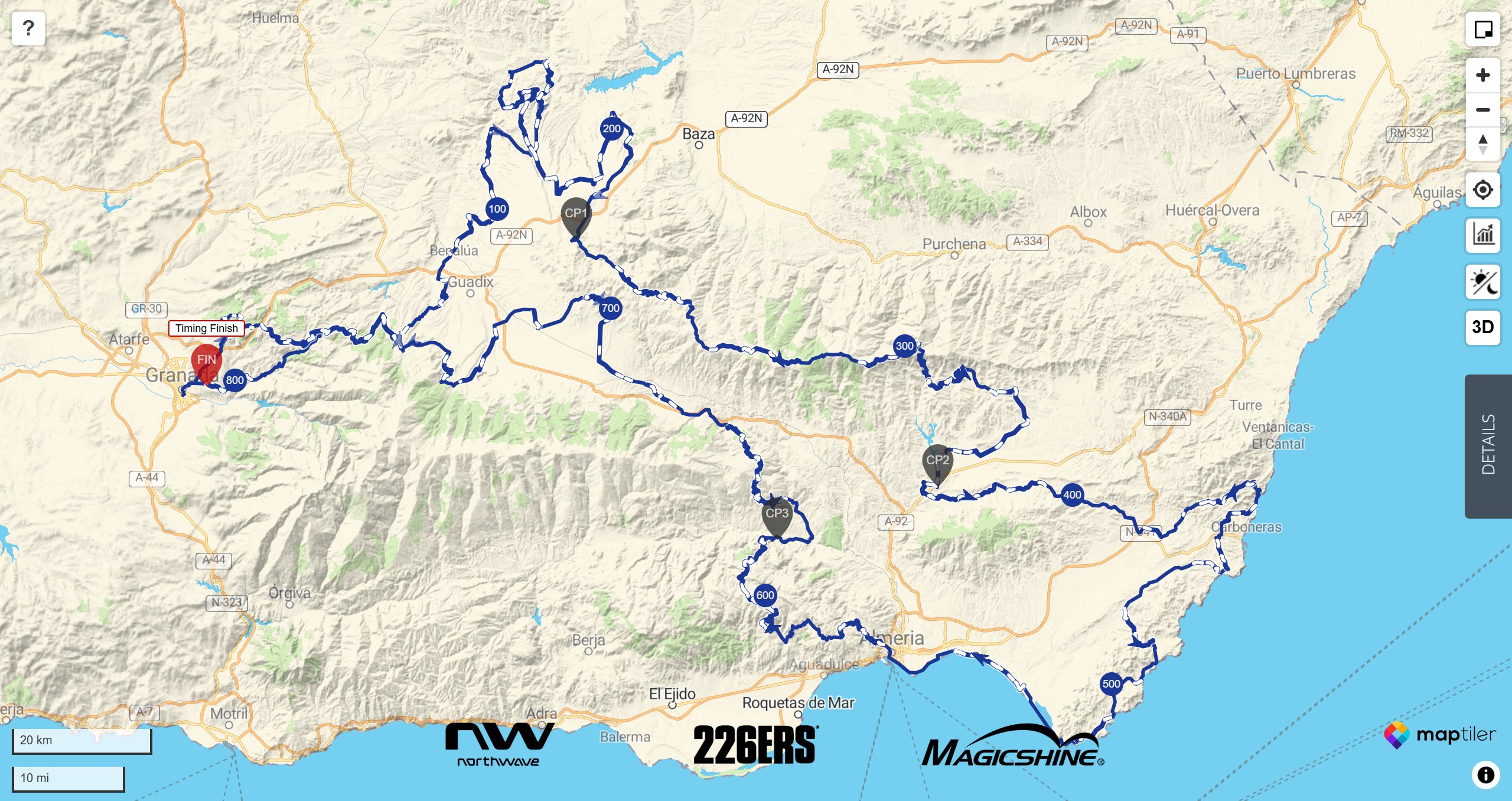
To hide checkpoint markers, open Display in the Filters and untick Checkpoints.
How arrival times are recorded
When a participant’s tracker sends a position within a set distance of a checkpoint, the map records the time automatically. On some events, checkpoint times are added manually instead. When that happens, it’s usually noted on the map or the Leaderboard.
You can see the times in two places:
- Leaderboard: each checkpoint has its own column with the arrival time, the Segment Time since the previous checkpoint, and the participant’s Position at that checkpoint. A Checkpoints column counts how many they’ve reached. See Leaderboard.
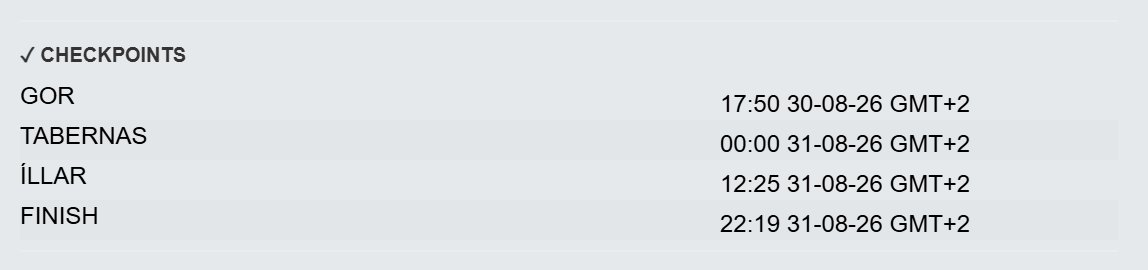
- Details panel: click a participant in the Participant List. Their times are listed under ✓ CHECKPOINTS.
The participant pop-up also shows the Next CP, how far away it is and an estimated arrival time. See Participant Pop-up & Track.
Which time zone the times use
Arrival times are shown in the participant’s local time at the checkpoint, not in your time zone. In the Details panel each time has its time zone, for example 17:50 30-08-26 GMT+2. The Leaderboard shows the same times without the time zone. If you’re following from somewhere else, compare with My Time in the expanded row.
Checkpoint rankings
On some events, participants are ranked by checkpoints rather than by distance. For example, by the time they reached the latest checkpoint, or by how many checkpoints they’ve visited. See Ranking and Sorting.
Custom checkpoint icons
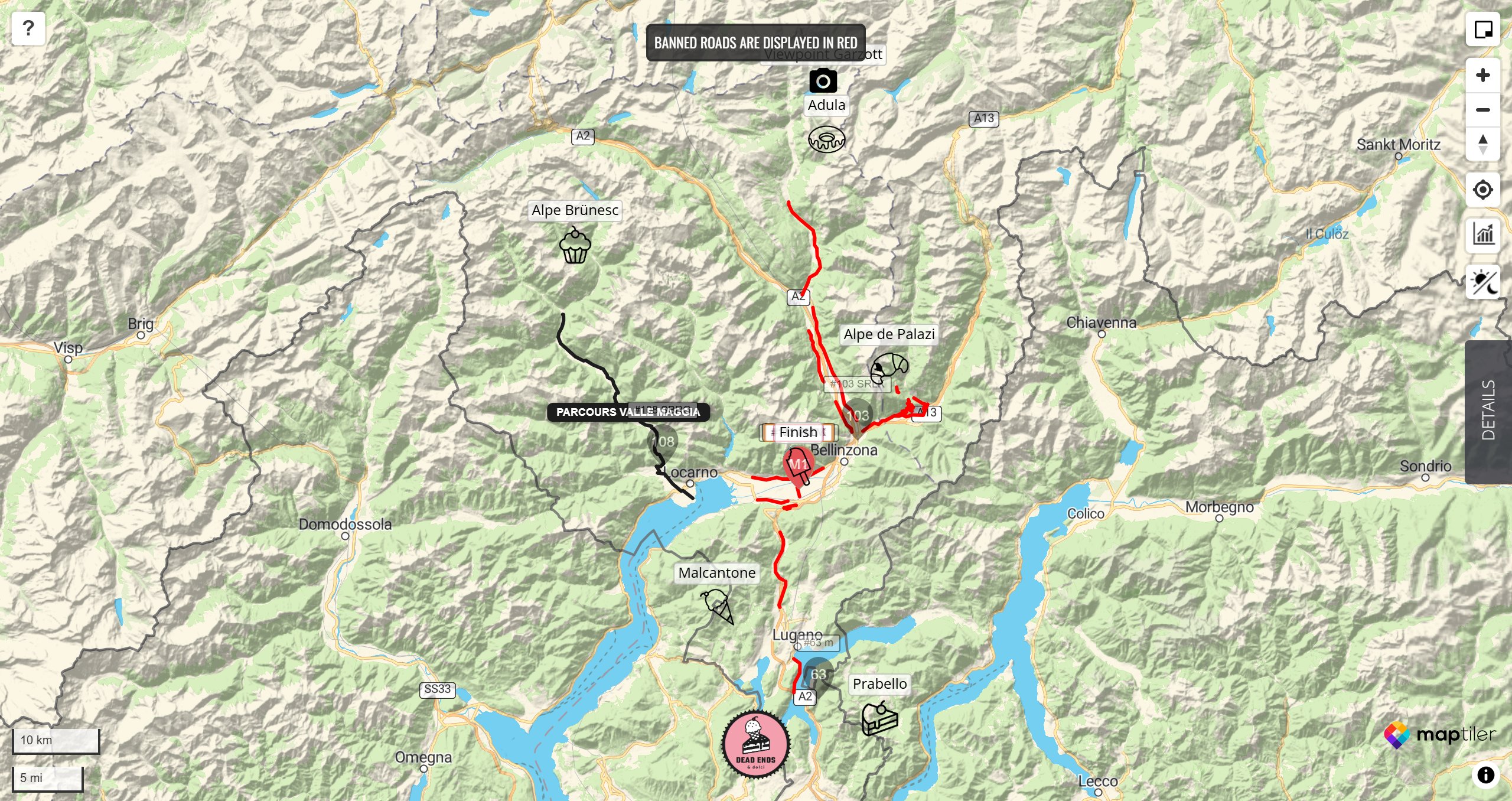
Some maps use custom checkpoint icons, such as the event’s logo, or show the checkpoint’s full name beside the marker. They work in exactly the same way as standard markers.
Checkpoint pop-ups
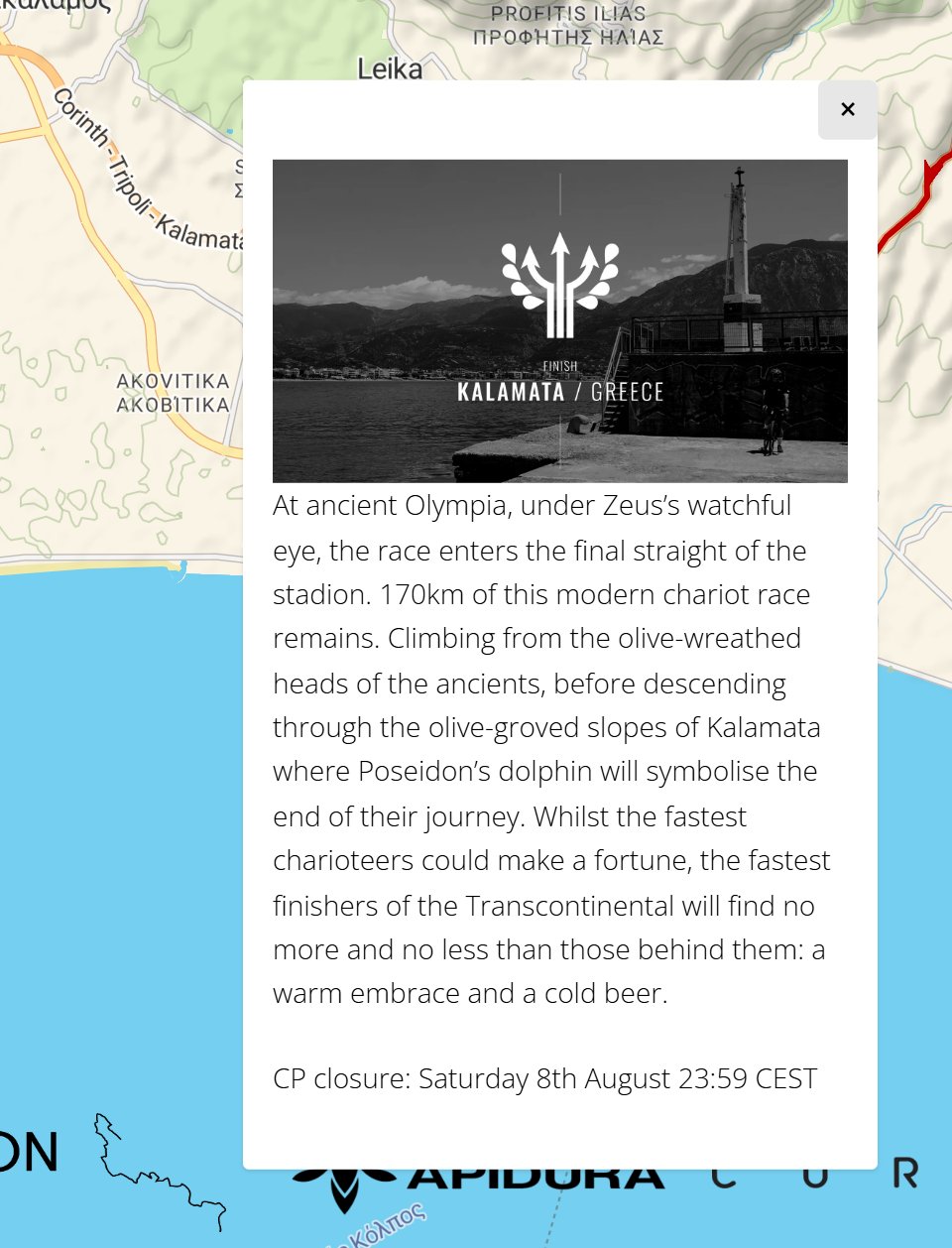
On some maps, clicking a checkpoint opens a pop-up with more about it. This can include text, photos and links. The organiser writes the content, so not every event has it. Click the × in the top corner to close the pop-up.
Checkpoints you can’t see on the map
- Hidden checkpoints: on some events, some checkpoints aren’t shown on the map, but arrival times are still recorded. They still appear on the Leaderboard and in each participant’s ✓ CHECKPOINTS list.
- Checkpoints that appear later: on some events, a checkpoint only appears on the map from a set time.
If something is missing
- Not every event uses checkpoints.
- If you can’t see any markers, check that Checkpoints is ticked under Display in the Filters.
- A checkpoint may be hidden or not shown yet. See “Checkpoints you can’t see on the map” above.
- Pop-ups and custom icons depend on the event.
Related articles
Last reviewed: October 2026