
Some features only appear on certain maps, depending on how the event is set up. This article explains what they are, so you know what you’re looking at when you see them.
Switching between linked maps
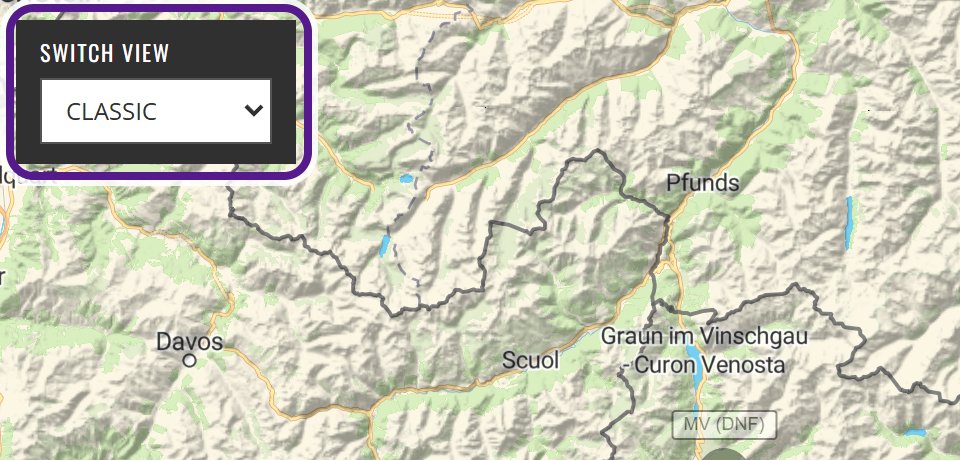
Some events have more than one map, for example one for each race or distance. On these maps, a SWITCH VIEW dropdown sits at the top left of the Live map.
- Click the dropdown under SWITCH VIEW.
- Choose a map from the list. It opens in the same tab.
Each map has its own participants, Leaderboard and address. If you share a link, share the map you’re looking at. See Sharing a map.
Event and sponsor logos
Many maps show the event’s logo, and often its sponsors’ logos, in a bar along the bottom of the Live map.
- Click a logo to open that organisation’s website in a new tab.
- When there are several logos, they scroll along the bar by themselves.
The logos don’t affect the tracking.

Event Notice
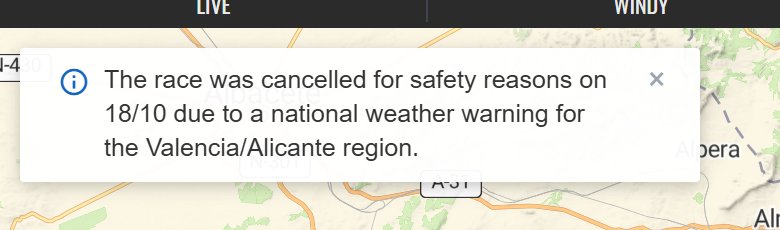
Some maps show a short notice in a white card at the top left of the Live map, marked with a blue ⓘ. The organiser uses it to explain anything unusual that could otherwise look like a fault. For example, the rankings may be hidden, the event may use stages, or plans may have changed.
- Read it before assuming something is broken.
- Click × to close it.
- It comes back the next time you open the map in a new tab or window.
Hidden tabs and rankings
Not every map has every tab. Organisers can hide the tabs they don’t use, so some maps have no #PHOTO, ANALYTICS or LEADERBOARD tab.
Some events hide the rankings, and how depends on the event:
- Positions may be blank or hidden.
- The LEADERBOARD tab may be hidden.
- The LEADERBOARD tab may stay, without positions, so you can still see figures such as distances and speeds.
When something is hidden, there may be an Event Notice explaining why. Often the reason is clear from the event itself, for example a non-competitive event with no rankings.
Embedded maps on event websites
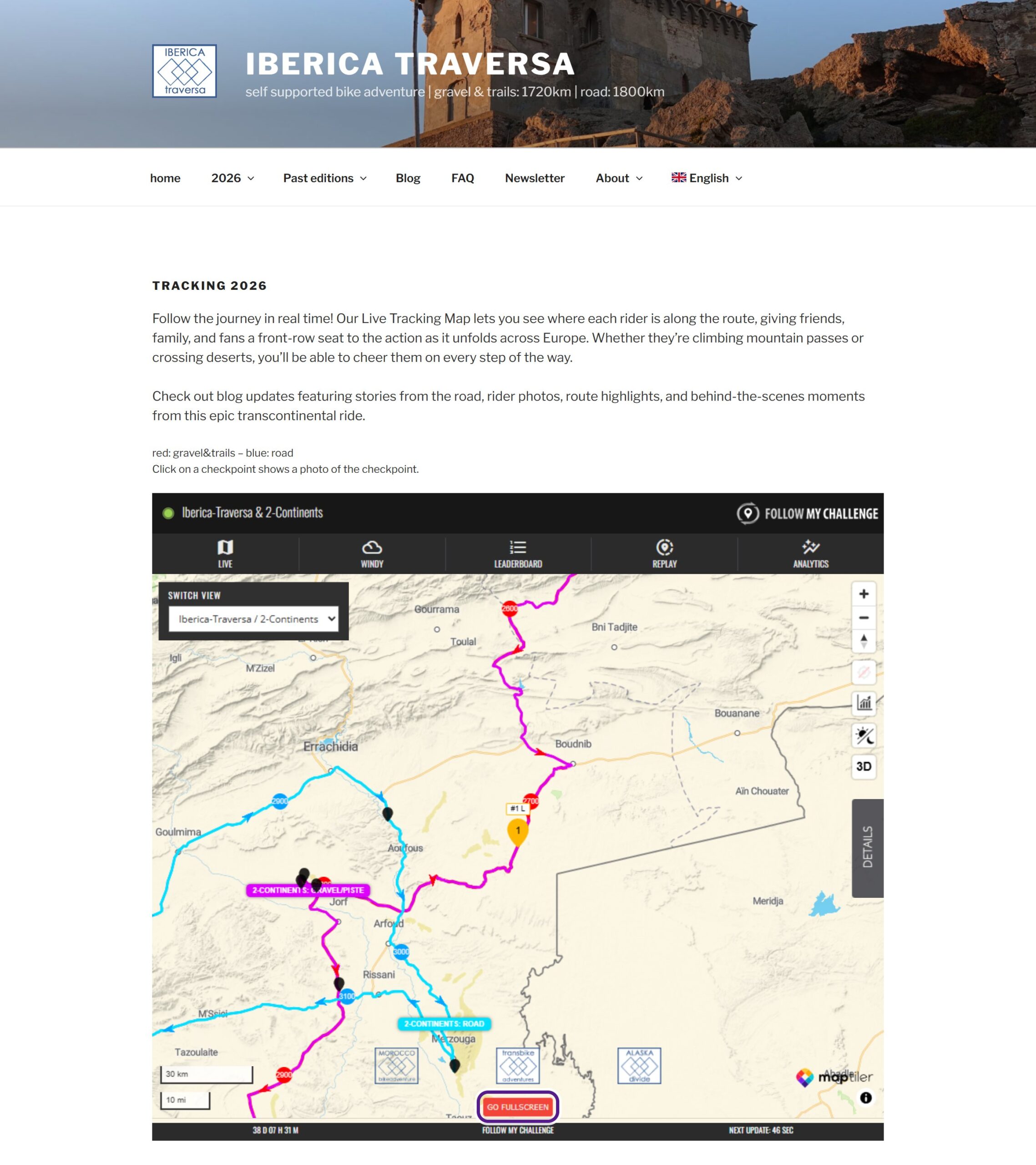
Some events embed the live map in their own website, so you can follow the event there. An embedded map works like the full map, but it may have no header or footer, and some tabs may be hidden.
To open the full map, click the red GO FULLSCREEN button at the bottom of the embedded map. You can also find the map on Follow My Challenge. See Finding a tracking map.
If something is missing
- These features depend on the event. Most maps only have some of them.
- No SWITCH VIEW dropdown means the event has just one map.
- If you’ve closed the Event Notice and want it back, open the map in a new tab or window.
Related articles
Last reviewed: October 2026