
A participant profile collects someone’s Follow My Challenge results in one place, along with their photo, bio and social links if they’ve added them.
Profiles are in beta and only appear on selected events.
Opening a profile
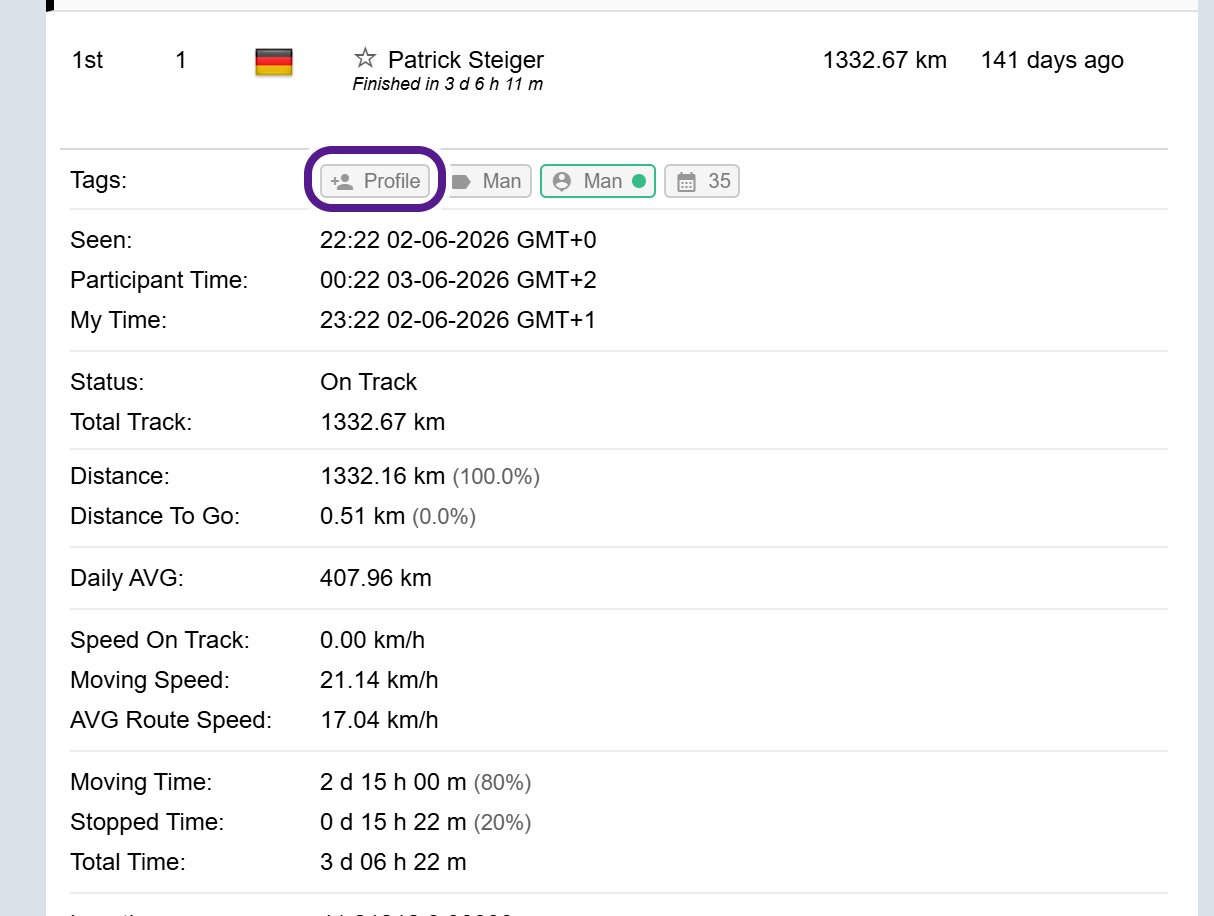
On maps with profiles, a Profile link shows in the participant’s row in the Details panel, and in their pop-up on the map. Expand the row if you can’t see it. The profile opens in a new browser tab.
- A Profile link with a person icon means the participant hasn’t claimed their profile yet. Hover over it to see Claim your profile.
- A Profile link with a green tick means the participant has claimed it.
What’s on a profile
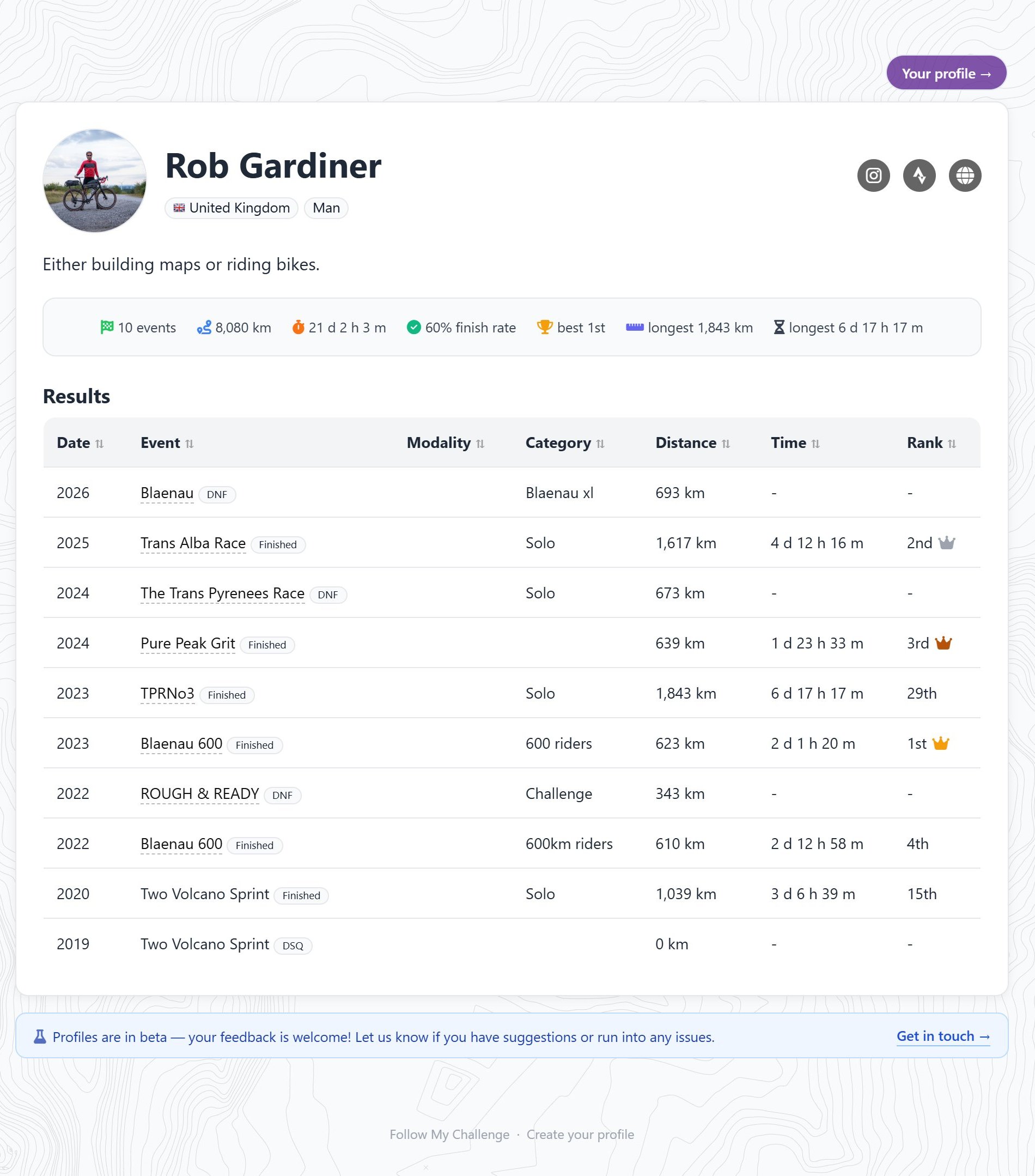
A claimed profile shows:
- the participant’s name, country, photo and social links
- a summary: number of events, total distance and time, finish rate, best position, and their longest event by distance and by time
- a Results table of their events, with date, event, category, distance, time and rank. Click a column heading to sort it. Click an event name to open that event’s map.
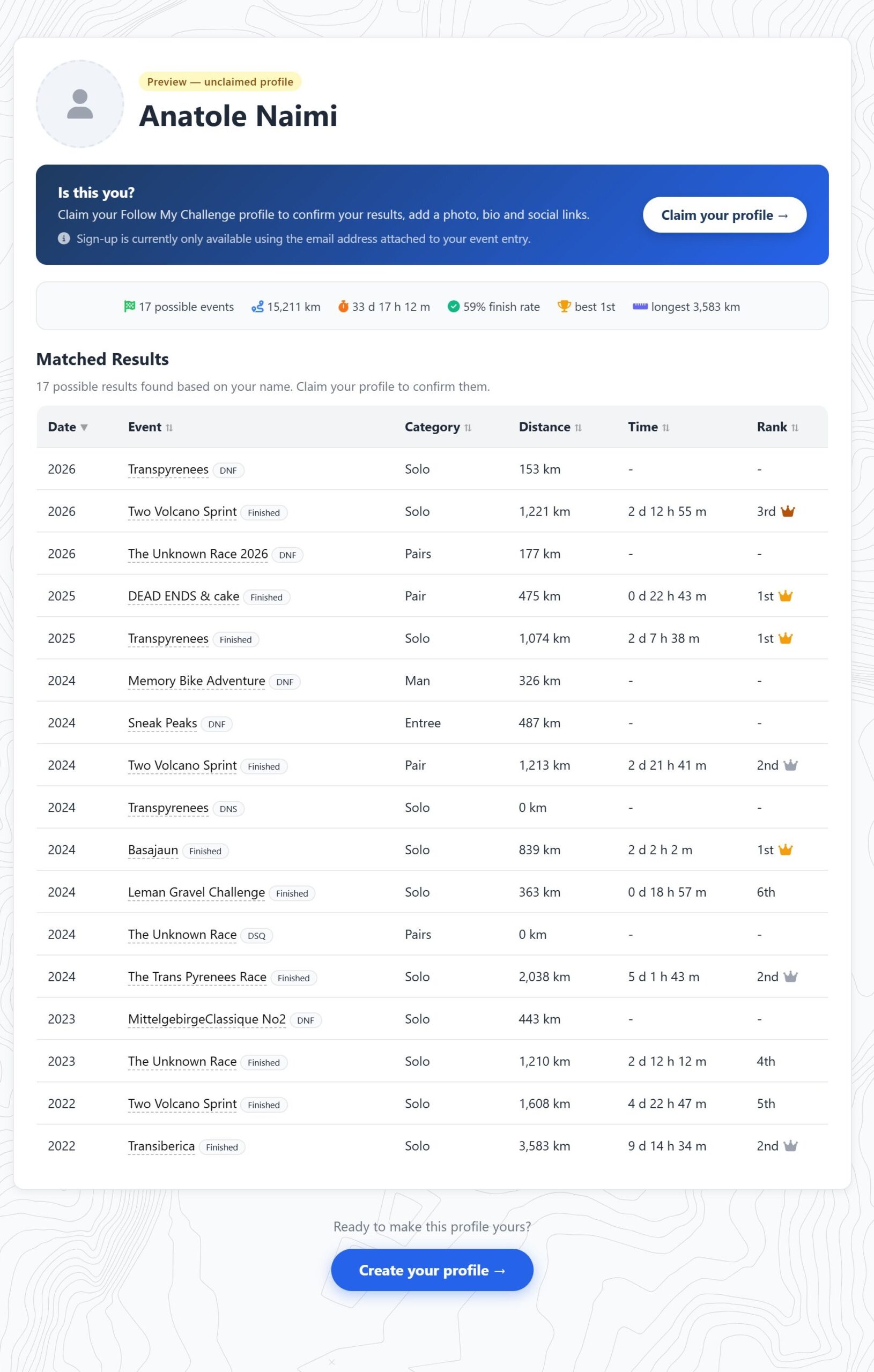
An unclaimed profile is marked Preview — unclaimed profile. Its Matched Results are possible results, found by matching the participant’s name, and also by email address and phone number where the event holds them. They aren’t confirmed until the participant claims the profile, so a preview may include results that belong to someone else with the same name.
Claiming your profile
You can claim a profile if you’re taking part in an event that has profiles turned on. You must use the email address you entered the event with. Other addresses won’t work. If you’re taking part, see also For Participants.
- Profile preview generated: when you’re added to the map, a preview profile is created with results matched to you.
- Claim and customise: open your profile from the map and click Claim your profile →. Enter the email address you used to enter the event and click Send Login Link, then follow the link in the email. You can then add a photo, bio and social links, and accept or reject the suggested results.
- Profile link updates: the link on the map changes to show a green tick and goes to your profile page.
- Results keep coming: when an event finishes, the result is added to your profile automatically. At future events, your claimed profile is linked for you.
Editing your profile
Click Your profile → at the top of any profile page, or Create your profile at the bottom. Enter your email address, click Send Login Link and follow the link in the email. You can then change your photo, bio and social links, and accept or reject results.
Removing a result or hiding your profile
If a result isn’t yours, reject it from your profile. Profiles can’t be deleted, but you can hide yours by turning off its visibility when you edit your profile.
If you entered with a different email address
Sign-up only works with the email address on your event entry. If you used a different address, or can’t get into that inbox any more, get in touch and tell us which event you took part in.
Reporting a problem
If something on a profile is wrong, such as a result that isn’t yours or wrong details, use the Get in touch → link at the bottom of any profile page.
Sharing a profile
Copy the profile’s web address from your browser to share it. When you post the link on social media or in a messaging app, it shows a preview image with the participant’s name and some of their key stats.
If you don’t see a profile link
- Profiles are in beta, so they only appear on selected events.
Related articles
Last reviewed: October 2026