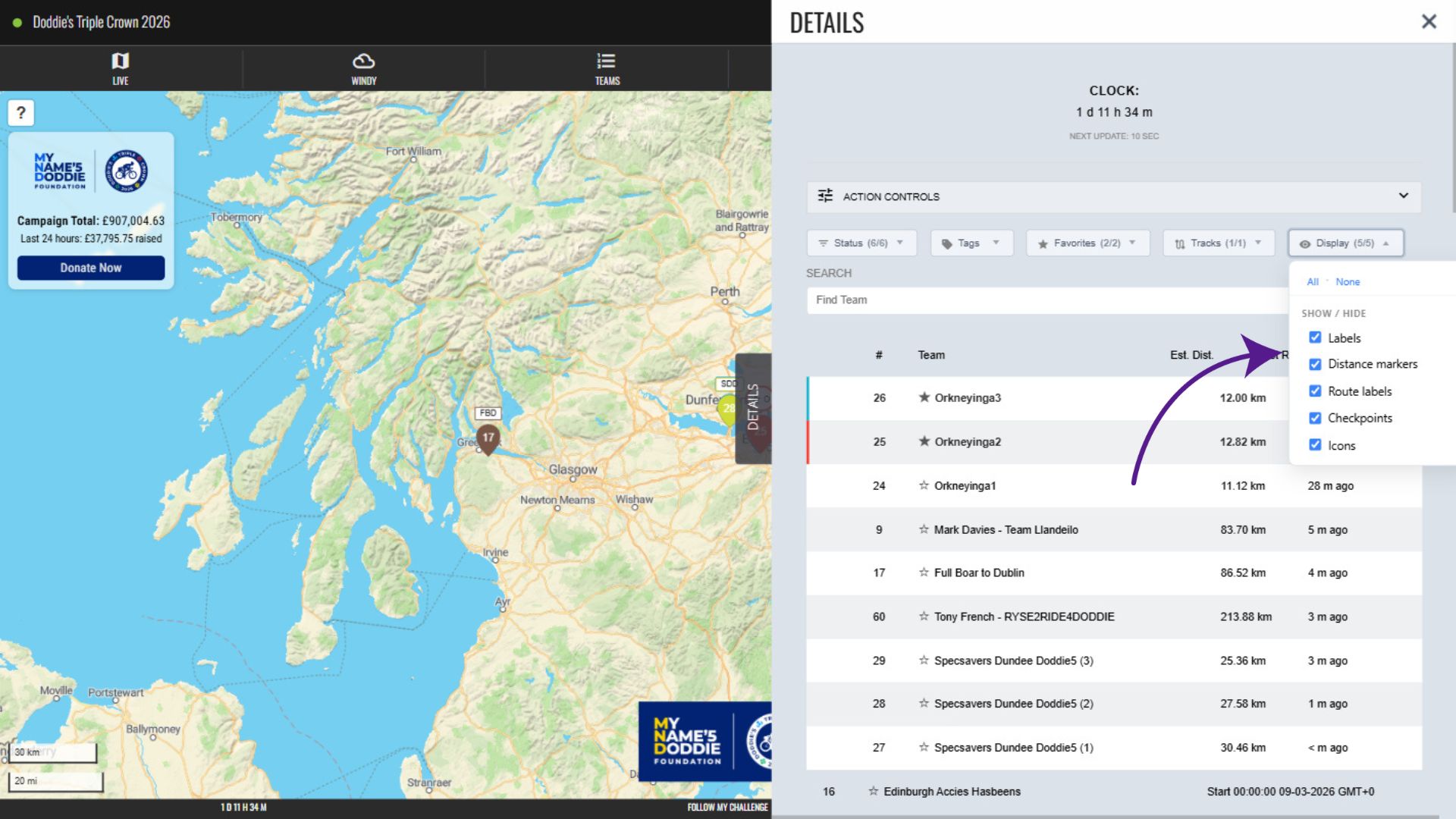
Below the Action Controls section of the Details menu, you will find a range of multi-select dropdowns that allow you filter what is displayed on the map.
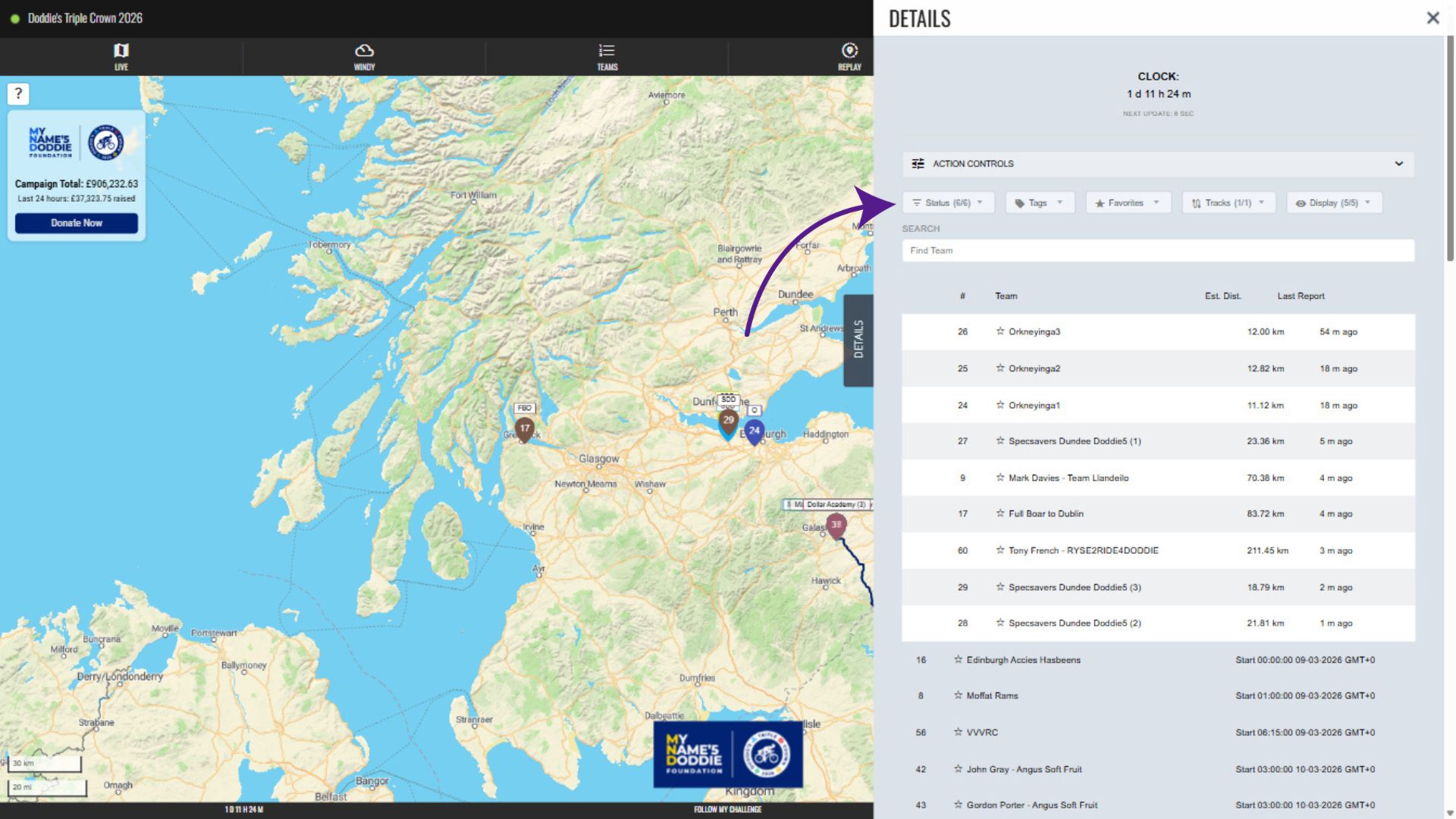
Status Filters
The status dropdown allows you to select which participants you would like displayed on the map by their status. Click to check/uncheck each status type, which will then filter the map accordingly.
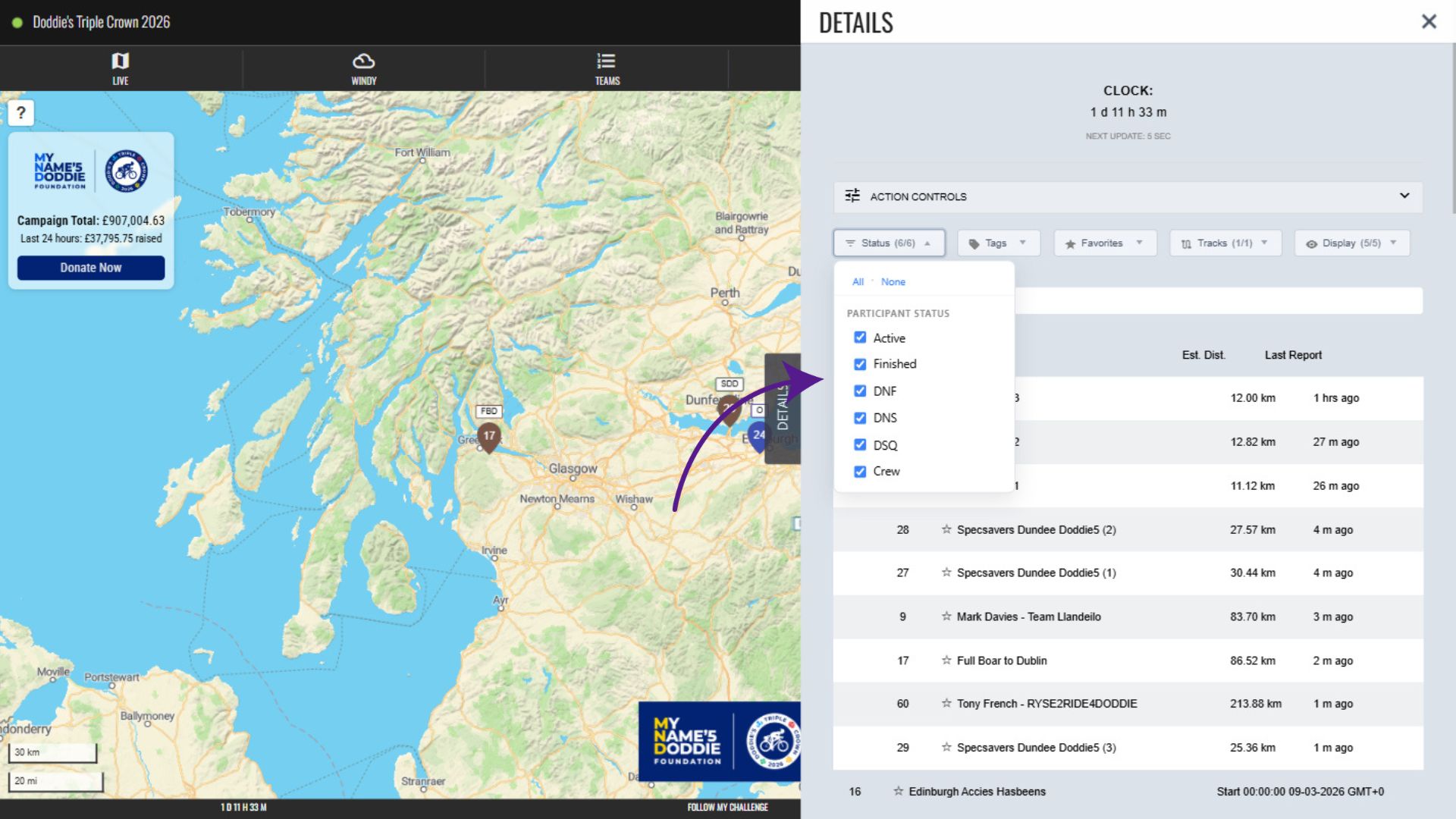
Tag Filter
The tag filter allows you to filter participants displayed on the map and in the list below by the tag assigned to them. Often, these tags will be gender-based, effectively allowing you filter by gender. Click to check/uncheck each tag type.
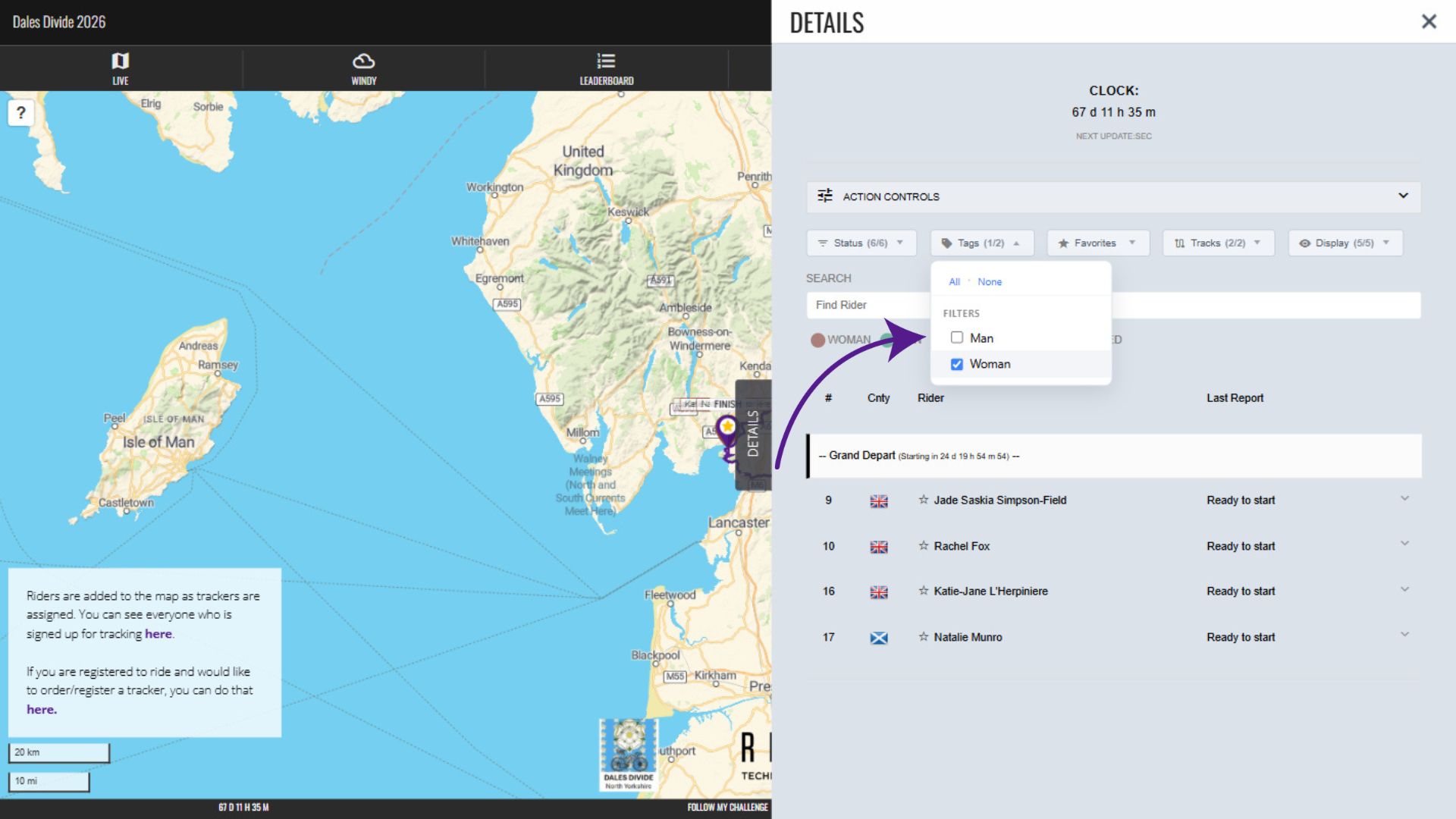
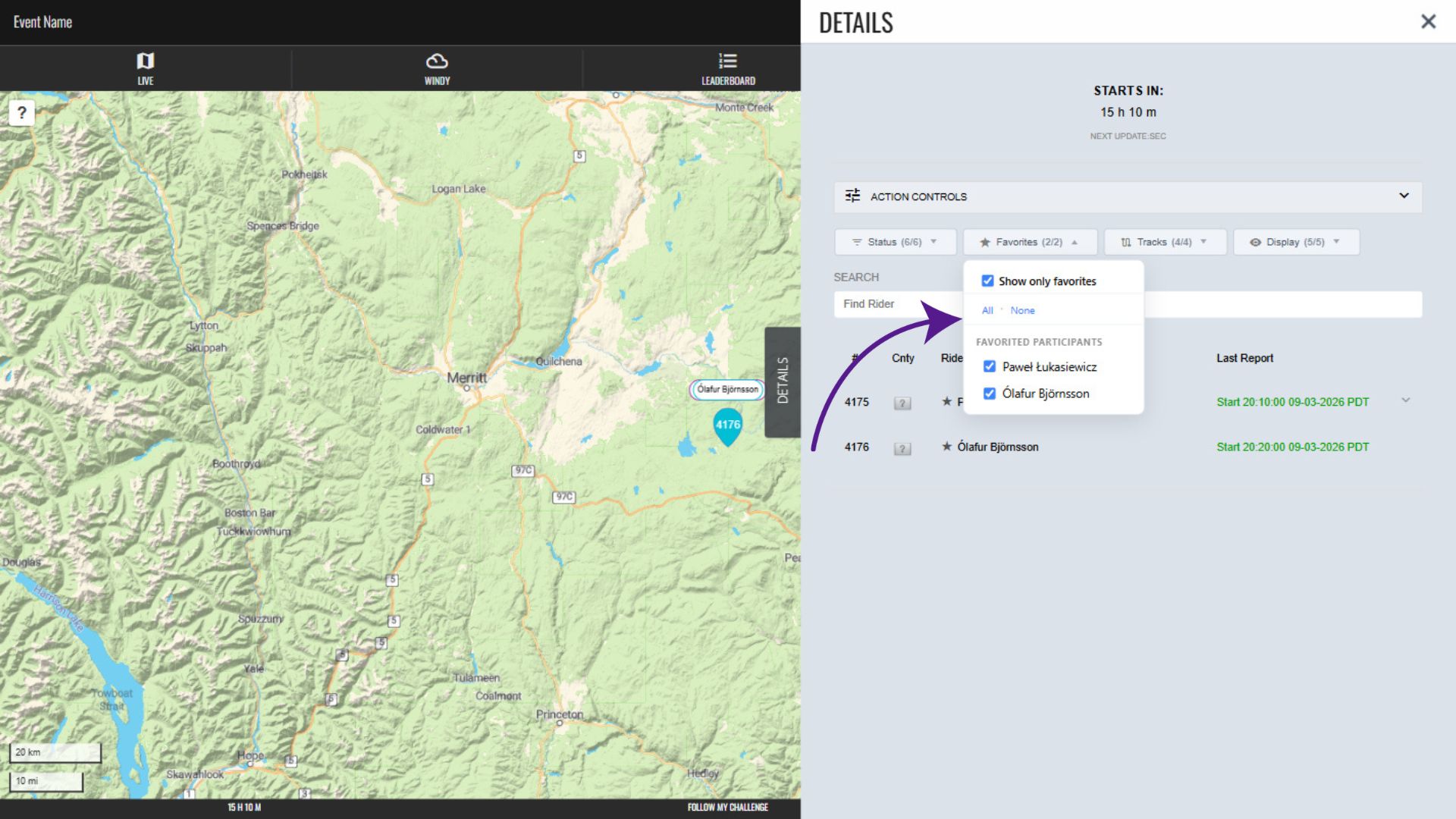
Favourites Filter
This filter allows you to display only participants you have marked as favourites, as well hide/show specific participants from your list of favourites. This affects both the map and the list below. Click to check/uncheck each option.
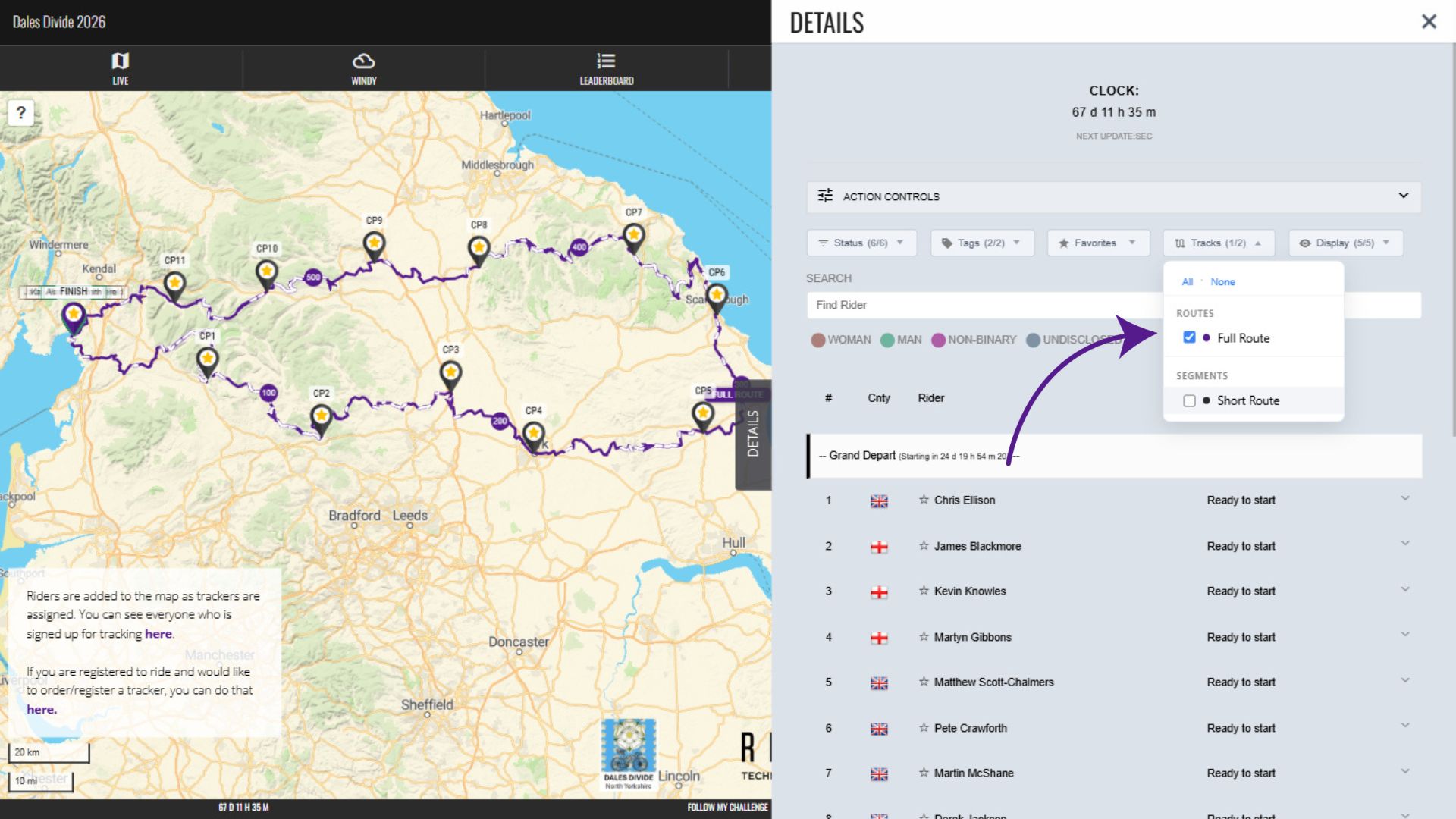
Track/Segment Filter
This dropdown displays a list of all routes and segments displayed on the map. Routes are typically used for distance calculation and span the entire event course, whereas segments are only visual and will represent only a portion of the event course. Click to check/uncheck each option.
Display Filter
The display filter contains a list of visual filters that you can apply to change how the map appears, hiding things like checkpoints or distance markers. Click to check/uncheck each option.