
The buttons at the top of the Analytics tab limit every section to the participants you’re interested in.
Where to find them
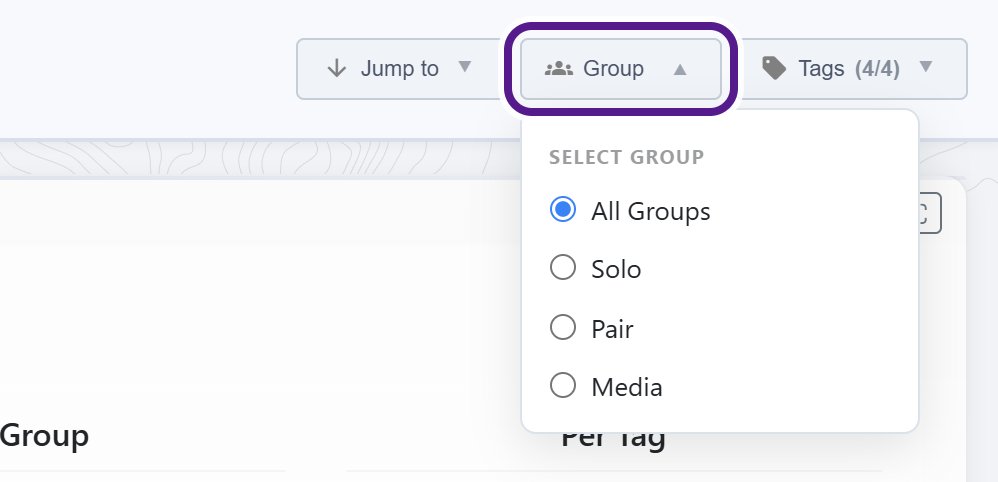
They sit at the top right of the Analytics Dashboard, next to Jump to.
How to use them
- Group: choose one category to show only that category, or All Groups to show everyone.
- Tags: tick or untick tags to include or leave out participants with those tags. Use All or None to change them all at once. The button shows how many are ticked, for example Tags (4/4).
- Favorites: this button appears once you’ve marked favourites on the map. Tick Show only favorites to limit the tab to them. Your favourites are listed under Favorited riders.
The tables, charts and the participant list in Generate Comparison Graphs all update to match your choices.
Some sections also have their own search box, Filter rider / tags / startnumber / country…. That box only filters the section it’s in.
If something is missing
Group and Tags only appear when the event uses categories or tags. Favorites only appears after you’ve marked at least one favourite.
Related articles
- Marking a Participant as a Favourite
- Filters (on the Live map)
- Analytics
Last reviewed: October 2026