
When an event has categories, the Leaderboard shows a separate table for each one.
How the tables work
- Each table has the category name above it, for example Solo and Pair.
- The categories match the ones in the participant list in the Details panel.
- Positions start again at 1st in each table.
- Every table has the same columns.
- A participant with a status such as (DNF) stays in their category’s table. See Ranking and Sorting.
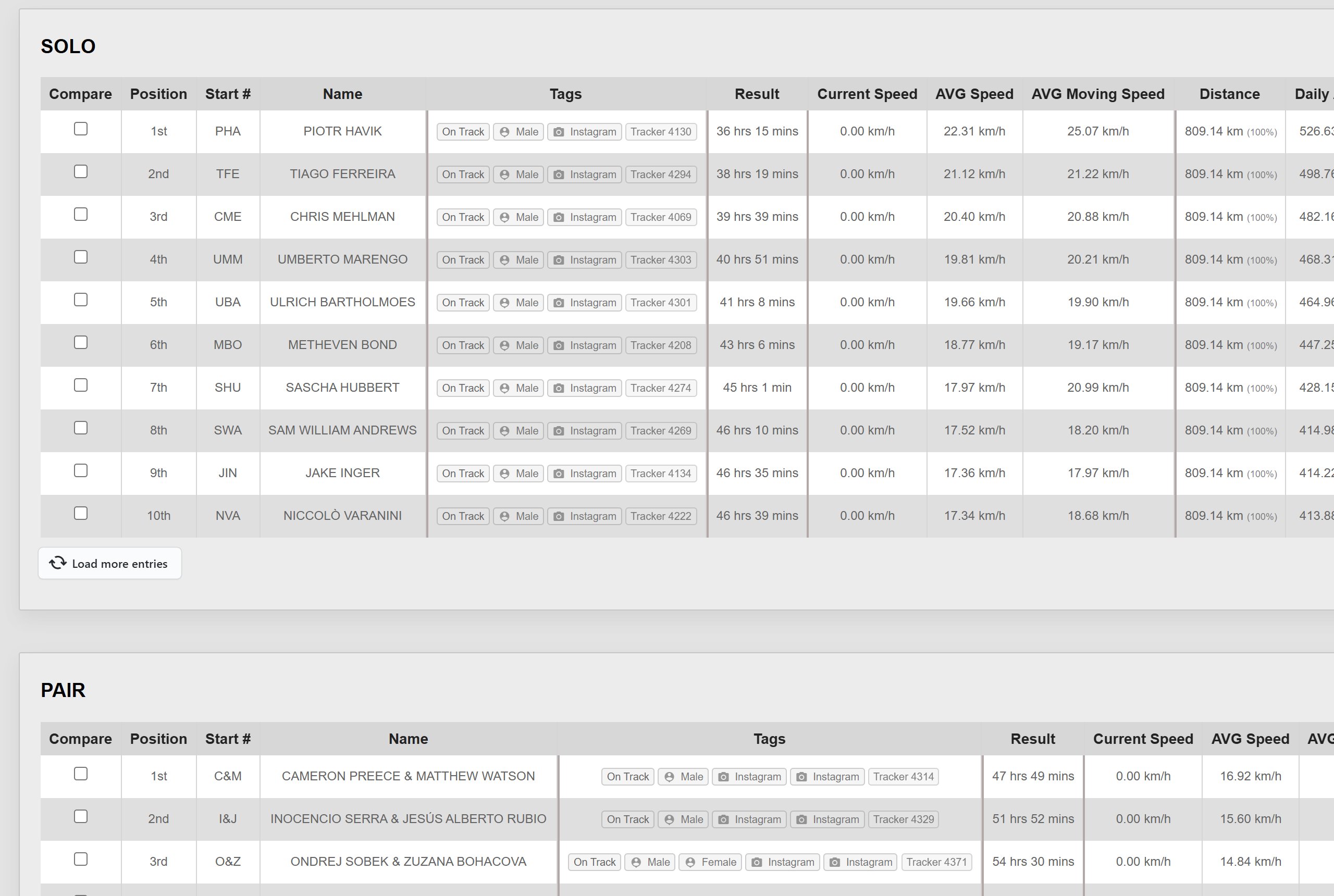
Top 10 and loading more
Each table shows its top 10 first. Click Load more entries under a table to add the next 10, or Show All Entries at the top to expand every table at once. When a table is showing everyone, its button reads All entries are loaded.
Searching and comparing across tables
The search box and the Compare Selected and Compare Favorites buttons work across all the tables at once. Any table with no matching participants is hidden until you clear the search or click Reset. See Leaderboard Controls.
Extra tables on some maps
Depending on the event, you may see more tables below the categories:
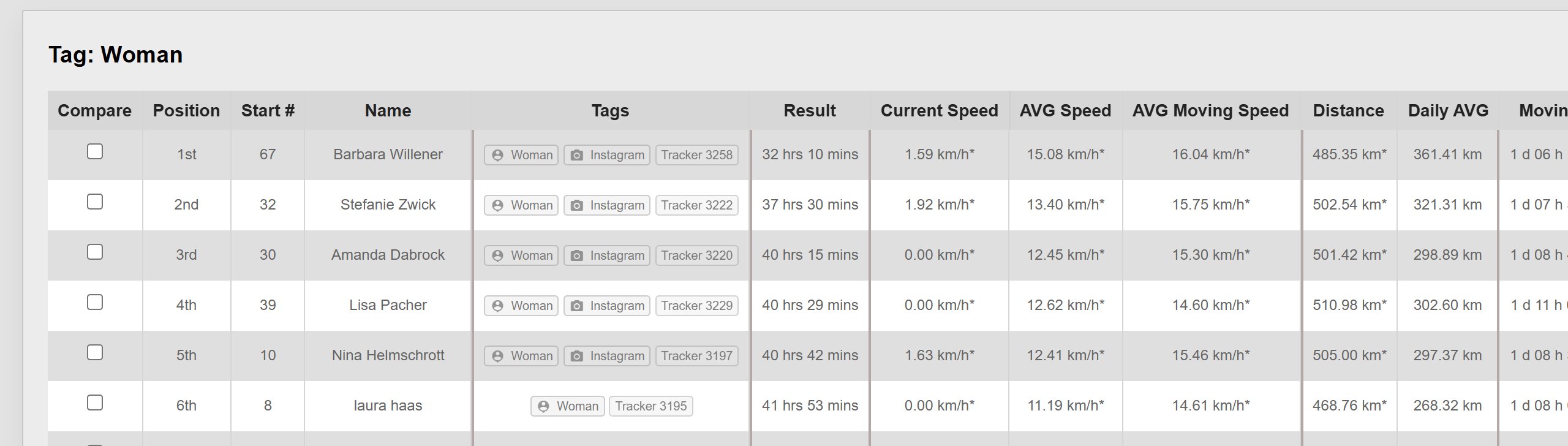
- Tables for a tag: these rank participants who share a tag, for example Tag: Woman or Tag: Man. Positions are renumbered within the table. See Tag Leaderboards.
- Other classifications: some events rank part of the race separately, for example timed sections of the route. These tables can have their own columns, a note from the organiser, and a Show all button.
If something is missing
- Events without categories show a single table.
- Switching a category off in the Details panel hides it from the map and the participant list, but its table still shows on the Leaderboard.
Related articles
Last reviewed: October 2026