
The Controls box at the top of the Leaderboard tab lets you narrow the tables down to the participants you care about.
Finding the controls
Open the LEADERBOARD tab. The Controls box sits above the first table. It holds four buttons and a search box.

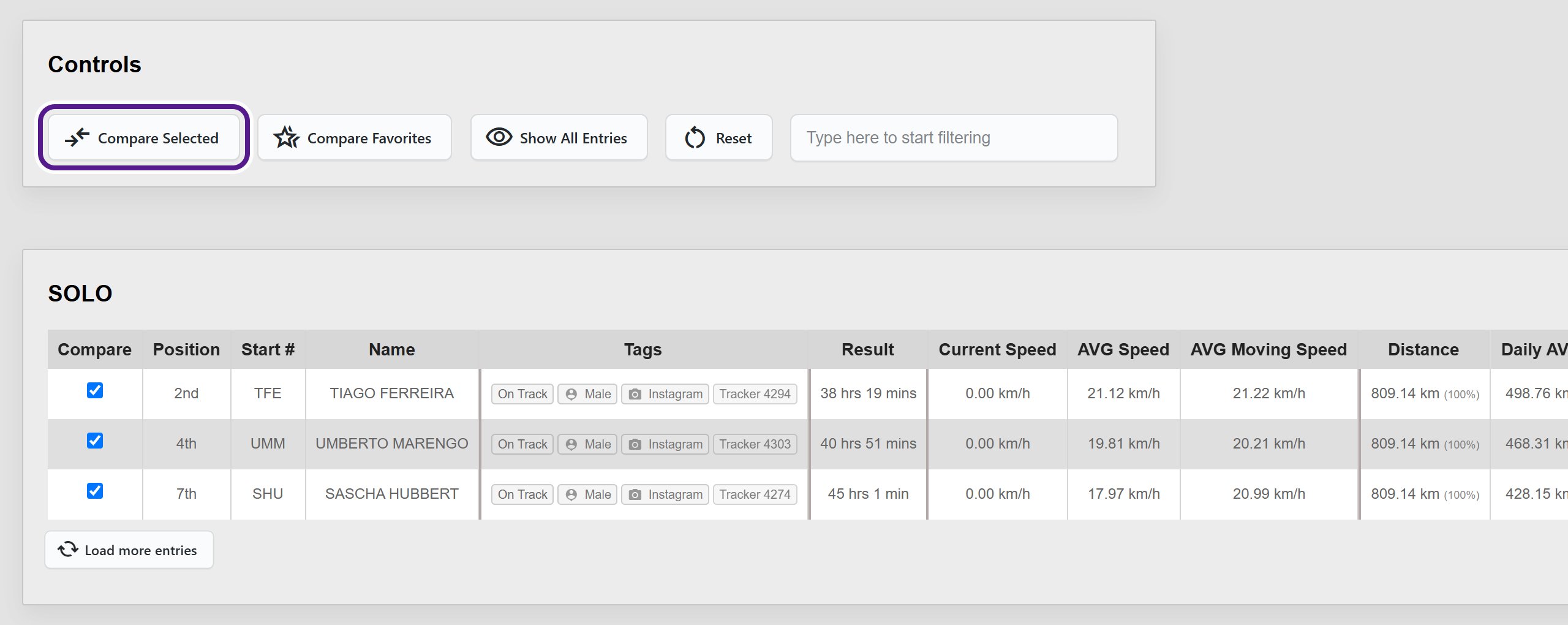
Compare Selected
- In the Compare column, tick the box next to each participant you want to compare. They can be in different tables.
- Click Compare Selected.
Only the participants you ticked stay on screen. Tables with none of them in are hidden. If you haven’t ticked anyone, nothing changes.
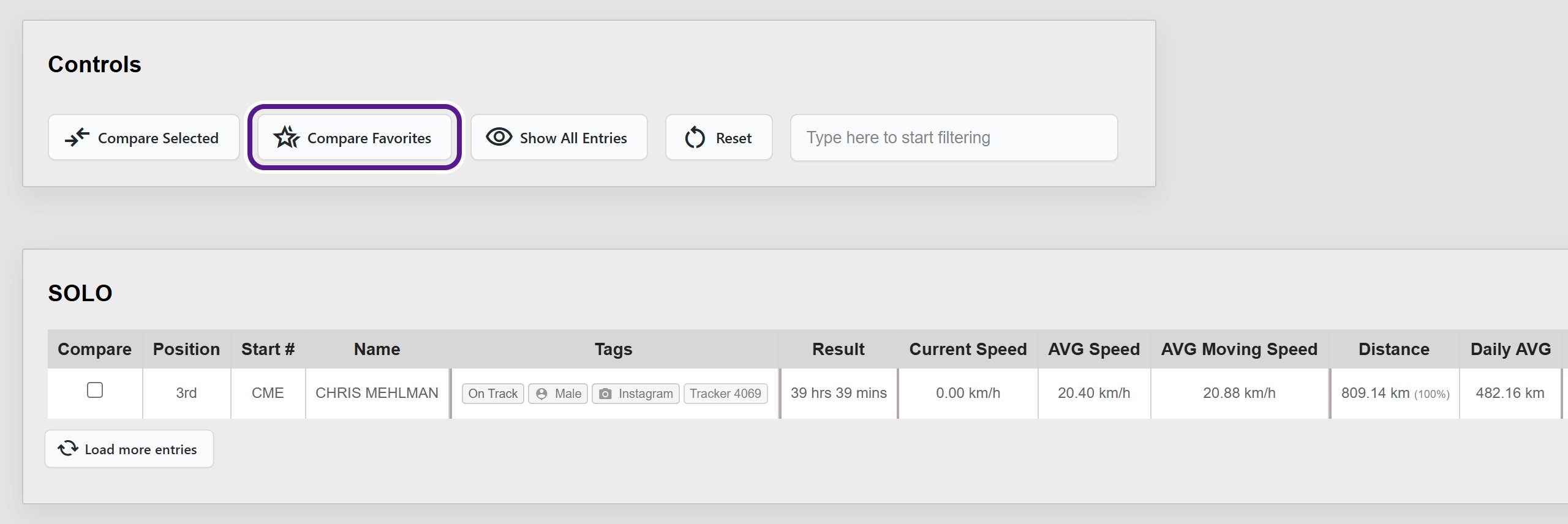
Compare Favorites
Click Compare Favorites to show only the participants you’ve starred as favourites in the Details panel on this device. Tables with none of your favourites in are hidden. If you haven’t starred anyone, nothing changes. See Marking a Participant as a Favourite.
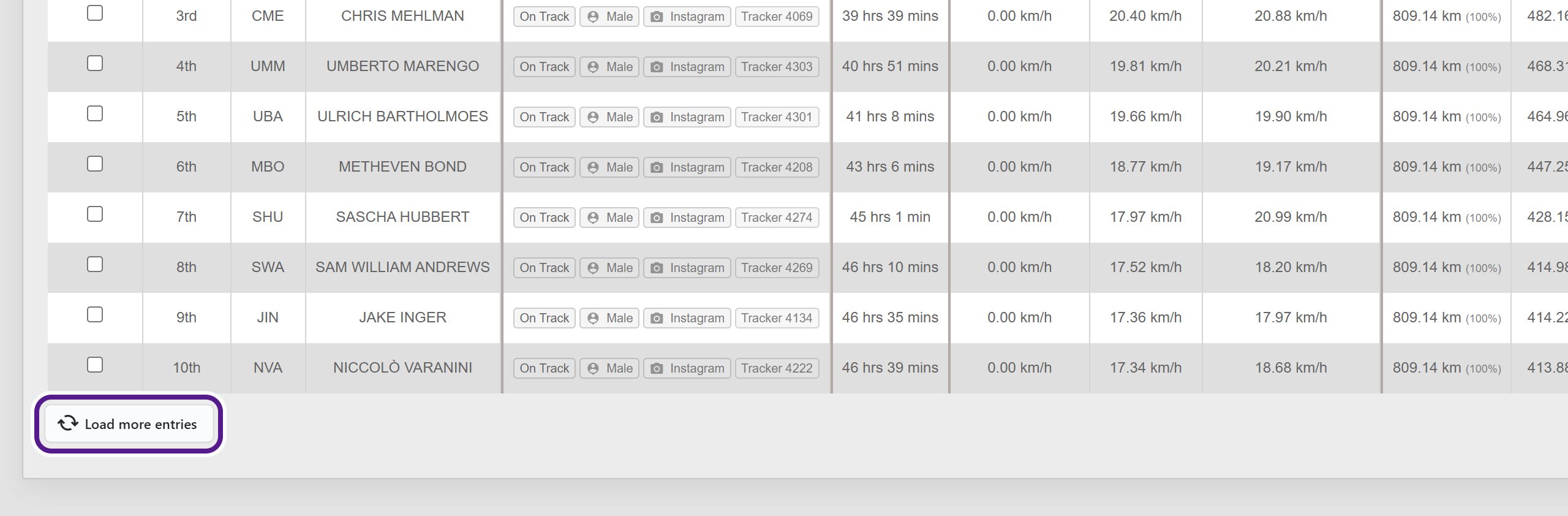
Show All Entries and Load more entries
Each table shows its top 10 participants first.
- Click Load more entries under a table to add the next 10 to that table.
- Click Show All Entries in the Controls box to show everyone in every table.
When a table is showing everyone, the button under it reads All entries are loaded.
Searching
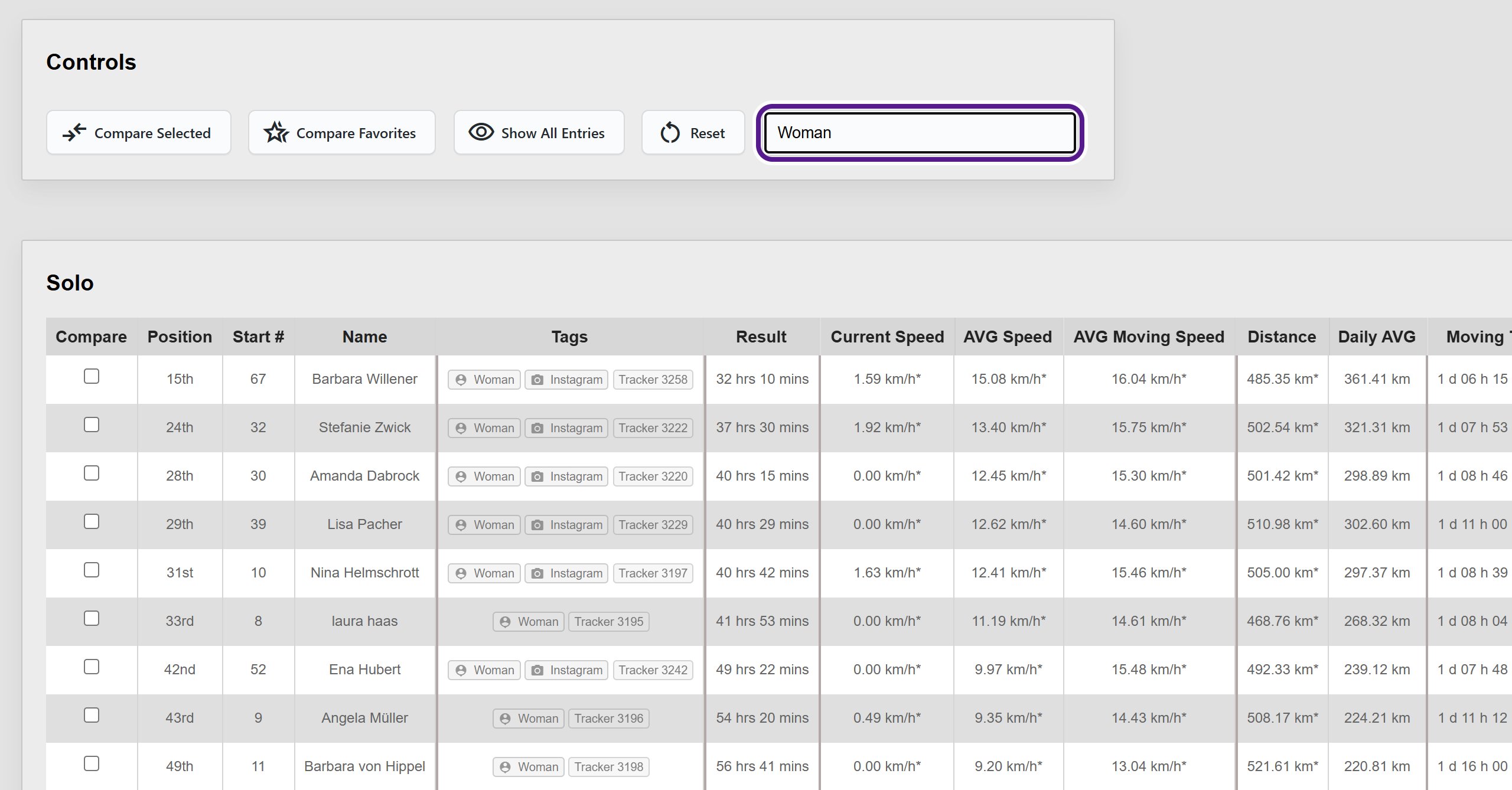
Type in the search box (Type here to start filtering). The tables update as you type.
- You can search for anything shown in a row, such as a name, a race number, a tag (for example Woman) or a tracker number.
- Capitals don’t matter, but accents do: type a name with its accents, as it’s spelt on the map.
- Each table shows up to 10 matches. Tables with no matches are hidden.
- Short numbers can also match times and distances, so a name or tag gives the clearest results.
To bring everyone back, delete the text or click Reset.
Reset
Click Reset to clear your search, ticks and comparisons, and return each table to its top 10.
Sorting
Click any column heading to sort the table by that column. Click it again to reverse the order. See Ranking and Sorting.
Good to know
- The Details panel filters (Status, Tags, Favourites and switching a category off) don’t affect the Leaderboard. Use these controls instead.
- On a phone, the buttons stack in two rows above the search box.
Related articles
Last reviewed: October 2026