
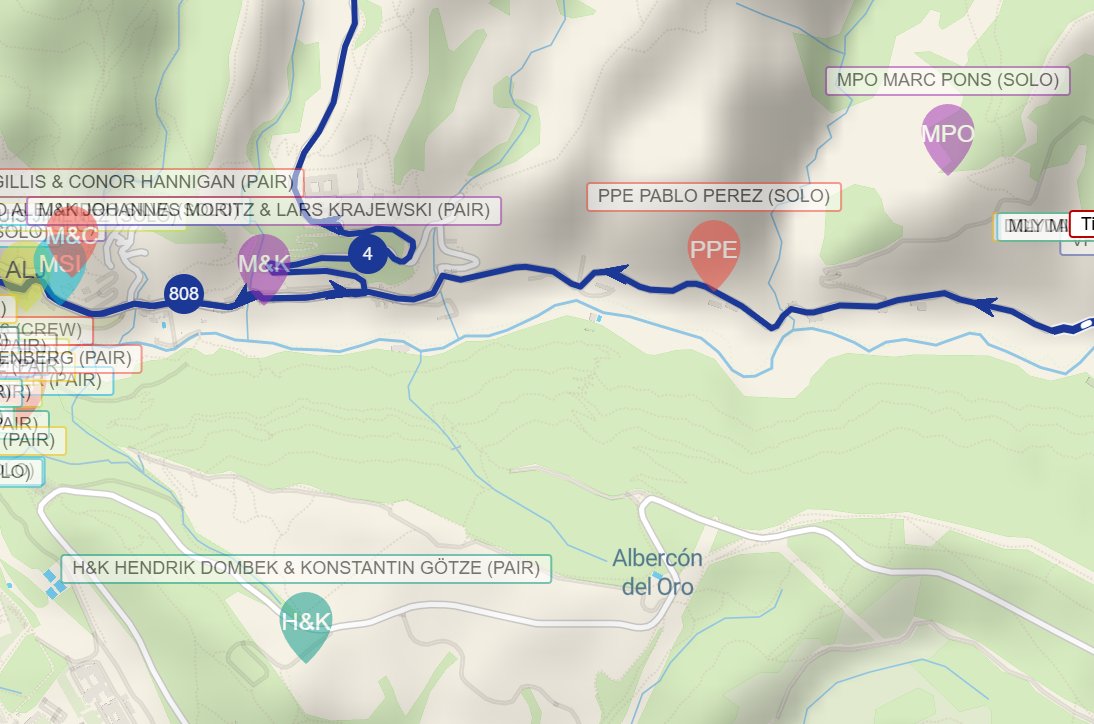
Every participant, or team, appears on the Live map as a pin-shaped dot at their latest position. The label tells you who it is, and the dot’s colour and brightness tell you a little more.
Reading a dot and its label
- The dot shows the participant’s race number, or their initials on some maps. On light-coloured dots the number is black, so it stays readable.
- The label above the dot shows their number and name.
- Zoomed out, the name in the label shortens to initials. Zoom out further and the labels fade away and the dots get smaller, so the map stays readable.
- Zoom in and the full name appears. Zoom in a little more and the category is added in brackets, for example (SOLO), followed by any status, such as (DNF).
- To hide the labels, untick Labels under Display in the Filters.
Faded dots
- A dot is faded when the participant’s tracker hasn’t sent a position for more than 60 minutes, by default. Usually they’ve stopped, for example to sleep. Sometimes it’s down to poor coverage or a problem with the tracker. See Update Intervals and Overdrive Mode.
- Dots for participants who didn’t start, didn’t finish or were disqualified are faded even more. See Statuses and Penalties.
- Once an event is over, most dots are faded, because the trackers have stopped sending.
Dot colours
- By default, dot colours are random, so you can tell participants apart.
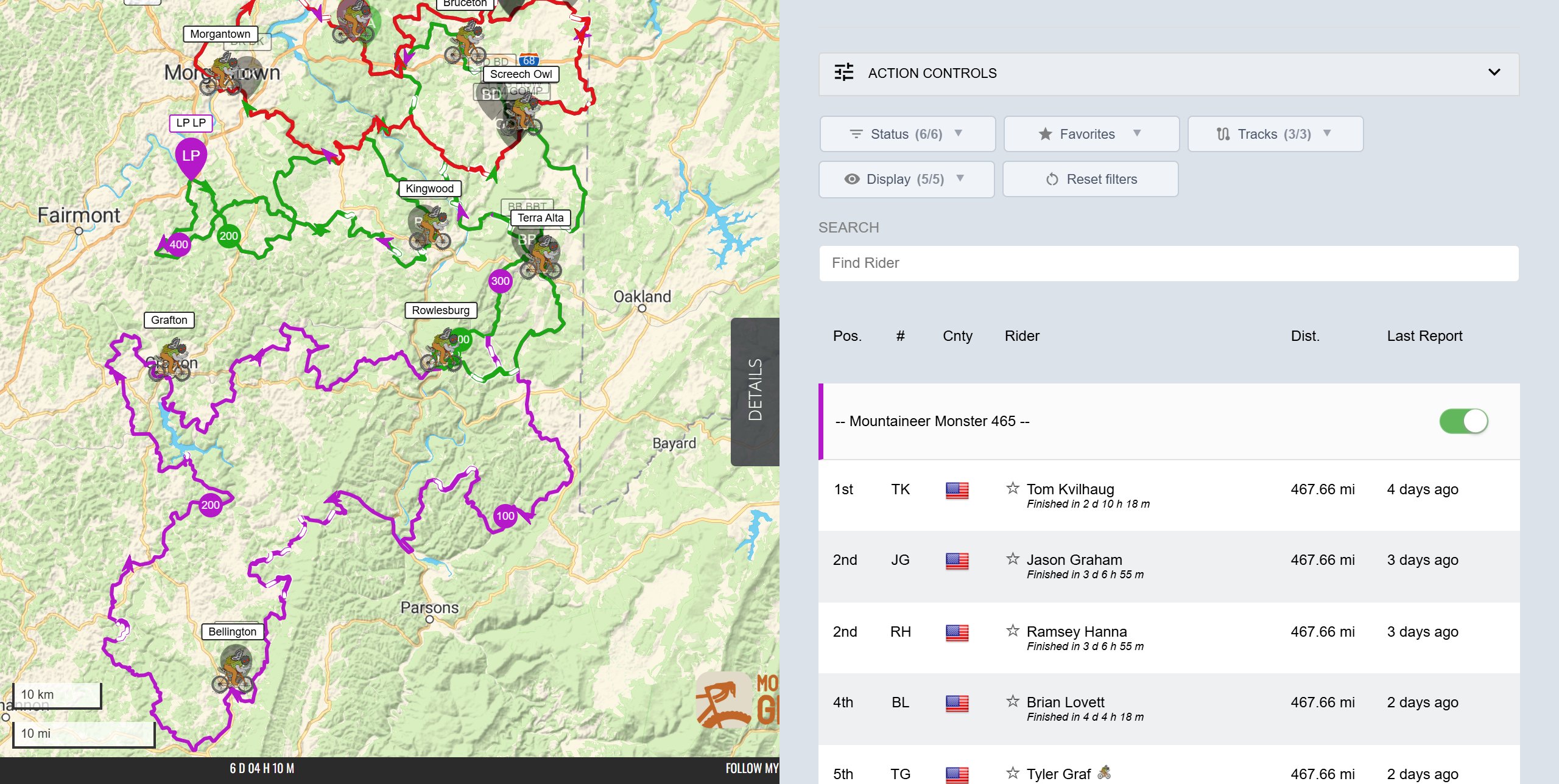
- On some maps, each category has its own colour. You’ll see that colour as a bar beside the category’s name in the Participant List.
- Some maps colour dots by something else, such as gender. The meaning is usually easy to work out, and often matches the participant’s tags.
Favourites
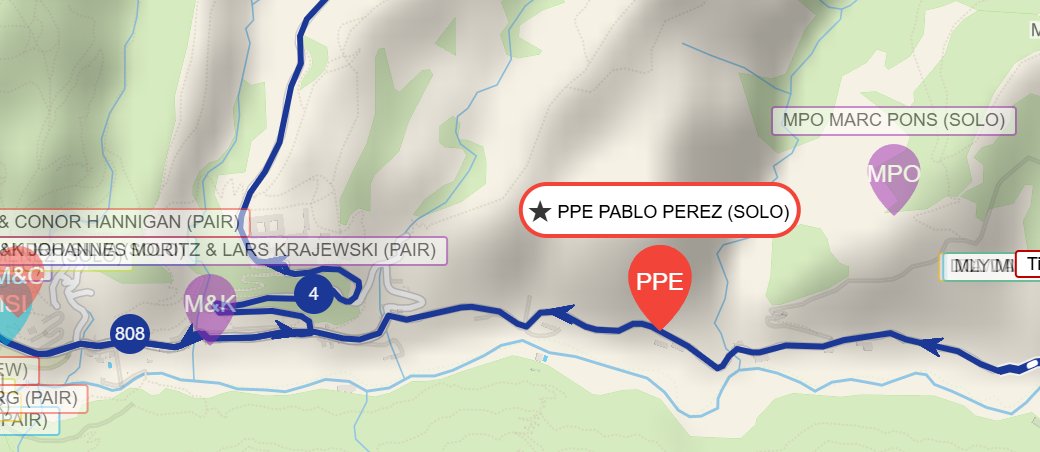
When you star a participant as a favourite, their dot is bigger and shown in full colour, and their label has a star in front of their name. That makes them easy to pick out from everyone else. See Marking a Participant as a Favourite.
Ghost dots
Some record attempts show a ghost dot that moves at record pace. See Records and FKTs.
When you might not see it
- Before the start, dots usually stay still. See Before the Start.
- If you can’t see the names, zoom in, and check that Labels is ticked under Display in the Filters.
- If some dots are missing, look for the red Filtered view notice at the top of the map. A filter, or a category switched off in the Details panel, may be hiding them.
- On some events, positions are delayed or partly hidden. See Delayed and Hidden Tracking.
Related articles
Last reviewed: October 2026