
The participant list in the Details panel shows everyone taking part in the event, grouped by category. Click a name to see their details and centre the map on them.
Reading the list
- Click or tap DETAILS on the right-hand edge of the Live map.
- The list sits below the SEARCH box. Scroll down the panel to see everyone.
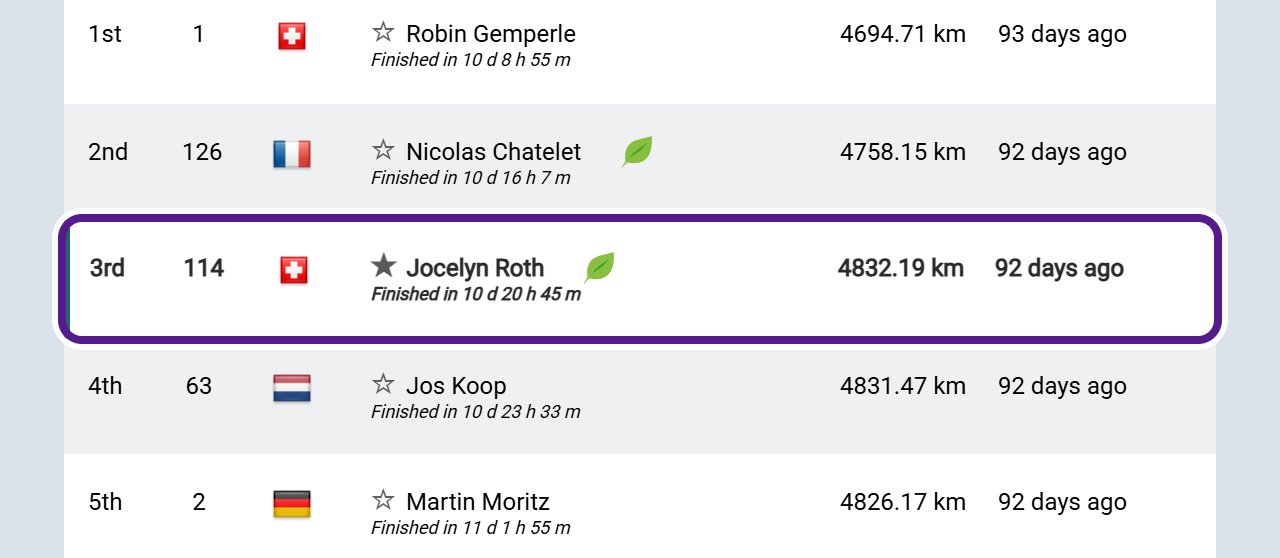
Each participant, or team, has one row. The columns are usually:
- Pos.: their position.
- #: their race number.
- Cnty: their country’s flag.
- Rider: their name. Once they’ve finished, Finished in and their time appear under it.
- Dist.: how far they’ve gone.
- Last Report: how long ago their tracker last sent a position.
Some maps hide or rename columns, and on a phone the list shows fewer of them. A status such as (DNF) after a name means the participant didn’t finish. See Statuses and Penalties.
Before the Start
Before the event starts, the list shows everyone without positions or distances, with Ready to start on each row. To find out what the green Ready to start means and when battery levels appear, see Before the Start.
Participant Row
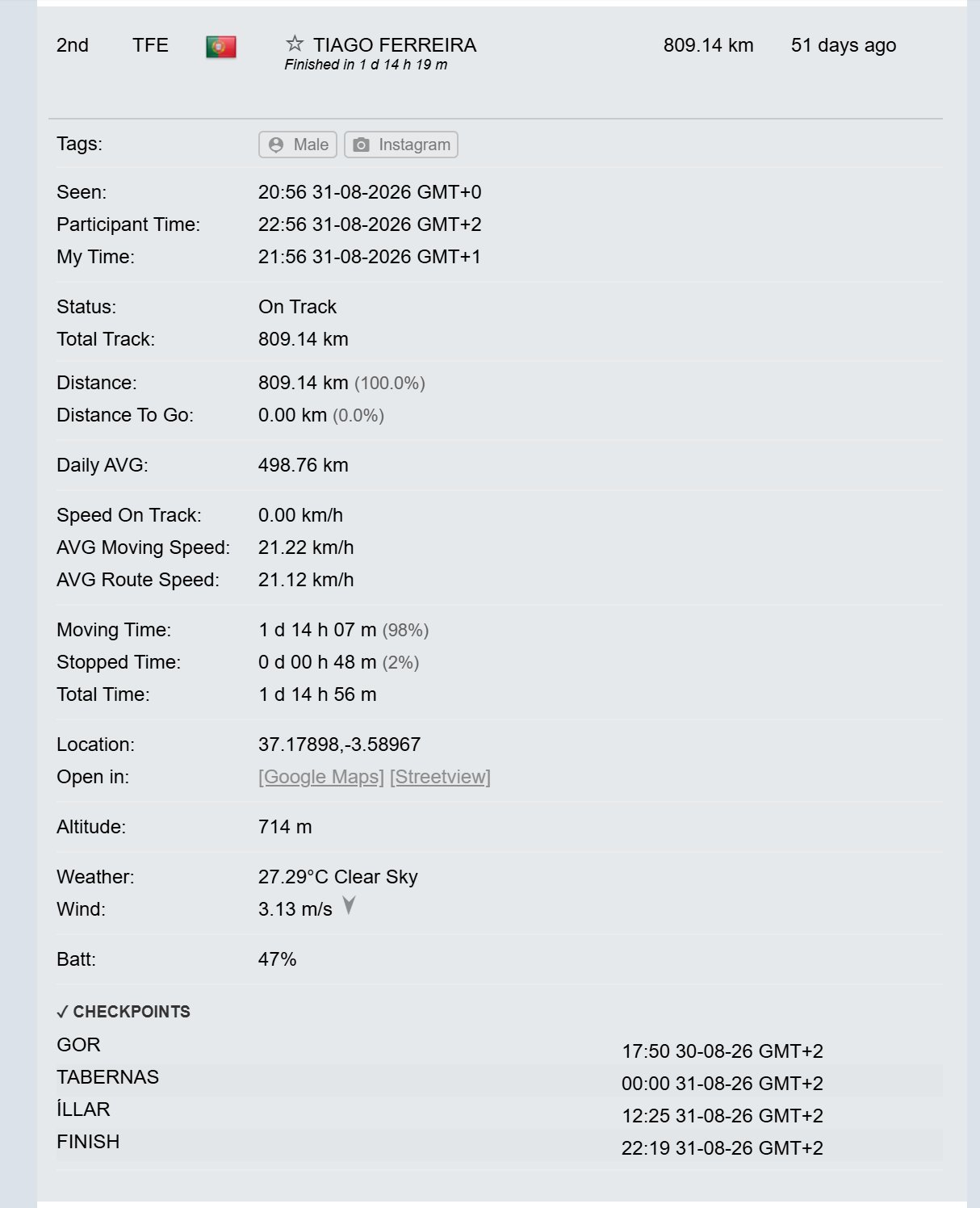
Click a participant’s row to expand it. The map centres on their dot and draws their track.
The expanded row shows the same figures as the participant pop-up, plus:
- Seen, Participant Time and My Time: when their last position was sent, in UTC, in their local time and in yours.
- Status: for example On Track. On fixed-route maps, Total Track gives the full route length.
- Location and Altitude: their coordinates and height.
- Open in:: links to [Google Maps] and [Streetview].
- ✓ CHECKPOINTS: each checkpoint they’ve reached, with the arrival time in their local time.
Participant Profile Links
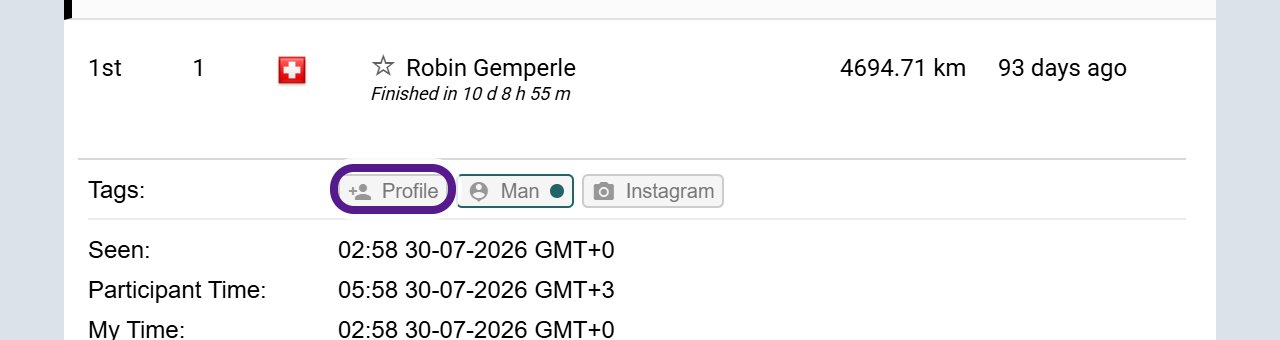
On maps with participant profiles, the Tags: line in an expanded row includes a Profile link. Click it to open the participant’s profile in a new tab.
- A person icon means the participant hasn’t claimed their profile yet, so the link opens a preview.
- A green tick means they’ve claimed it.
For what’s on a profile, see Participant Profiles.
Participant Tags
Click a participant’s name in the list to expand their row. The Tags: line gives extra details the organiser has chosen to add, such as category, age group, bike type or gearing. Not every event uses tags, and what they show varies from event to event.
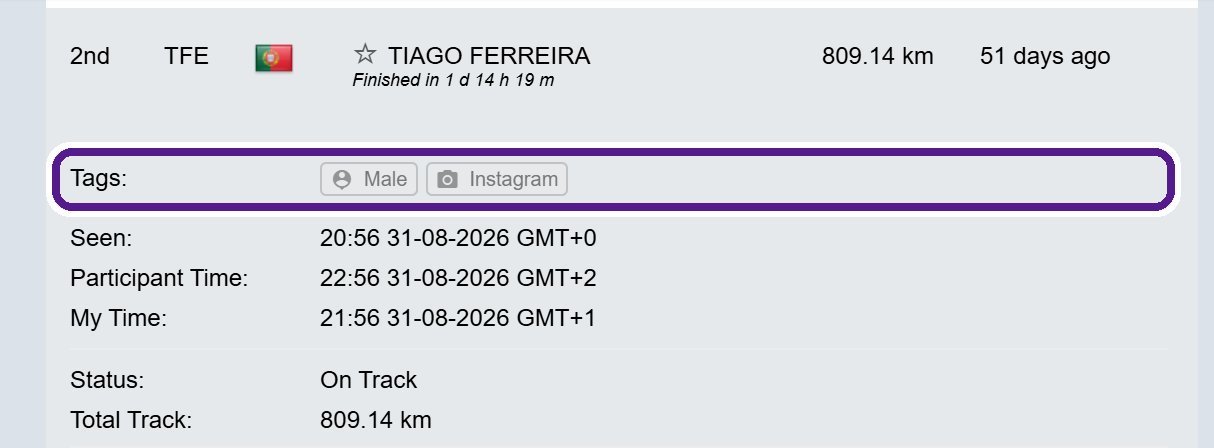
- Some tags are links, for example to the participant’s Instagram or Strava page, or to their participant profile. On some events they include a profile photo.
- You’ll also see tags under the participant’s name in their pop-up, and on many maps in the Leaderboard‘s Tags column and the Analytics tables.
- To show or hide participants by tag, use the Tags filter. See Filters. You can also type a tag into the search box.
- Some events rank participants who share a tag in their own table. See Tag Leaderboards.
Categories
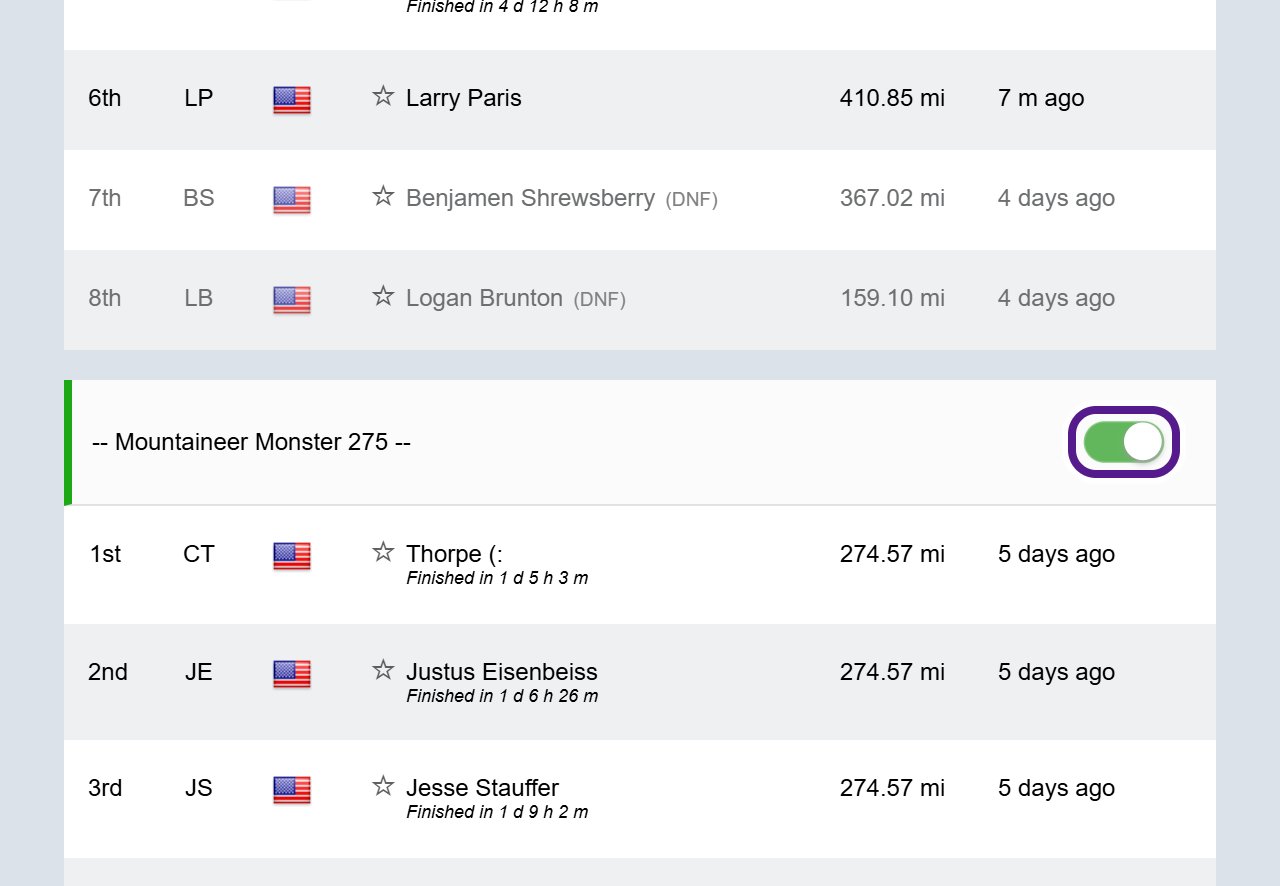
- On most events, the list is split into categories. Each one has a heading with its name, for example — Solo —.
- On some maps, a coloured bar on the left of the heading shows the colour of that category’s dots on the map.
- Use the switch on the right of a heading to hide that category. Its participants disappear from both the list and the map, and the red Filtered view — some participants may be hidden notice appears at the top of the map.
- To bring them back, switch the category on again, or click the notice to reset your filters. See Filters.
- Switching a category off doesn’t change the Leaderboard.
Favourites
- Every name in the list has a star next to it. Click the star to make that participant a favourite.
- The star fills in and their row turns bold. On the map, their dot is bigger with a star in its label. See Participant Dots.
- Your favourites are saved in this browser, so they’re still there next time you open the map.
- To show only your favourites on the map, open Favorites in the Filters and tick Show only favorites.
- To use your favourites on another device, use COPY MY FAVORITES in Action Controls. On the Leaderboard, Compare Favorites shows just the people you’ve starred. See Leaderboard Controls.
When you might not see it
- Not every event has categories, so some lists have no headings.
- If someone is missing from the list, check for the red Filtered view notice, and that their category is switched on.
- Profile links only appear on selected events.
Related articles
Last reviewed: October 2026