
You can show your own position on the map as a blue dot. It’s handy if you’re out on the course cheering, or want to see how close a participant is to you.
Showing your location
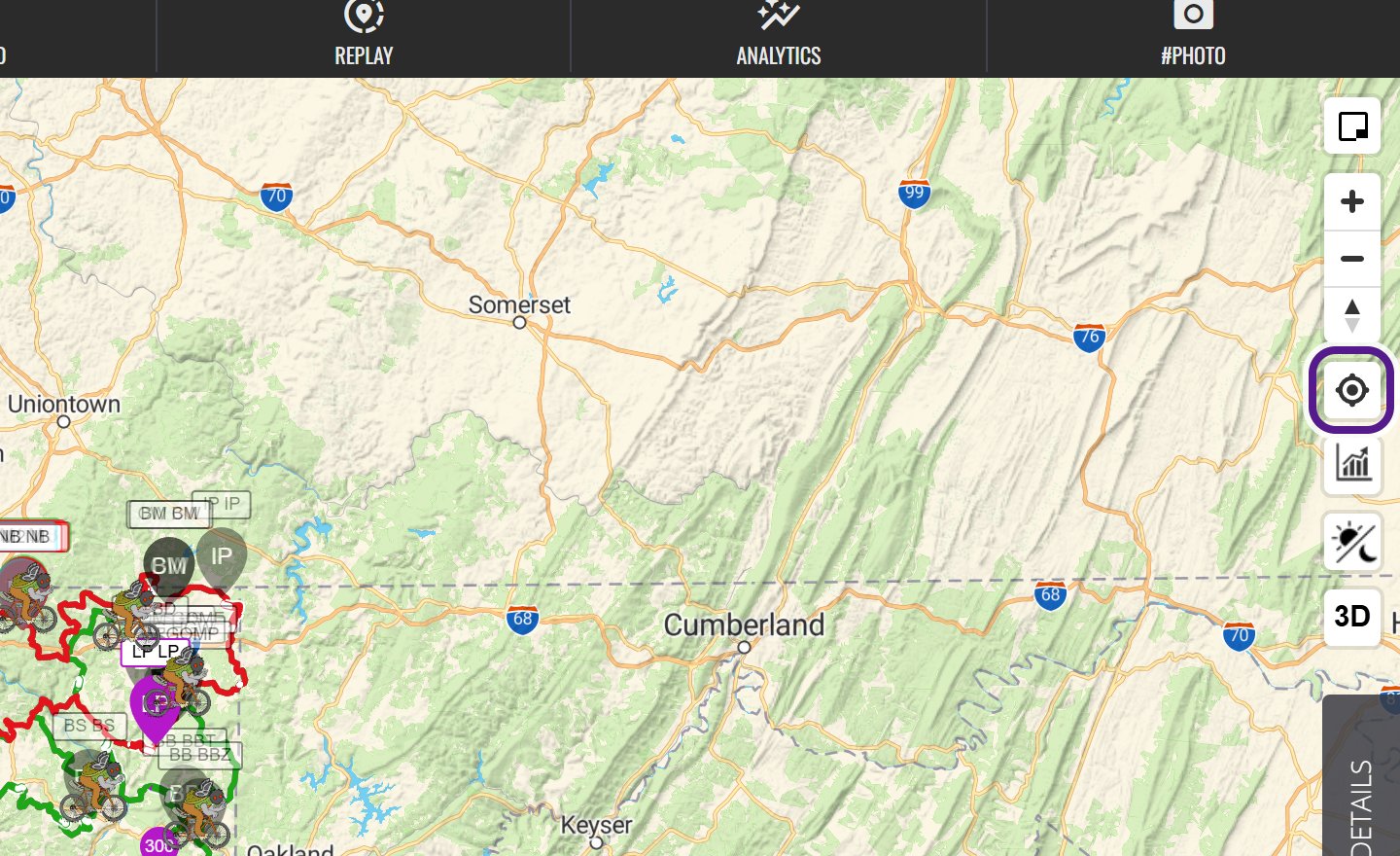
- On the Live map, click or tap Find my location in the column of map buttons in the top right. It has a round target icon and sits below the zoom buttons and compass.
- If your browser or phone asks whether the site can use your location, allow it.
- The map zooms to where you are and shows you as a blue dot. The button turns blue while it’s on.
What the dot shows
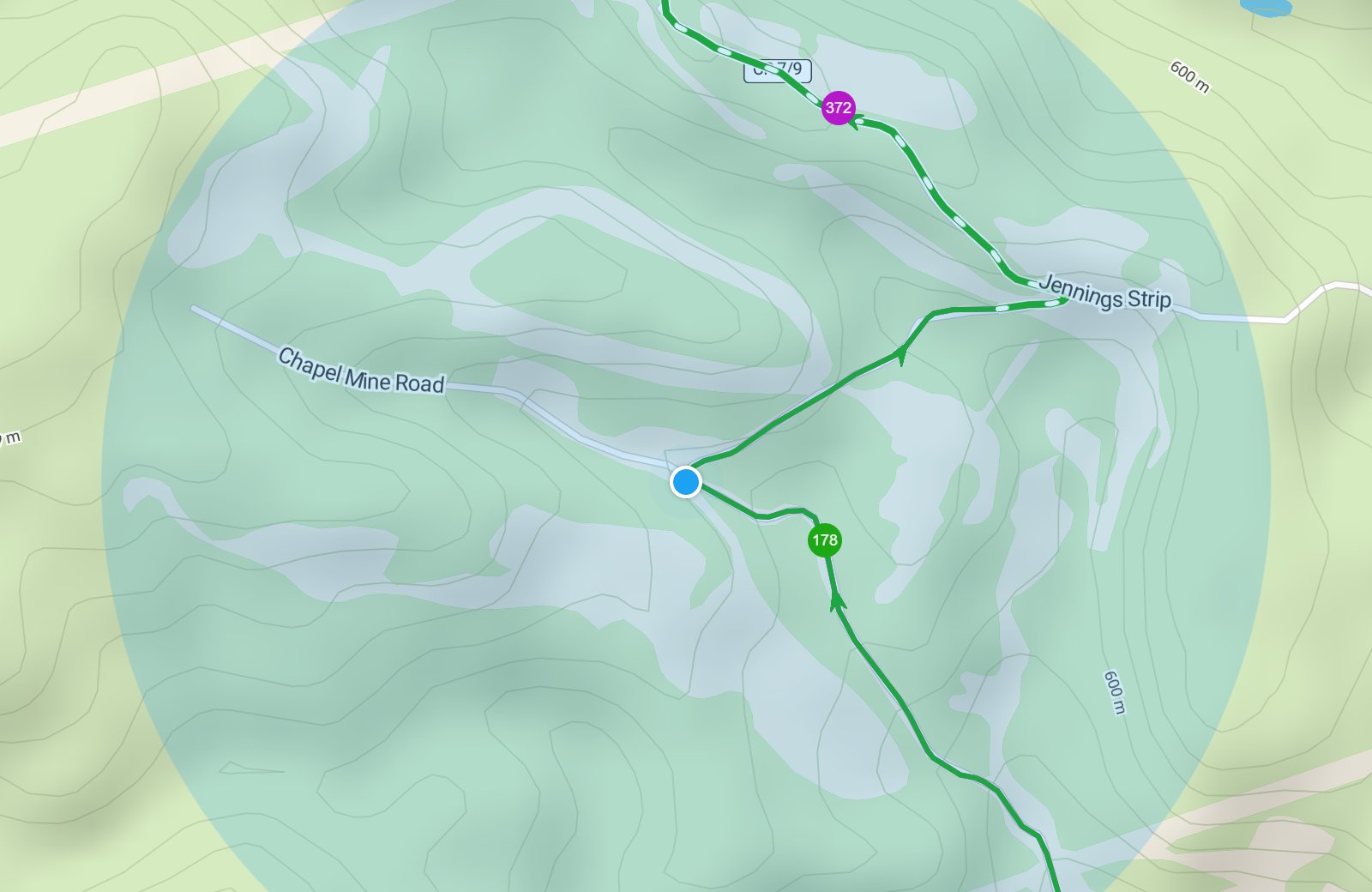
- On a phone with GPS, a small blue dot shows your exact position.
- On a laptop or computer without GPS, your position is only approximate. A pale blue circle around the dot shows roughly where you could be.
- The dot moves as you do, as long as you keep the page open and your device awake.
Following and switching off
- While it’s on, the map follows you as you move.
- If you drag the map away, it stops following you. Click Find my location again to centre the map on you.
- Click it once more to switch it off. The blue dot disappears.
When you might not see it
- If you said no when your browser asked, it remembers your answer. Allow location for the site in your browser or phone settings, then try again.
- Location services need to be switched on on your device.
Related articles
Last reviewed: October 2026