
This section is for riders taking part in an event tracked by Follow My Challenge. It explains what your tracker does during the event and what your followers see. For how to use the tracker itself, see the Tracker Instructions.
Before you start
- Follow the Tracker Instructions to switch on, charge and position your tracker. If you’re using your own device, such as a Garmin inReach, see the Third-Party Tracker Instructions.
- Don’t judge your tracker by whether your dot moves. On most events, dots stay still until the start.
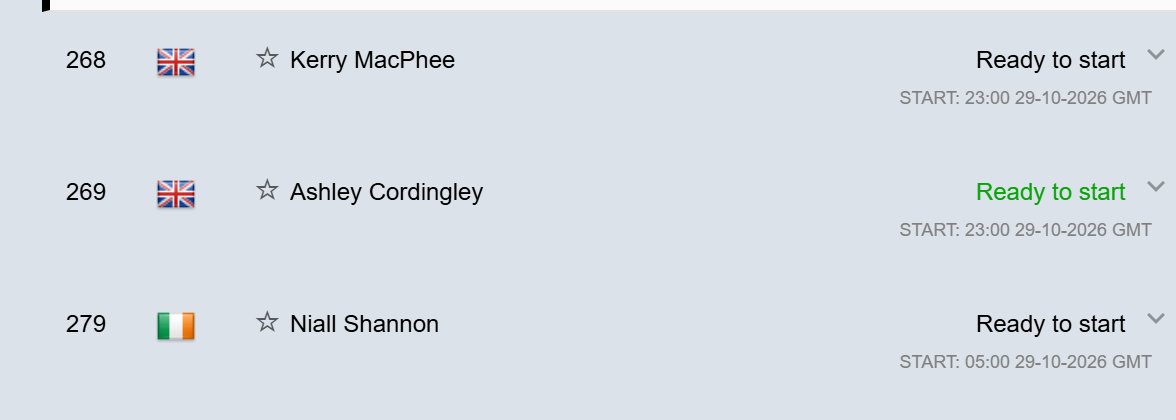
- To check that it’s working, open the Details panel on the event map and find your name. Ready to start turns green when your tracker has sent data recently. See Before the Start.
- If you’ve only just switched it on, wait a few minutes before checking.
Check your tracker with the QR code
Follow My Challenge Queclink trackers have a QR code on the back. Scan it with your phone’s camera to open a status page for your tracker. It shows its GPS quality, network and recent performance, so you can often spot and fix a problem yourself.
If it still isn’t working, see Tracker Troubleshooting.
Low battery texts
On some events, you’ll get an automatic text message when your tracker’s battery drops below a set level. If it stays low, the text is repeated. Charge the tracker at your next chance, so your followers don’t lose you.
- The organiser has to switch low battery texts on for the event.
- Texts go to your phone number, which the organiser usually gives us. If you signed up with us directly, they go to the number you gave us.
- Only Follow My Challenge Queclink trackers send them.
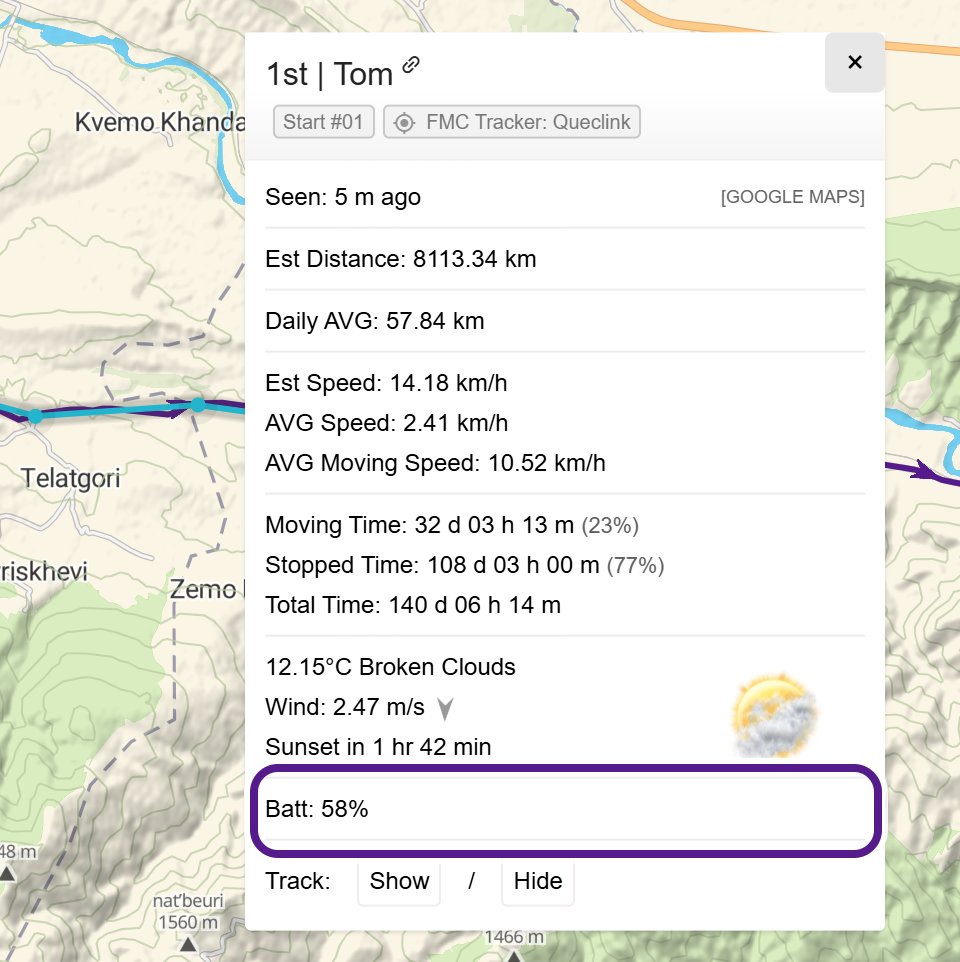
Your followers can see your tracker’s last battery reading in your pop-up on the map.
Faster updates near the finish
In the final 15 km, a Follow My Challenge Queclink tracker with more than 15% battery switches to Overdrive Mode and sends your position more often, usually every minute. This uses more battery, so arrive with some charge left. See Update Intervals and Overdrive Mode.
Hiding your position with the geofence button
On events where the organiser has switched it on, you can hide your live position, for example near home or where you’re staying the night.
- Hold the button on your tracker to start it. The Tracker Instructions have a geofencing video showing how.
- Your position is hidden within a few kilometres of where you started the geofence.
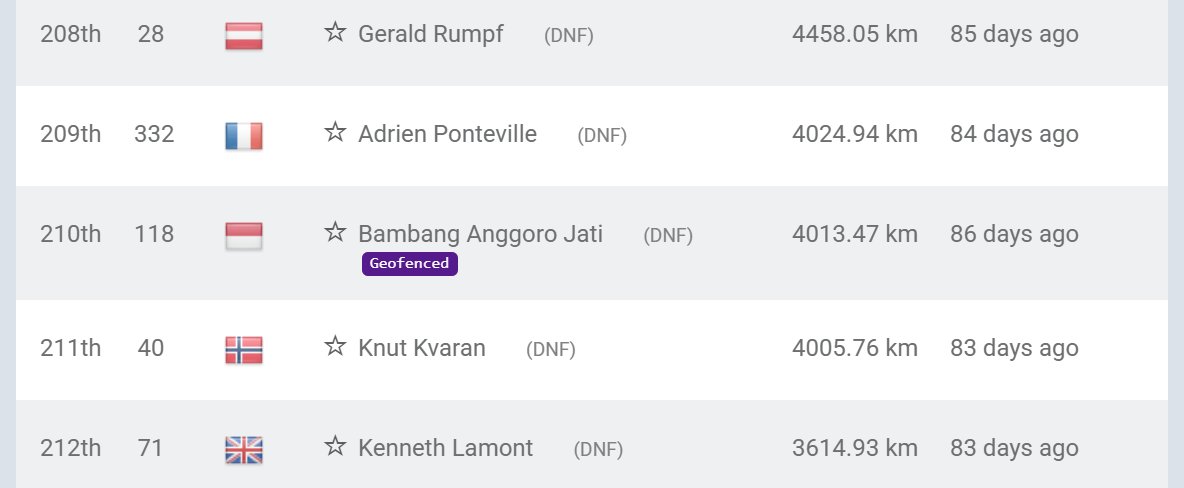
- Your followers see your last point from outside the zone, marked as geofenced.
- The organiser can still see where you really are.
- When you leave the zone, your dot starts updating again, and the hidden points reappear on your track.
Geofencing only works with Follow My Challenge Queclink trackers. For what followers see, see Geofenced Participants.
Sharing your dot
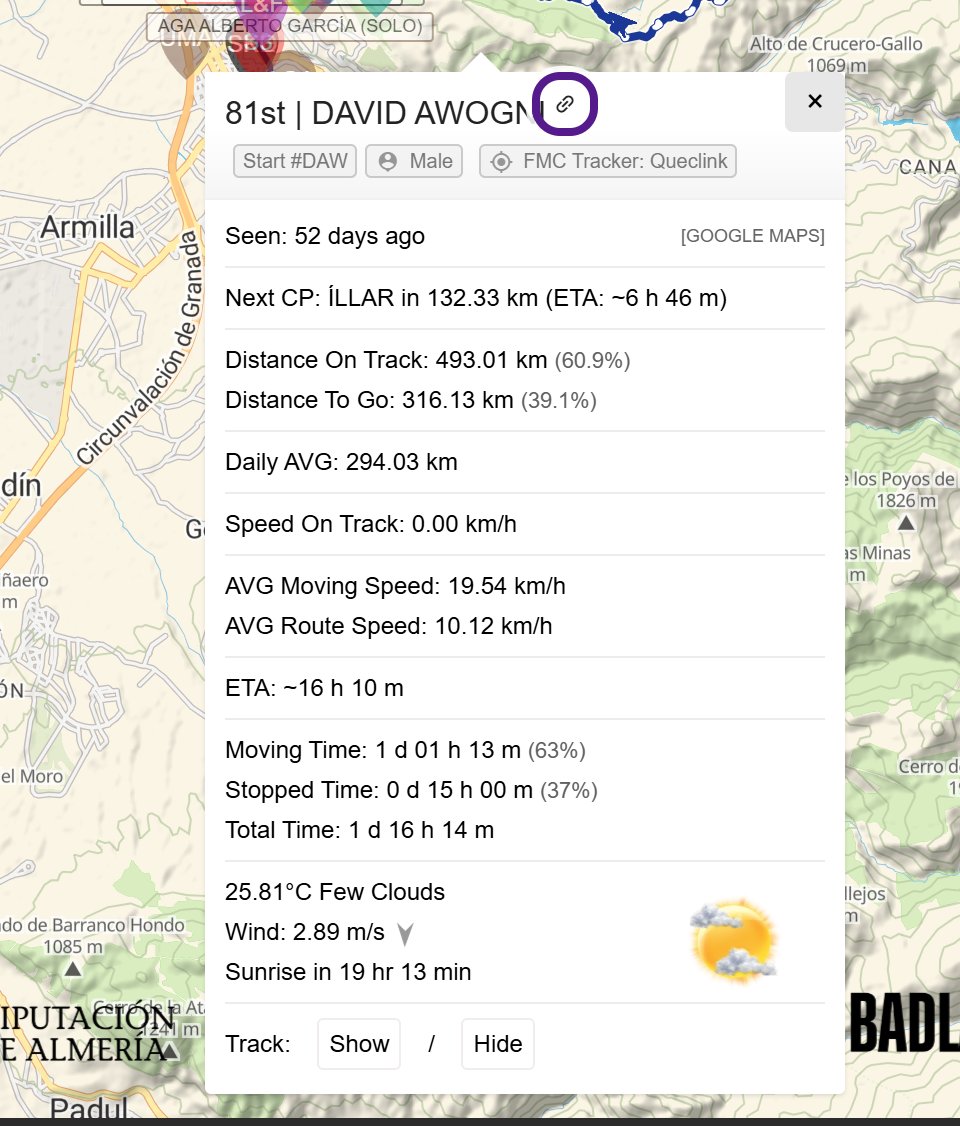
To send family and friends straight to you on the map, copy your participant link. Before the start it sits after your name in the Details panel. Once the event starts it’s in your pop-up. See Sharing a map.
Your participant profile
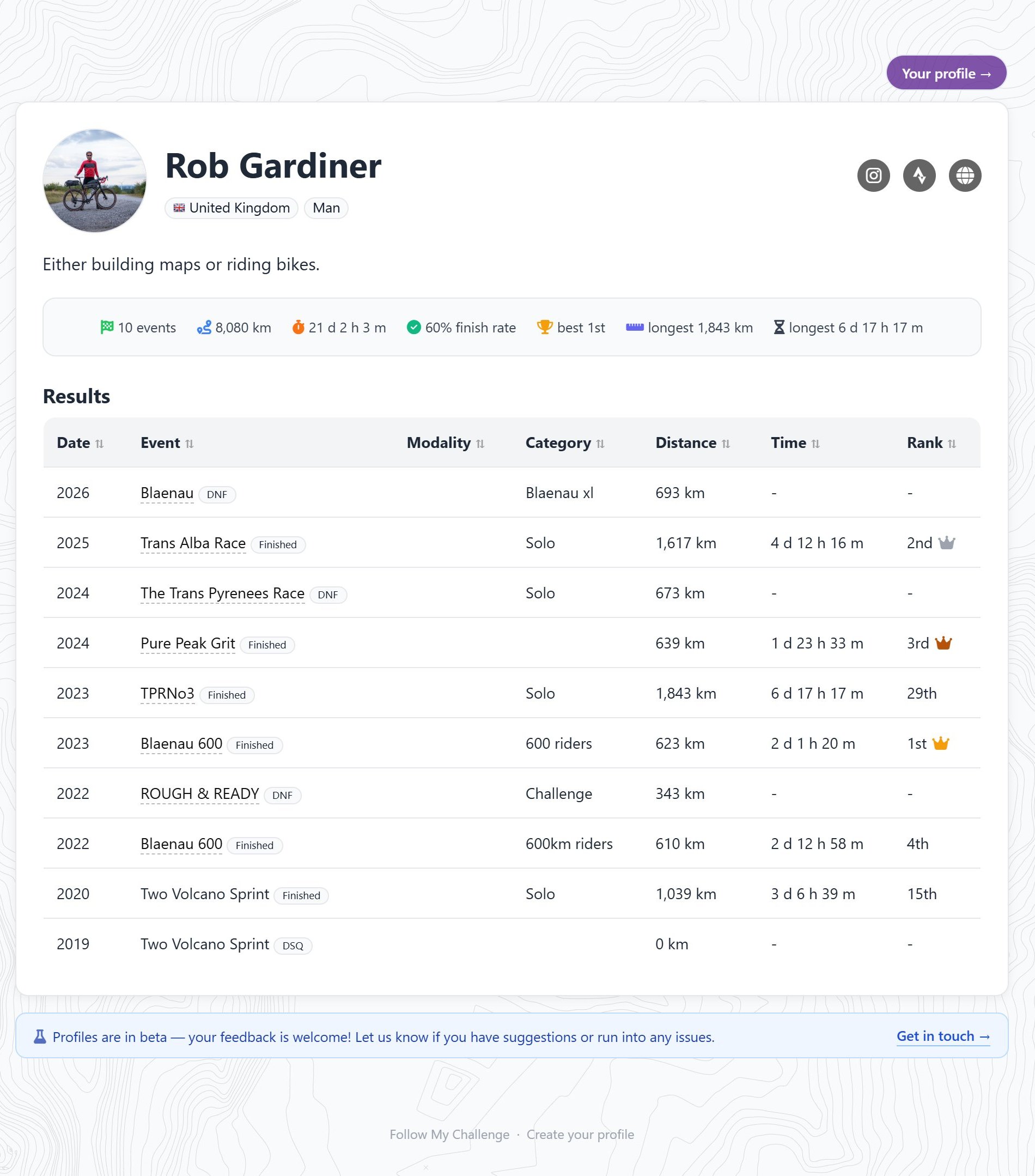
On events with participant profiles, you can claim a profile that collects your Follow My Challenge results in one place. You can add a photo, bio and social links too. Claim it with the email address you entered the event with. Profiles can’t be deleted, but you can hide yours. See Participant Profiles.
Related articles
Last reviewed: October 2026