
Some participants carry a status, such as DNF, and some are given a time penalty. This article explains what each status means, how it affects the ranking, and how penalties show on the map.
The statuses
- DNS: did not start.
- DNF: did not finish. The participant has retired.
- DSQ: disqualified.
- CREW: support crew, media or event staff carrying a tracker. They aren’t competing.
The organiser sets each participant’s status.
How statuses affect the ranking
Depending on the event, participants with a status either get no ranking or are pushed to the bottom of the ranking.
When they’re pushed to the bottom:
- Everyone who finished comes first.
- DNF participants come next, in order of how far they got before they stopped.
- DNS participants usually come last.
On some maps, crew have a category and table of their own. Their place in it doesn’t mean anything. For how positions are decided, see Ranking and Sorting.
Where you’ll see a status
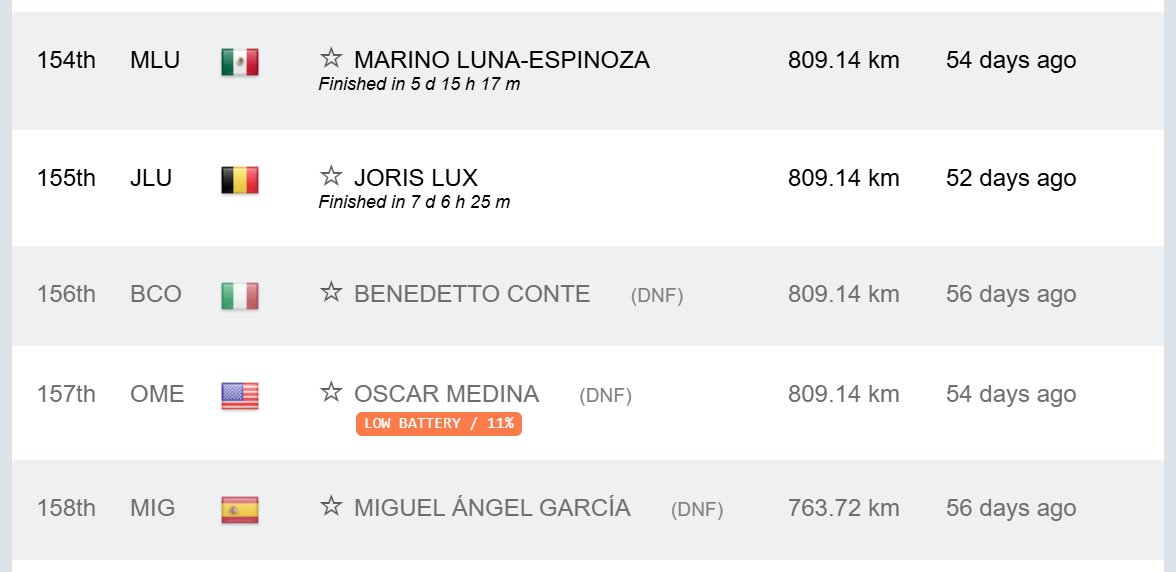
- On the map: the status appears after the participant’s name in their label, for example (DNF). Dots for DNF, DNS and DSQ participants are faded, so they stand out less than the participants still riding.
- Details panel: the status appears after the name in the participant list, and the row is greyed out. DNF participants keep a position. DNS participants and crew show – instead, and DNS participants show DNS where the last report time would be.
- Pop-up: the status appears after the name, for example (DNF) after their position and name. The link icon isn’t shown for participants with a status. See Sharing a map.
- Leaderboard: the status appears after the name in the Name column. They stay in their category’s table, and Result stays blank because they haven’t finished. See Leaderboard.
Hiding participants with a status
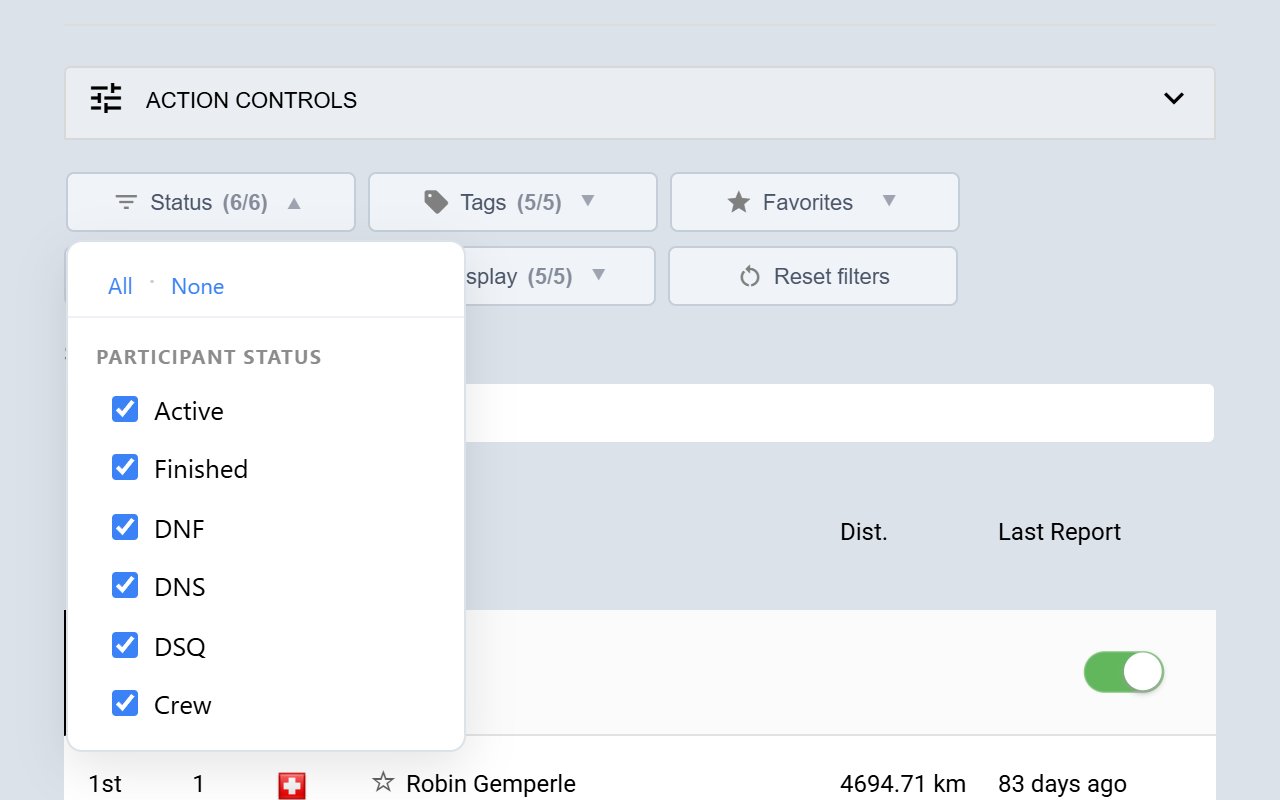
- Live map: open Status in the Filters and untick DNF, DNS, DSQ or Crew.
- Elevation profile: untick Show DNF/DNS/DSQ above the profile to leave them off it. See Elevation Profile.
- Replay: use the DNF, DNS, DSQ and Crew buttons. See Replay Controls.
The Status filter doesn’t change the Leaderboard.
Tracks of participants who retired
When a participant retires, their track can be cut back to their last position on the route. This means:
- Their dot stays where they left the route, not where they went next, such as a station or home.
- Their distance shows how far they got in the event.
- Seen and Last Report show when that last position was sent, so they can be hours or days old.
A DNF dot that hasn’t moved for a long time is normal and isn’t a cause for concern.
Penalties
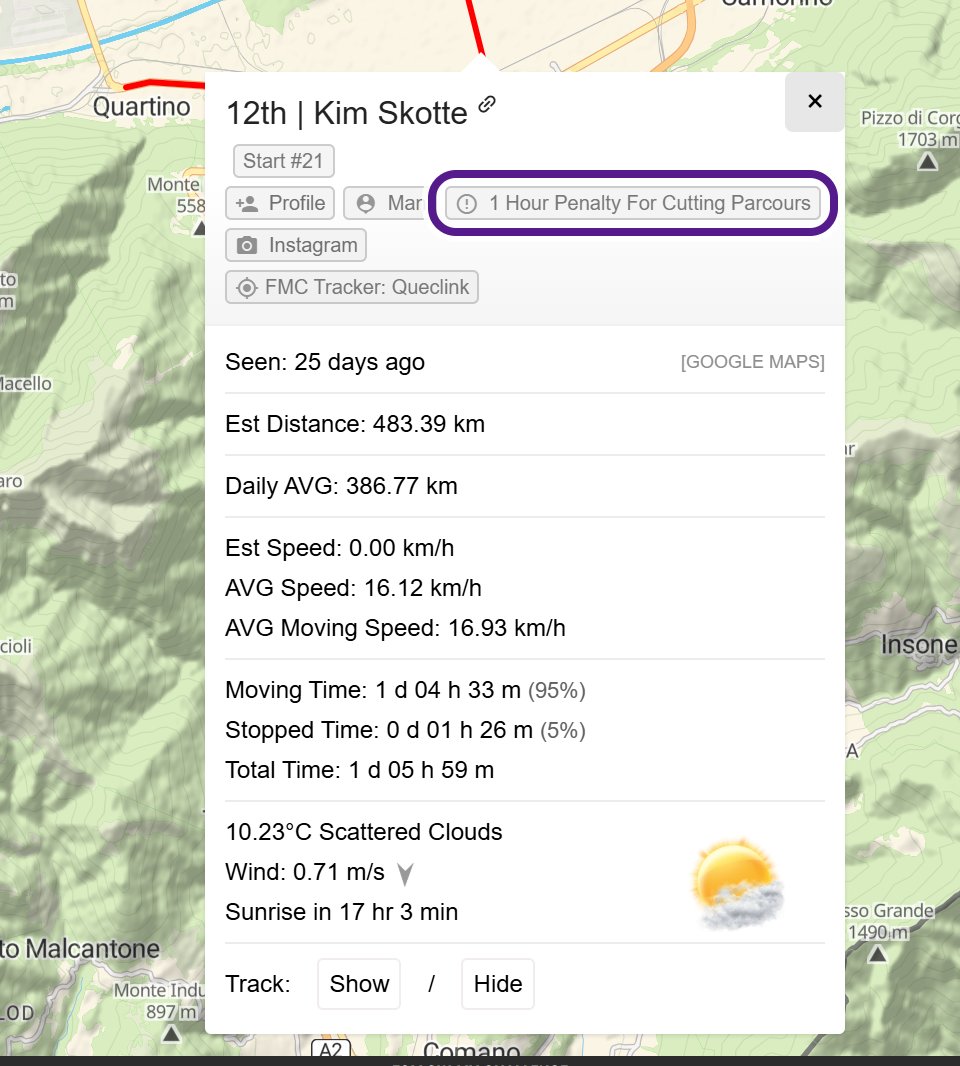
On some events, the organiser gives a participant a time penalty, for example for leaving the route. The reason usually appears as a tag with a warning icon (a circle with an exclamation mark), such as 1 Hour Penalty For Cutting Parcours. You’ll see it:
- under the participant’s name in their pop-up
- on the Tags: line when you expand their row in the Details panel
- in the Leaderboard’s Tags column, on maps that show tags there
Some penalty tags say the penalty will be applied later, for example Penalty Will Be Applied At Finish. Until then, the times on the map don’t include it.
For more about tags, see Participant Tags.
Corrected finish times
Once a penalty has been applied, the participant’s finish time includes it. The penalty tag shows what was added and why.
On events ranked by points, the organiser can adjust a participant’s score in the same way.
If something is missing
- Not every event uses statuses or penalties.
- If you can’t see participants with a status, check that Status in the Filters has every option ticked.
- The organiser decides the official results. If a status or penalty looks wrong, contact the event organiser.
Related articles
Last reviewed: October 2026