
Why can’t I see…? If something on a map looks wrong or seems to be missing, start here. Each answer is short and links to the article with the full detail.
Quick fixes to try first
- Refresh the page. The map updates itself (the NEXT UPDATE countdown at the bottom shows when), but a refresh clears anything that has got stuck. On phones and tablets, battery saver or low power mode can stop the map updating by itself, especially when the page is in the background. That’s controlled by your device, not the map, so refresh to catch up.
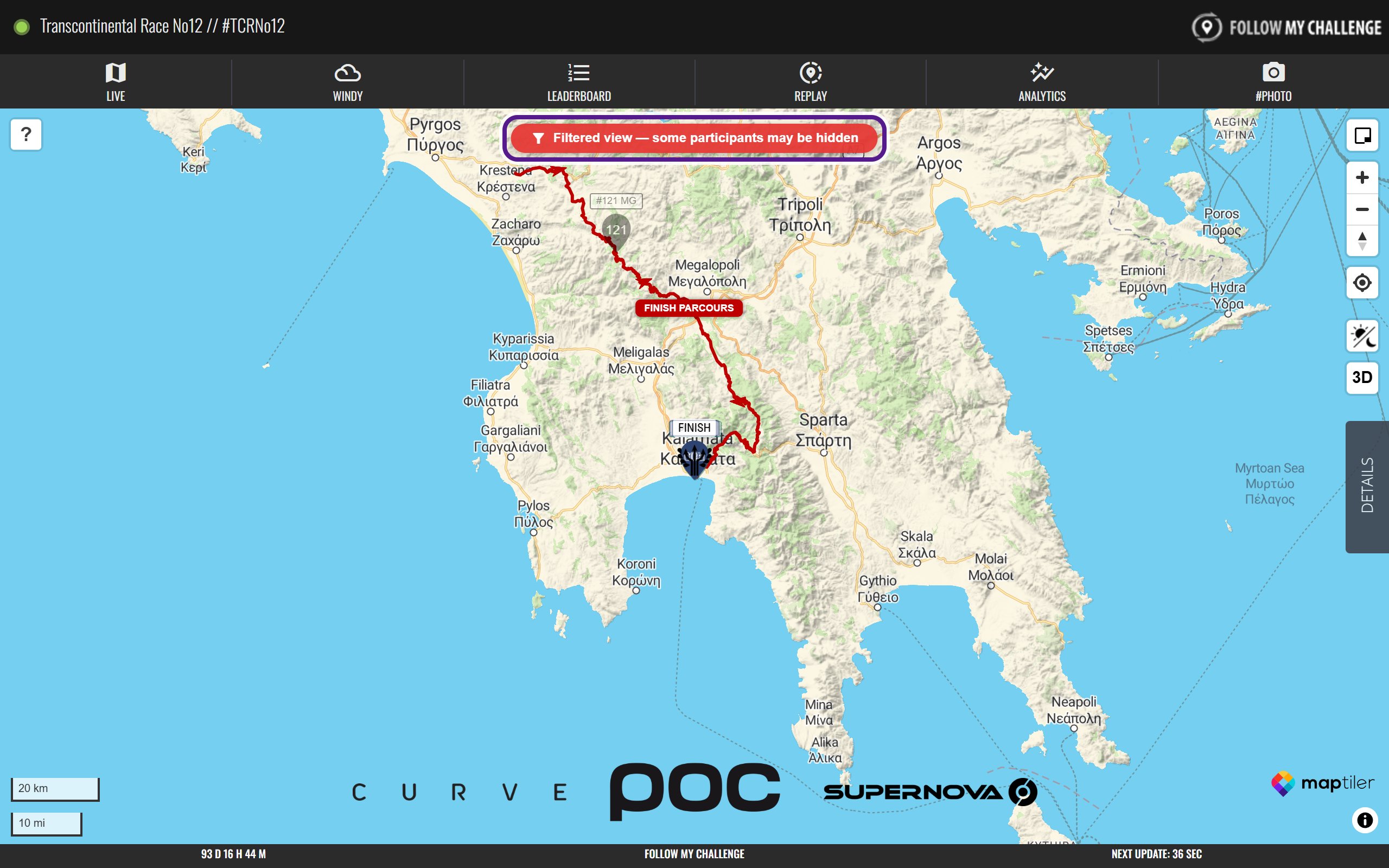
- Check your filters. When a filter is on, or a category is switched off, a red Filtered view — some participants may be hidden notice appears at the top of the map. Click it, then click Yes to show everything again. You can also click Reset filters in the Details panel. See Filters.
- Try Minimal Mode on a weak mobile signal or an older device. Click DETAILS, open ACTION CONTROLS, and under MAP MODE click MINIMAL MODE. See Action Controls.
- Check the event has started. Before the start, participants are listed as Ready to start and there’s no tracking data yet.
- Try another browser if the map still won’t load.
Why won’t the map load?
If the map is slow to appear, you may see The live map is taking longer than usual to load. Tap reload to try again. Click Reload. This usually happens on a slow connection.
If you see a message about WebGL2, your device or browser can’t draw the live map. Try a different or updated browser. The Leaderboard and the other tabs still work.
Why is a participant’s dot faded?
A dot fades when the map hasn’t had a new position from that participant for about an hour. Usually they’ve stopped to rest or sleep. It can also mean they’re out of signal, or there’s a problem with their tracker. The dot goes back to full colour when a new position arrives.
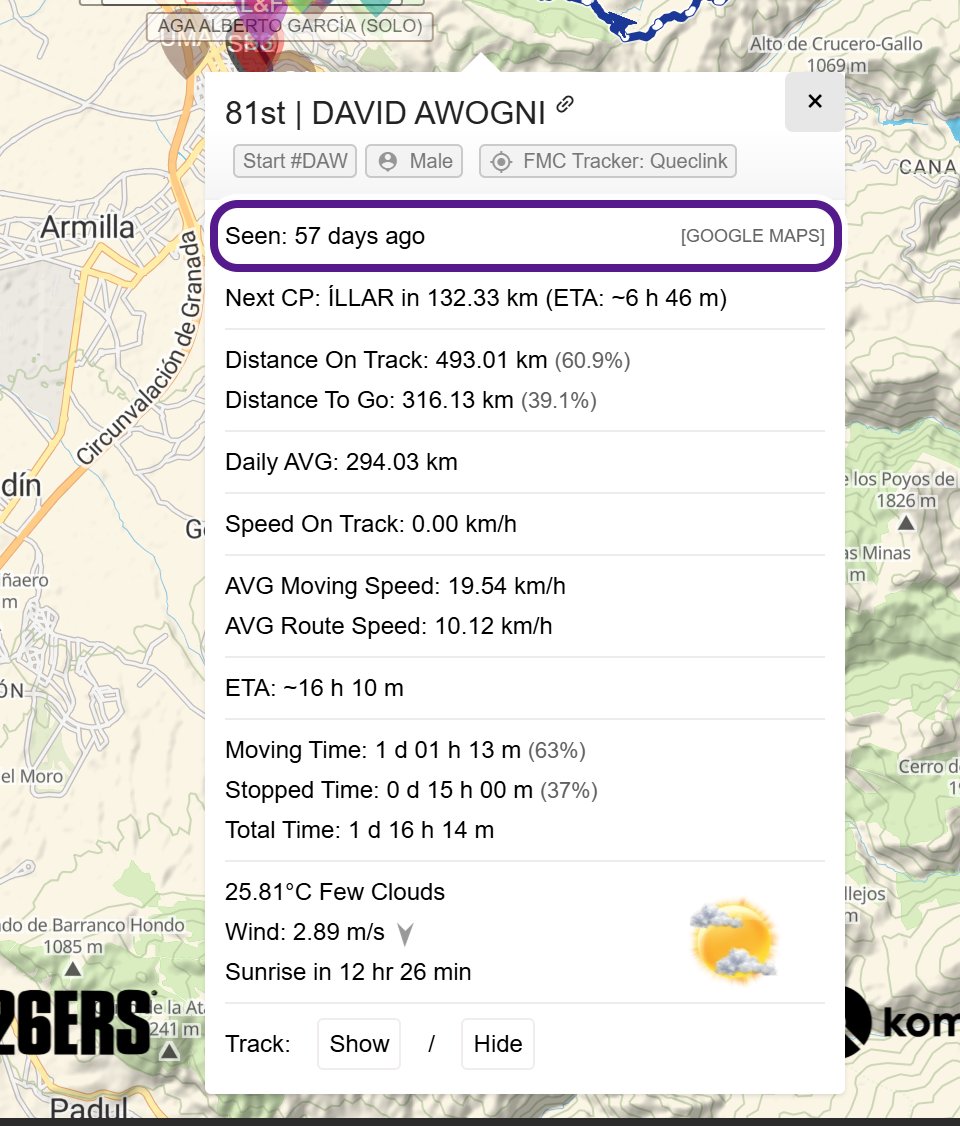
To see how long it’s been, check Seen in their pop-up or Last Report in the Details panel. Participants with a status, such as DNF or DNS, are faded even more. See Participant Dots.
Why isn’t a dot moving?
Trackers don’t send a constant stream. They send a position at set intervals, often every few minutes, and the dot stays put in between. Longer gaps can mean:
- they’ve stopped
- they’re somewhere with no signal, such as mountains or forest
- their tracker is buried in a bag, or its battery is low
- they’ve retired: a DNF participant stays on the map, but their dot stops updating
Check Batt in their pop-up, or look for a Low Battery label under their name in the participant list.
Why is a participant shown off the route?
- GPS drift. A tracker’s position is only accurate to within a few metres, and now and then a single point lands well away from where the participant really is, for example between tall buildings, in a deep valley or under thick trees. One stray point is usually drift, not a detour.
- A detour. They may have left the route for food, a bed, a road closure or a wrong turn. Detours don’t add to their distance.
- Far from the route. If they’re more than about a kilometre away (further on some events), their pop-up shows Est Distance instead of Distance On Track, and an Off Track label may appear under their name in the participant list.
- Free-route events. There’s no fixed route, so participants choose their own way between checkpoints. Any lines on the map are there for reference.
See Routes.
Why can’t I see a participant?
- They’re off screen. Type their name or number into the search box in the Details panel. See Finding a Participant.
- A filter is hiding them. Look for the red Filtered view notice. Check whether you’ve switched off their category, or ticked Show only favorites.
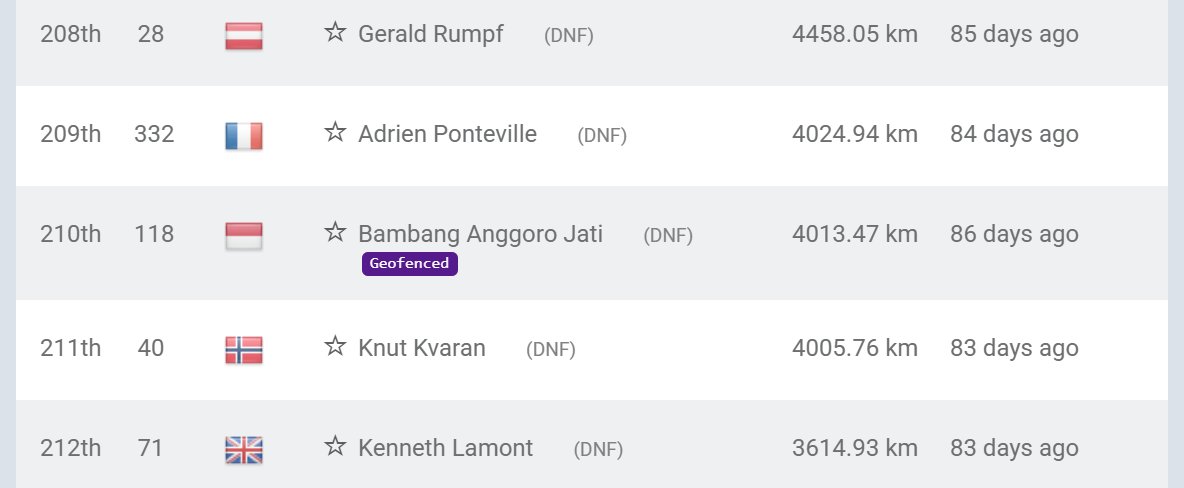
- They’re geofenced. Geofenced shows by their name, and the map shows their last position outside the geofenced area. See Geofenced Participants.
- The map is on a delay. Some events show positions a while after they’re sent. This is rarely used, and there’s usually a note on the map saying it’s on.
- The organiser has removed them. If the organiser makes a participant inactive or invisible, they’re removed from every part of the public map, including the participant list and the Leaderboard.
Why can’t I see the route or a checkpoint?
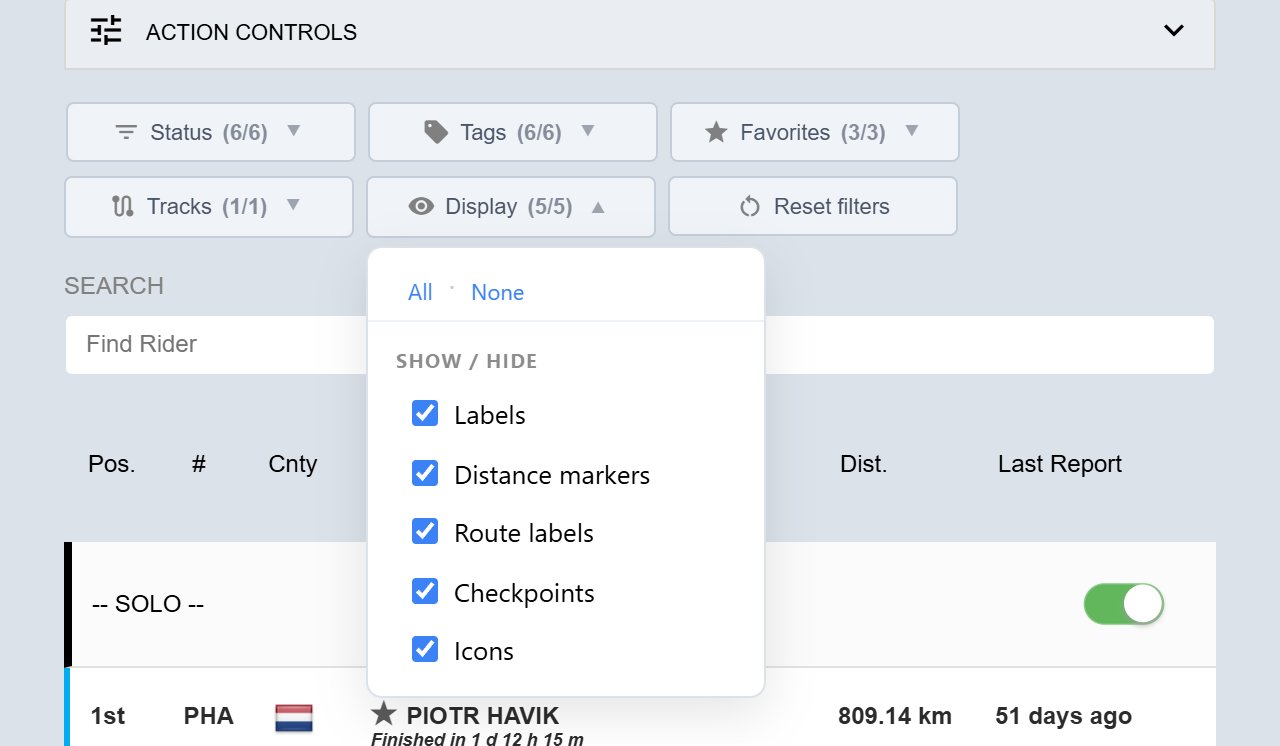
- Filters. Check Tracks and Display in the Filters. The route, distance markers or checkpoints may be unticked.
- Free-route events usually have no route. Tracks shows No routes loaded.
- Not shown yet. On some events, the route or a checkpoint only appears from a set time, or the route is revealed section by section as participants progress.
- Hidden checkpoints. Some checkpoints aren’t shown on the map, but arrival times are still recorded. You’ll find them on the Leaderboard and under ✓ CHECKPOINTS in a participant’s expanded row.
See Routes and Checkpoints.
Why do the rankings look wrong?
- The ranking method. Not every event ranks by distance. On some events, positions only change at checkpoints, so someone can be ahead on the map but behind on the Leaderboard. Others rank by average speed, stage times or points. See Ranking and Sorting.
- Estimated distances. On free-route events, and when someone is off the route, distances are estimates, marked *.
- Statuses. Participants marked DNF, DNS, DSQ or CREW either get no ranking or get pushed to the bottom of the ranking, depending on the event.
- Penalties. On some events, a participant’s position can change because of a penalty.
- Categories. Each Leaderboard table ranks one category, so positions are within that category.
- Filters don’t apply. The Details panel filters change the map, not the Leaderboard.
Why is a tab missing?
- The organiser has hidden it. Not every event uses every tab, so a map may have no #PHOTO, ANALYTICS or LEADERBOARD tab. Some events hide the rankings.
- You’re viewing the map on an event website. Maps shown inside an event’s own website may have no header, footer or tabs. Click Go Fullscreen to open the full map.
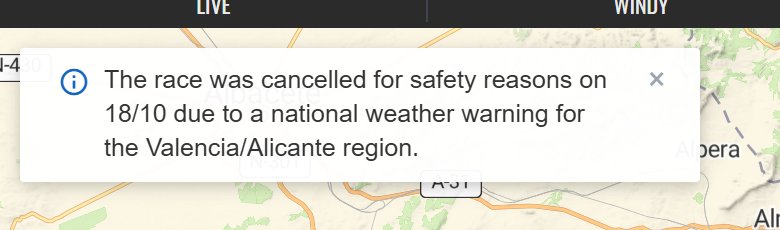
Check the top left of the map for an Event Notice explaining anything unusual.
Still stuck?
The ? button on the map opens this support site. If you can’t find an answer, use Get in touch at the bottom of any page on this site. Tell us:
- which map you’re looking at
- which participant it’s about, if any
- what you expected to see
- your device and browser
Questions about an event’s rules, penalties or statuses are best sent to the organiser.
Related articles
Last reviewed: October 2026