
Map layers change the base map under the participants and routes, for example from a street map to satellite imagery.
Changing the map layer
- Click or tap DETAILS on the right-hand edge of the Live map.
- If the tools are hidden, click the ACTION CONTROLS bar to open it.
- Under MAP LAYERS:, click a layer. The map switches straight away. Participants, routes and checkpoints stay on top.
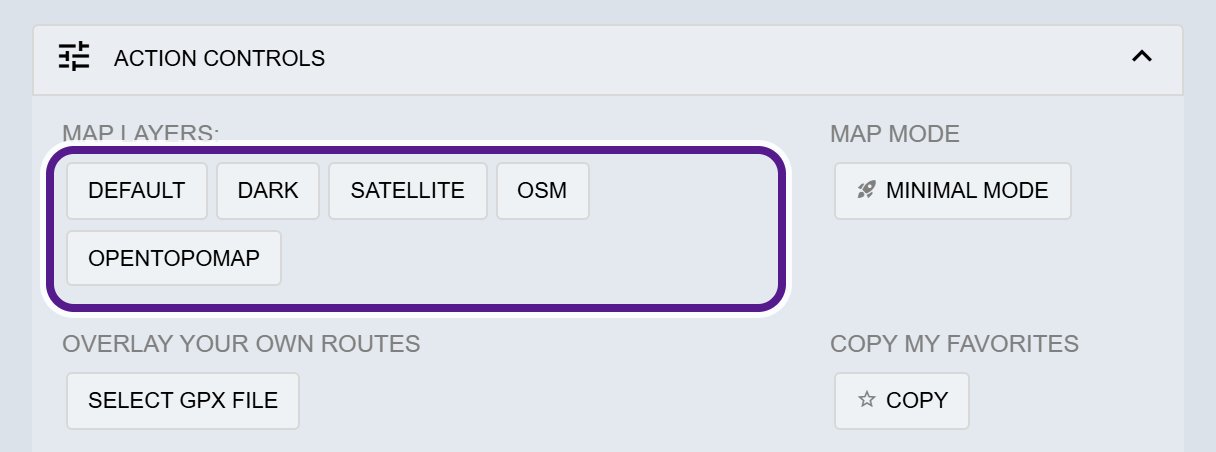
The layers
- DEFAULT: a detailed MapTiler map with roads, place names and hill shading. This is what most maps open on.
- DARK: a dark version of the default map. It’s easier on the eyes at night and makes bright dots and routes stand out.
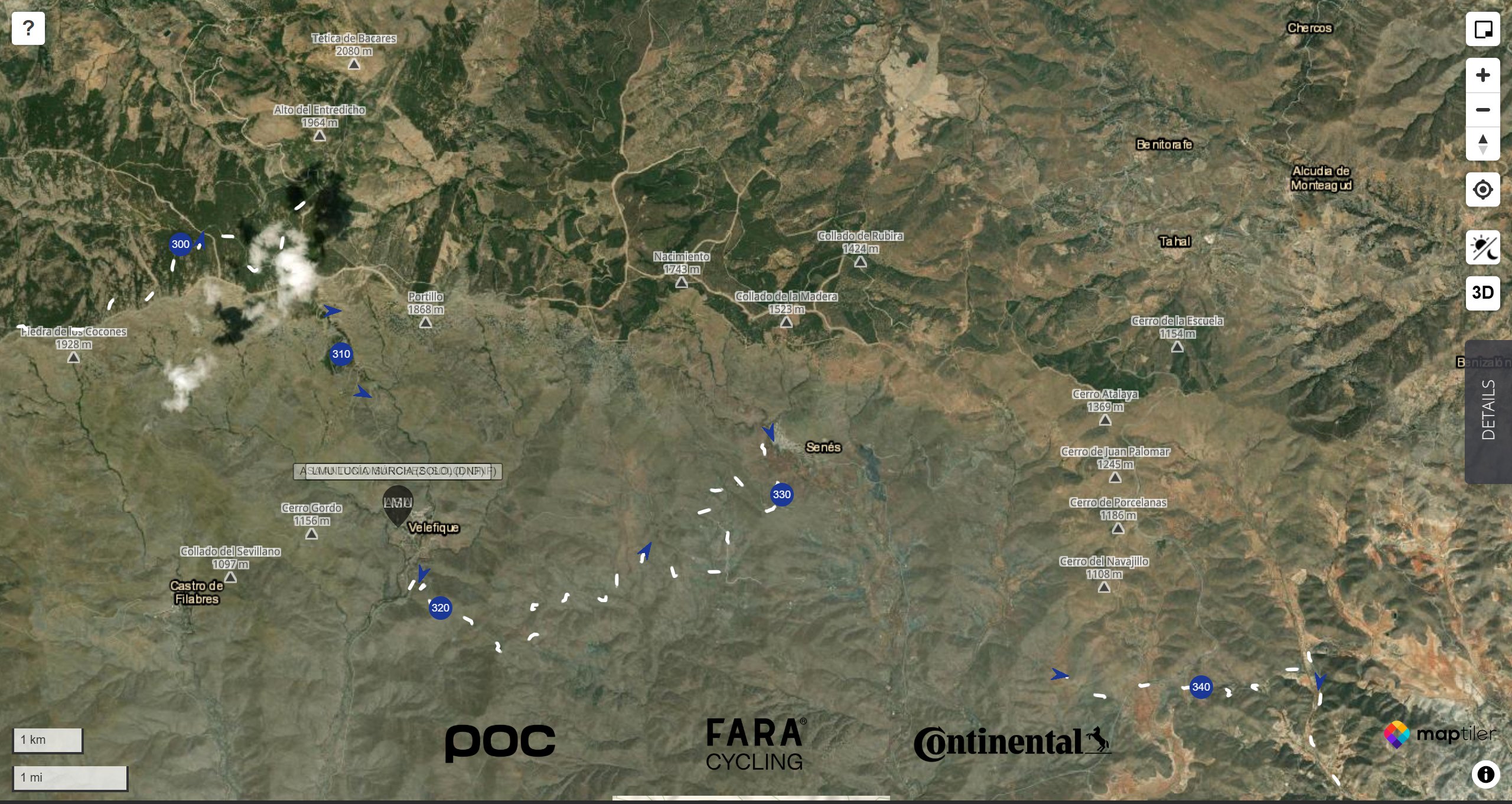
- SATELLITE: aerial imagery, with place names and borders on top. Good for seeing terrain, forest and towns.
- OSM: the standard OpenStreetMap map. It shows lots of detail, such as paths, shops and campsites.
- OPENTOPOMAP: a topographic map with contour lines, based on OpenStreetMap. Useful in hills and mountains.
Extra layers on a few events
A few events add an extra layer of their own. This is rare, and almost always a New Zealand event using NZ Topo, the official New Zealand topographic map. Extra layers show up as more buttons under MAP LAYERS:.
When it might not appear
- Some maps open on a different layer chosen by the organiser. You can still switch.
- ACTION CONTROLS can start closed, and always does on a phone or small screen. Click or tap it to open.
- Minimal Mode always uses the plain OpenStreetMap map, and you can’t change the layer there.
Related articles
Last reviewed: October 2026