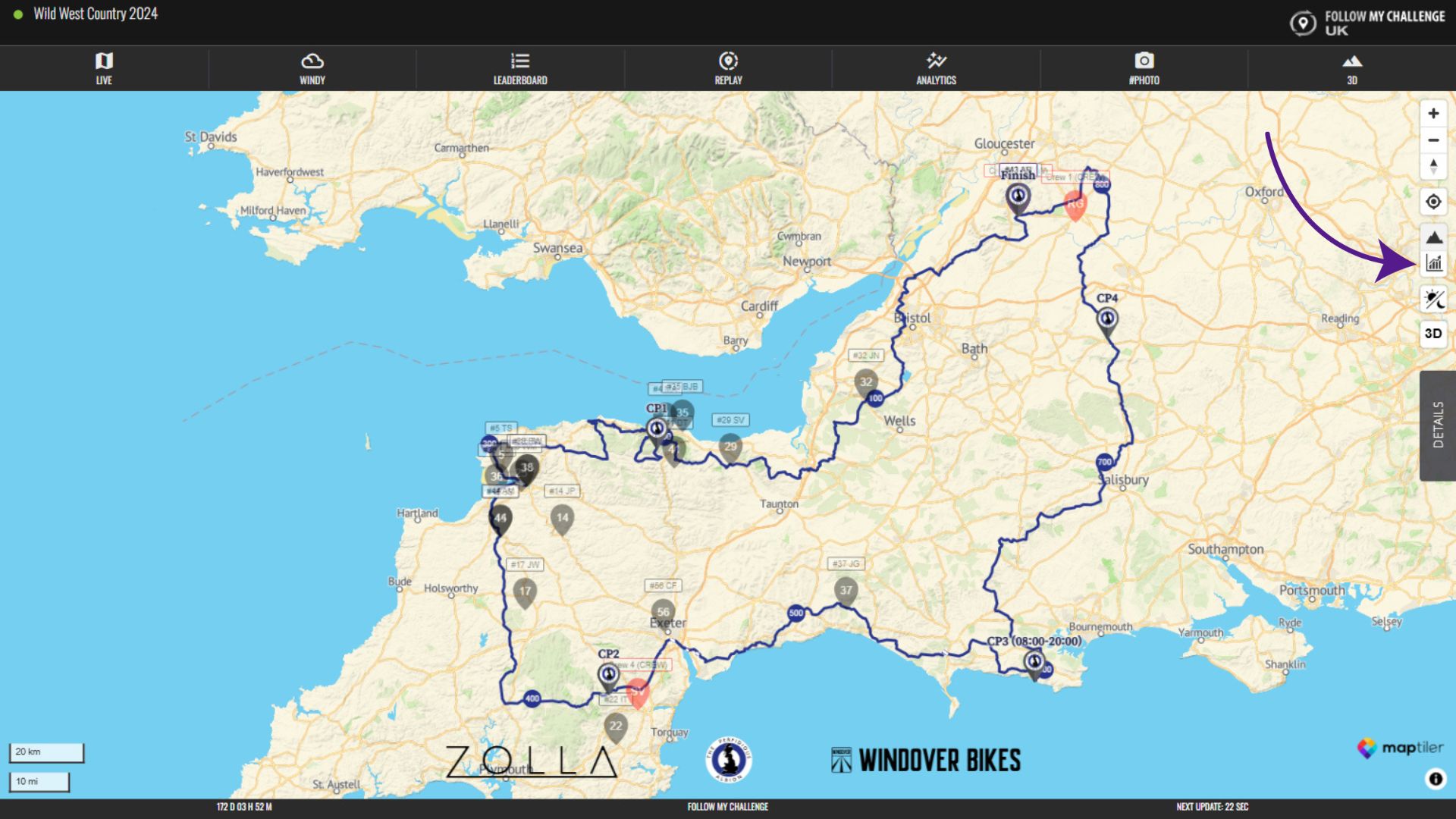
If a map has a pre-loaded route, you can display the elevation profile of the route by clicking on the profile/chart button in the top right of the screen.
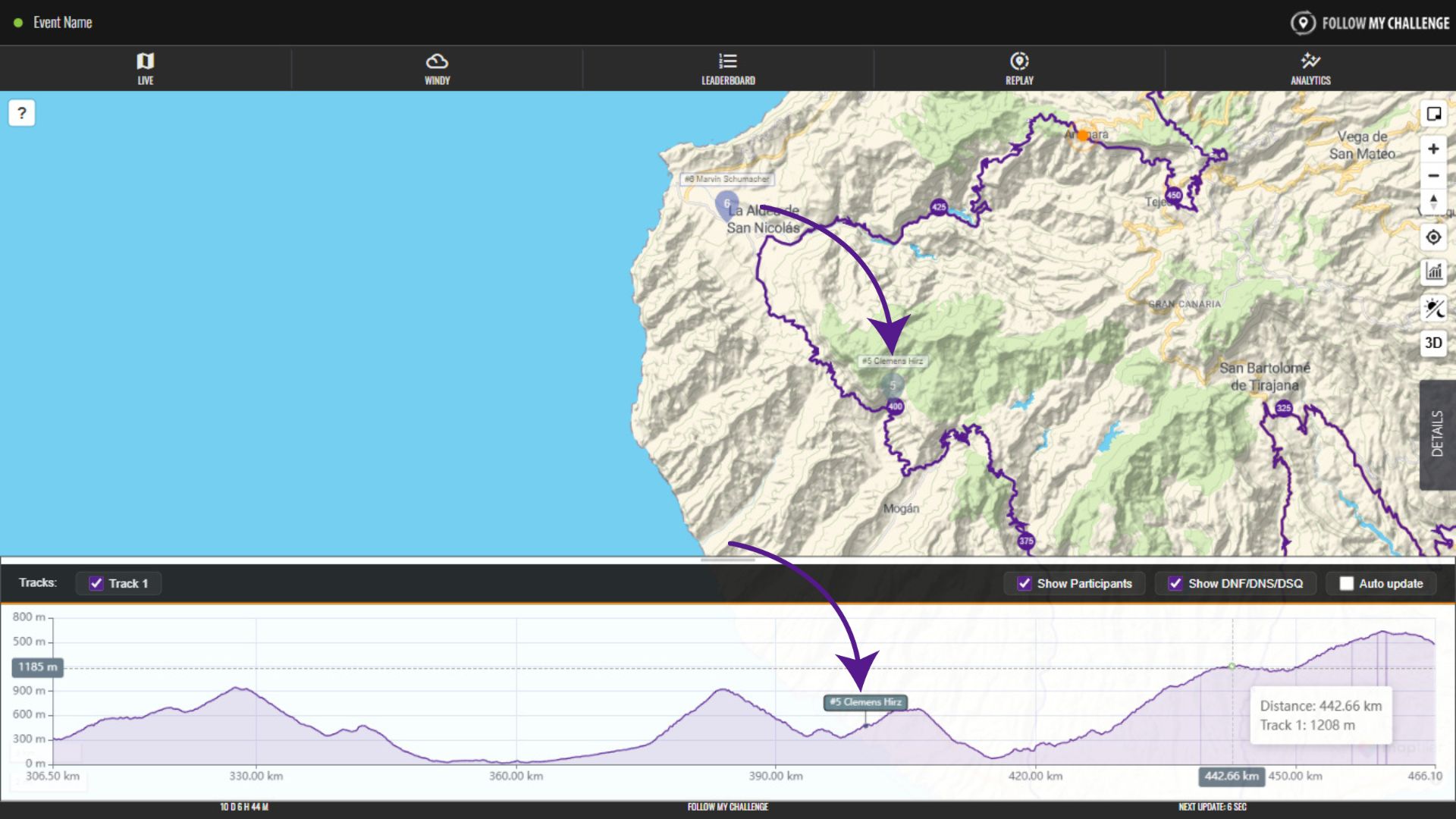
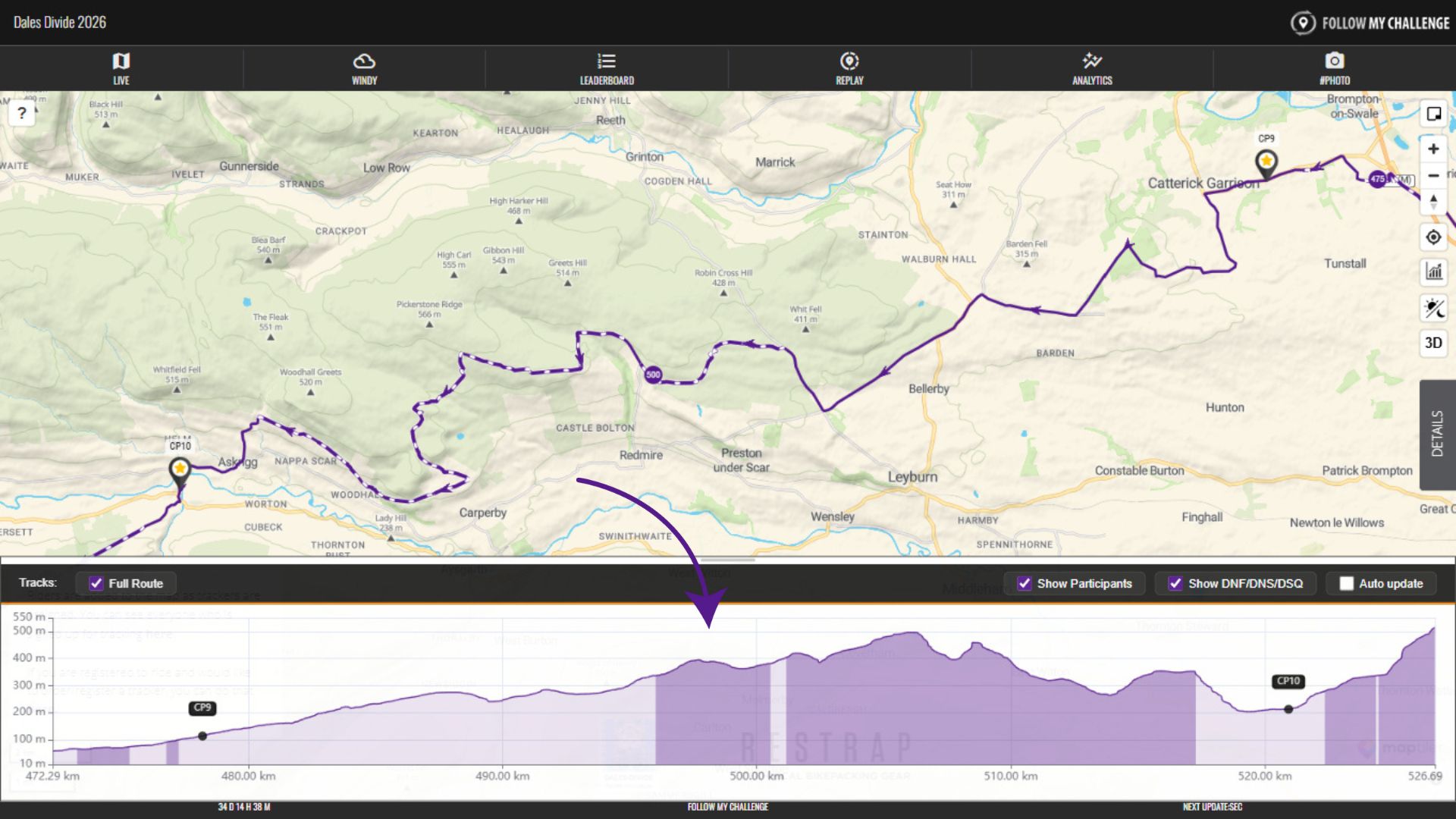
When you do this, it will display the elevation profile at the bottom of the map. This will always display the part of the route that is currently visible, so you can zoom in and out to adjust.
If the route has unpaved sections, these will display in the profile with lighter shading beneath. Checkpoint locations will also be visible, accompanied by their labels. If multiple routes are displayed, you can used the checkboxes to show/hide the routes.
Participants who are visible on the route will also be displayed on the elevation profile, with the colour matching their dot. And you can click or hover over any point on the profile and the location will be displayed on the track, also showing the elevation and distance next to it.